Connect an EBIC export to pgAdmin
pgAdmin is a powerful interface for writing and testing SQL queries against your EBIC export database. Use this guide to connect pgAdmin to your EBIC export, then run queries to troubleshoot data or explore your database structure.
Gather your connection details
First, you'll need the connection details from your EBIC export in Evergiving.
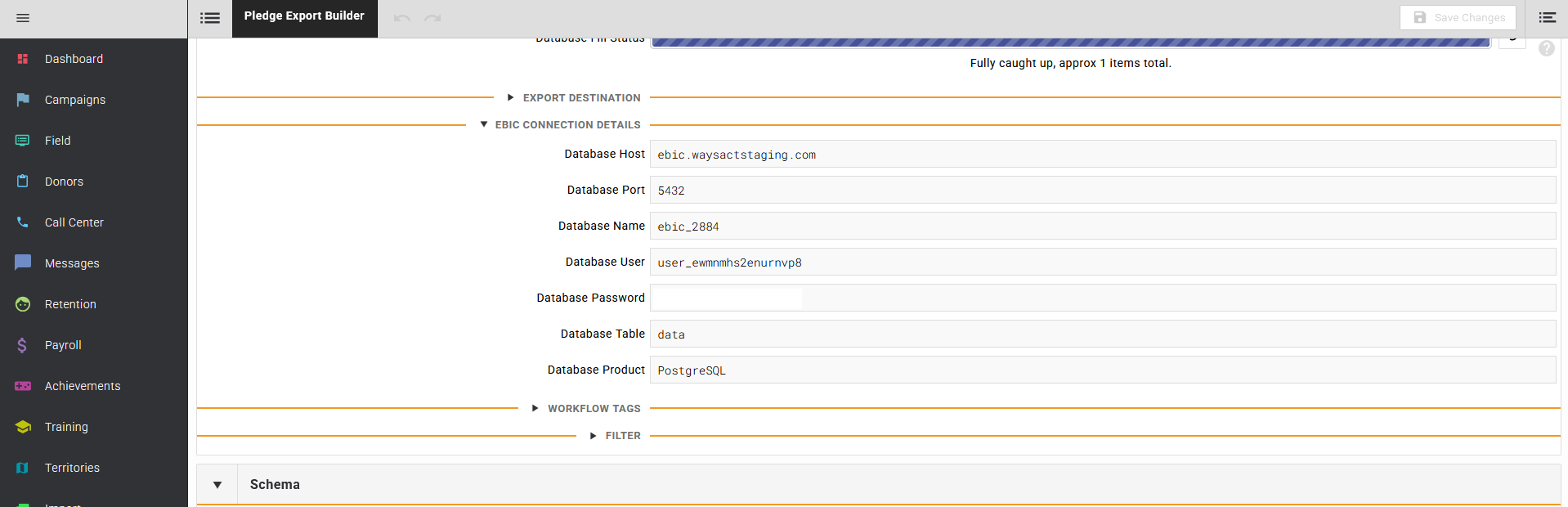
- In Evergiving, navigate to your EBIC export
- Scroll to EBIC CONNECTION DETAILS
-
Note the following values — you'll use them in pgAdmin:
-
Database Host
- Database Port
- Database Name
- Database User
- Database Password
Register the server in pgAdmin
Now you'll add this connection to pgAdmin.
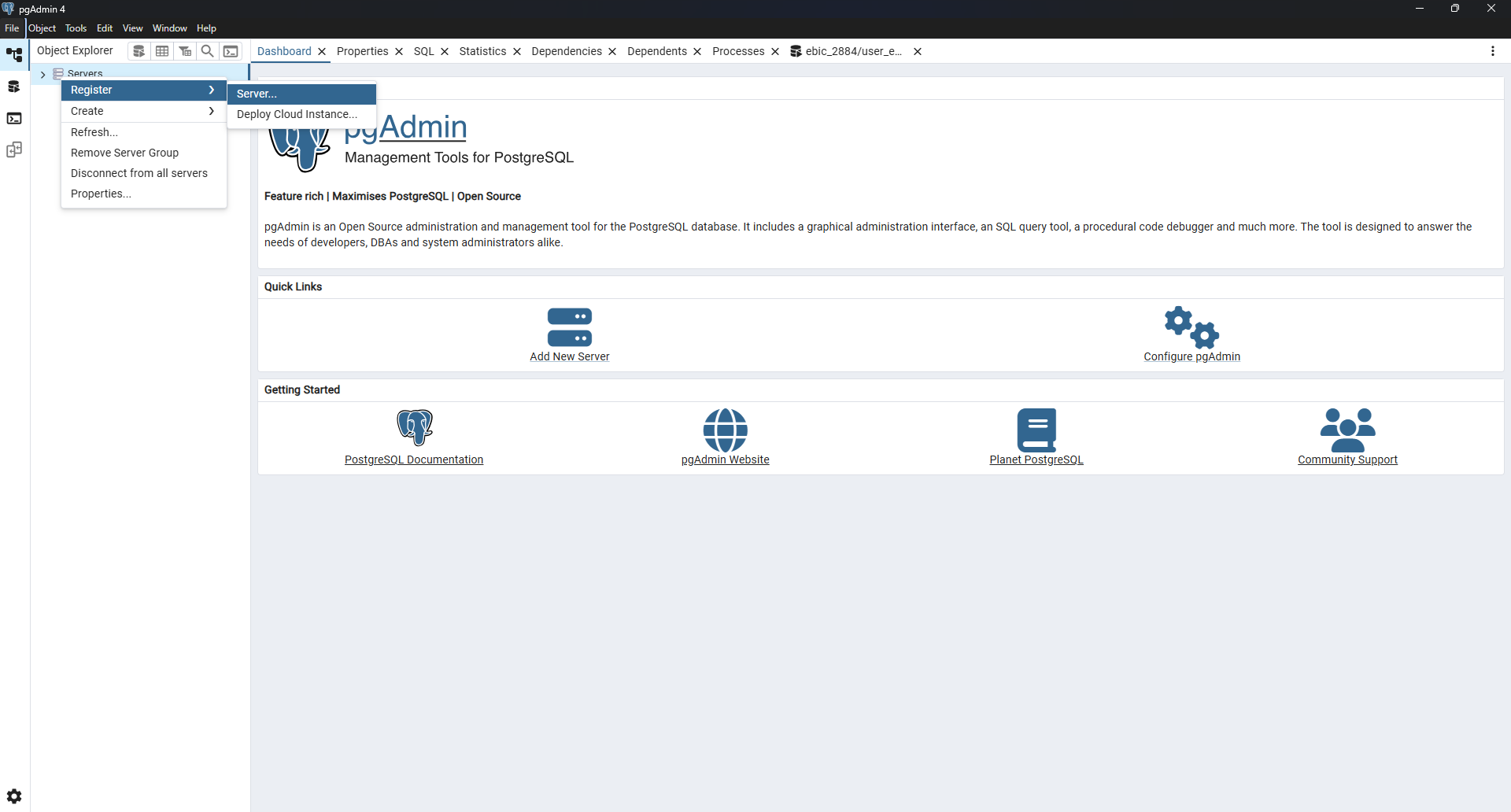
- Open pgAdmin
- Right-click Servers in the left panel
- Select Register > Server...
- In the General tab, enter a Name for this connection (e.g., the database host name)
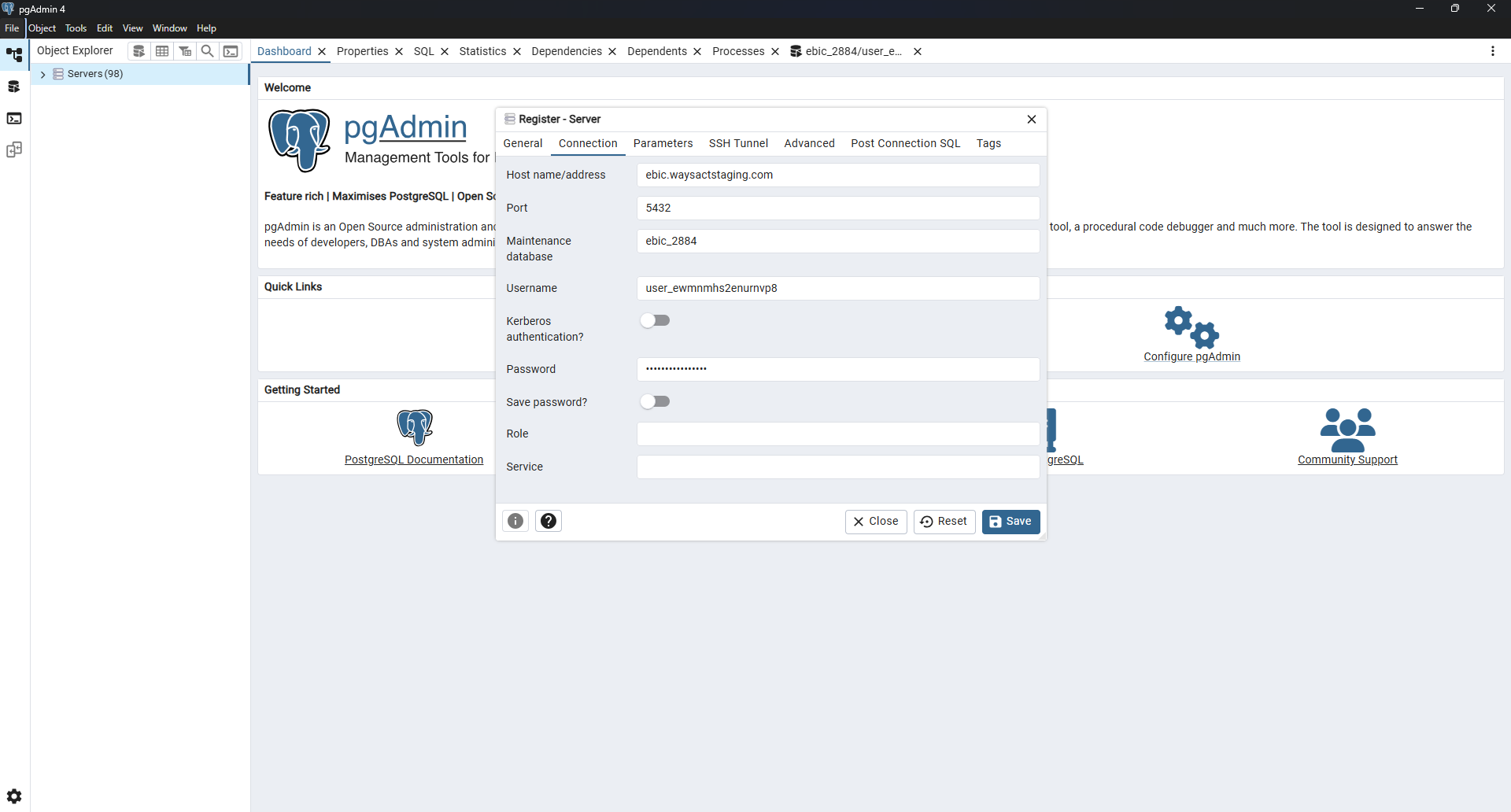
- Click the Connection tab
-
Fill in the connection fields:
-
Host name/address — Enter the database host
- Port — Enter
5432 - Maintenance database — Enter the database name
- Username — Enter the database user
-
Password — Enter the database password from Evergiving
-
Click Save
Open Query Tool and test your connection
Once the connection is saved, you can open the query editor to test it.
- In the left panel under Servers, find and expand your newly registered connection
- Expand Databases, then find the database that matches your database name from Evergiving
- Right-click that database and select Query Tool
- In the query editor, enter a test query (e.g.,
SELECT * FROM data;) - Click the execute button (or press Ctrl+Enter) to run the query
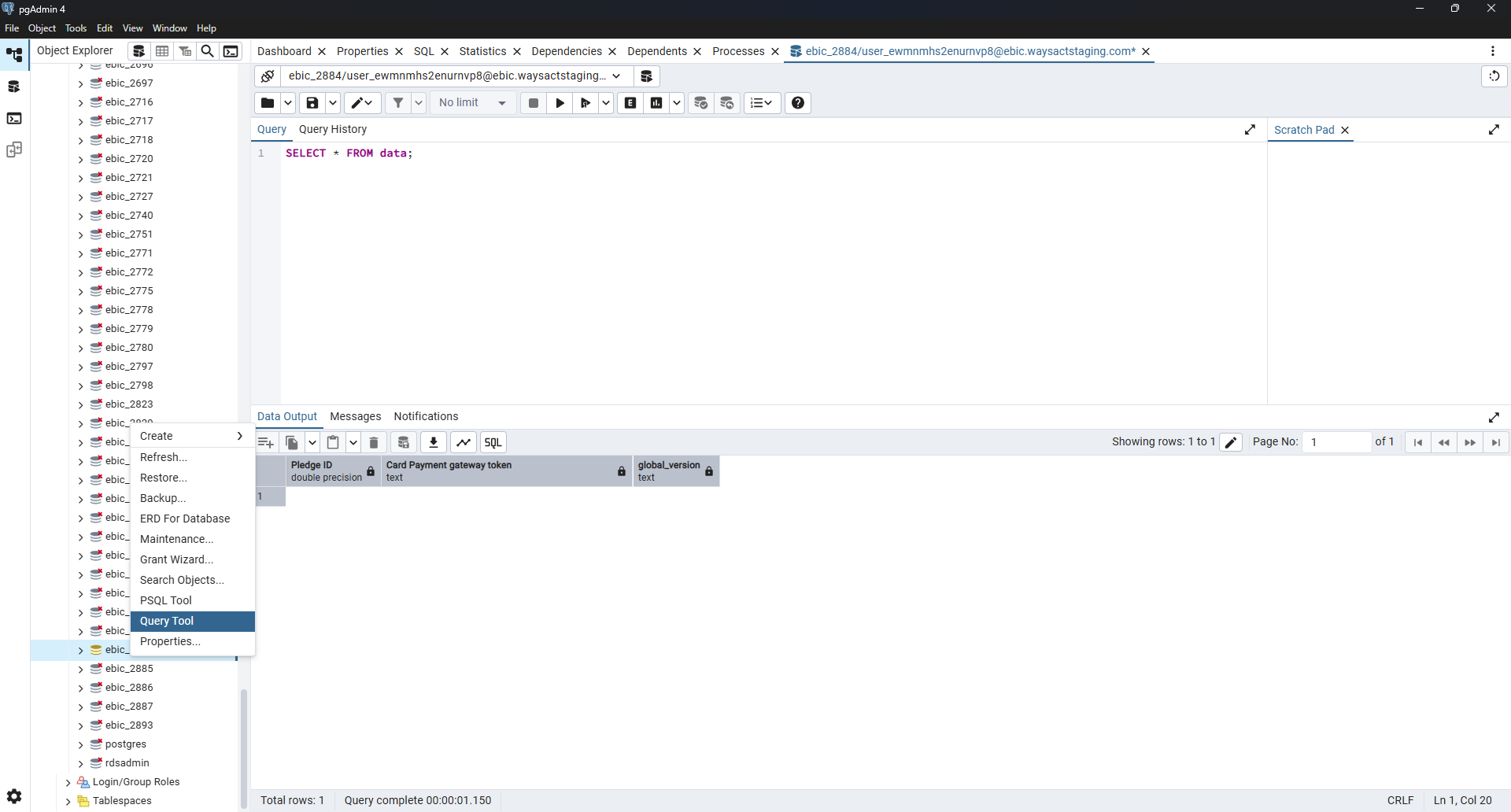
If the query runs without errors, your connection is working. You can now write your own queries to troubleshoot your data and explore your database structure.
Tip
Save queries you run frequently by using the Scratch Pad tab in pgAdmin. This makes it easy to re-run them later without retyping.