Monitor vCard Sharing
Once your vCard is configured and live, Evergiving gives you several ways to see whether donors are scanning and saving it. This guide covers the three main places to check: the fundraiser's digital form, the Donors section, and your dashboards.
The QR Code Status Icon
In the details of each pledge, in the Donor section of Evergiving, a QR code icon appears in the toolbar at the top of each pledge. Its colour tells you the current vCard status for that donor at a glance.
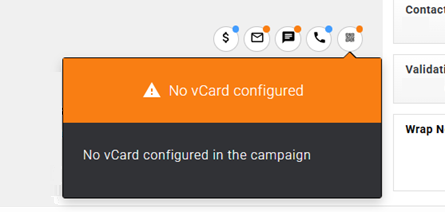
No vCard configured
If no vCard has been set up for the campaign, the icon appears with an orange warning badge. Tapping it shows the message: "No vCard configured in the campaign."
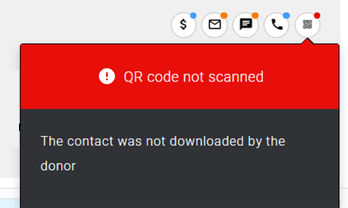
QR code not scanned
If a vCard is configured but the donor has not scanned it, the icon appears with a red badge. Tapping it shows the message: "The contact was not downloaded by the donor."
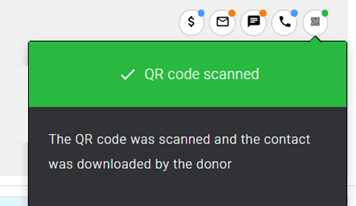
QR code scanned
If the donor has scanned and downloaded the vCard, the icon turns green. Tapping it confirms: "The QR code was scanned and the contact was downloaded by the donor."
Warning
Once the vCard is downloaded, the donor still need to Save the Contact. This can require a couple of steps depending on the device and the OS. Therefore a downloaded contact doesn't necessarily mean a saved contact
Filtering pledges by vCard status
You can filter pledges by vCard sharing status from the Donors section.
Go to Donors > Pledges. Open the filter panel and add the vCard Shared? condition. Set the operator to is and choose either Shared or Not Shared from the Value dropdown, then apply the filter.
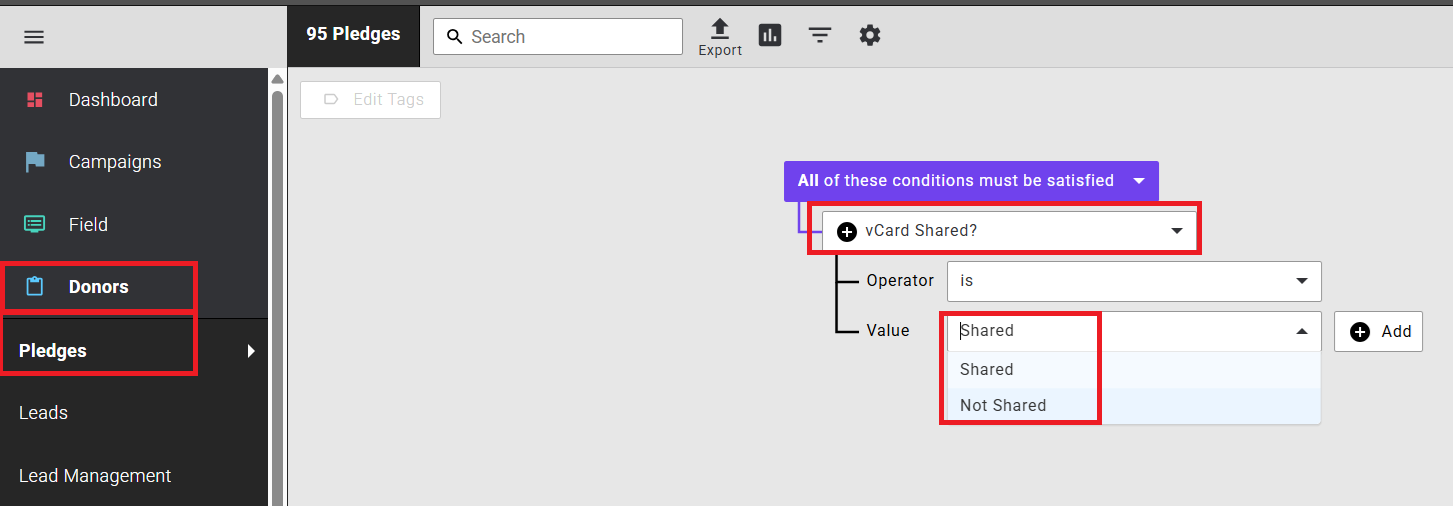
This gives you a list of pledges where the vCard was or was not shared, which is useful for identifying donors to prioritise during welcome calling.
Export builder
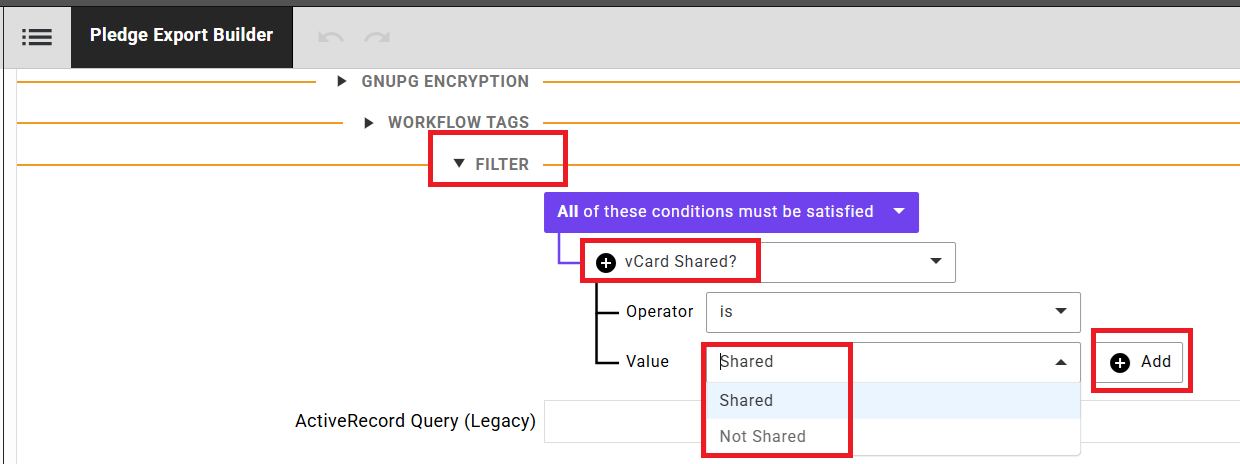
The same vCard Shared? filter is available in the Pledge Export Builder, so you can include or exclude vCard sharing status in your exports.
Go to Donors > Pledges, select Export, and open the Filter section. Add the vCard Shared? condition, set the operator and value, and run the export.
Dashboards
The vCard Shared? filter is also available on your dashboards, so you can track sharing rates over time.
Go to Dashboard > My Dashboards and open the relevant dashboard. Add the vCard Shared? condition to the filter panel, set the operator to is, and select Shared or Not Shared.
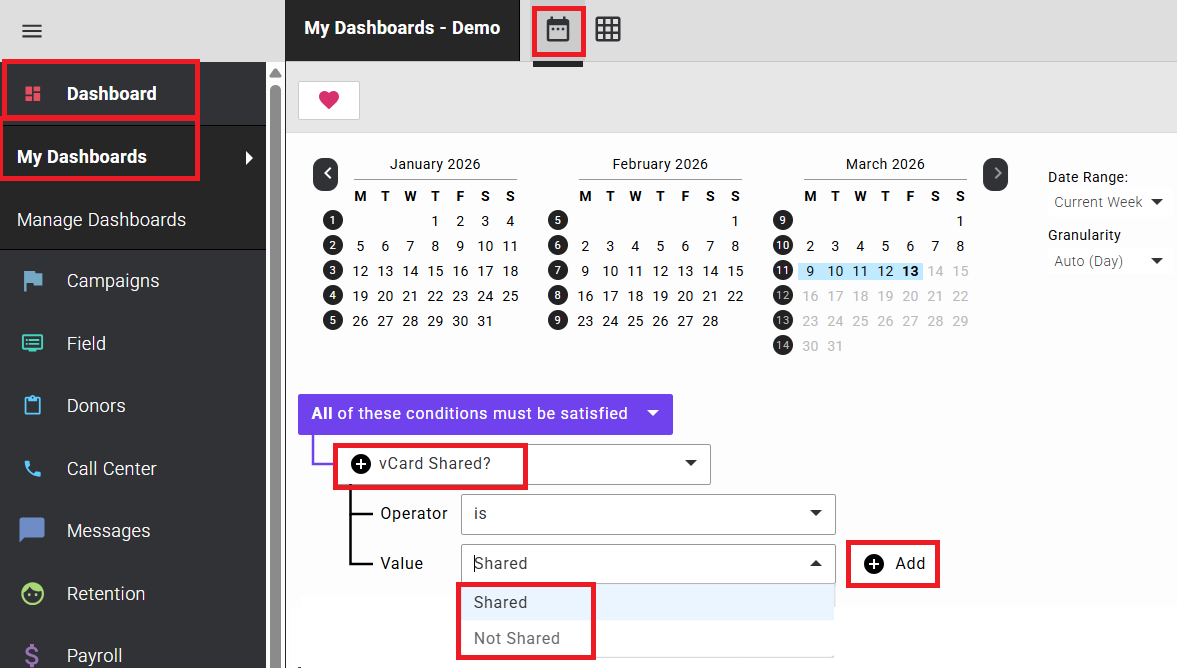
This is particularly useful for monitoring uptake across a campaign and for spotting trends — for example, whether sharing rates improve as fundraisers become more familiar with the process.