Agent logs
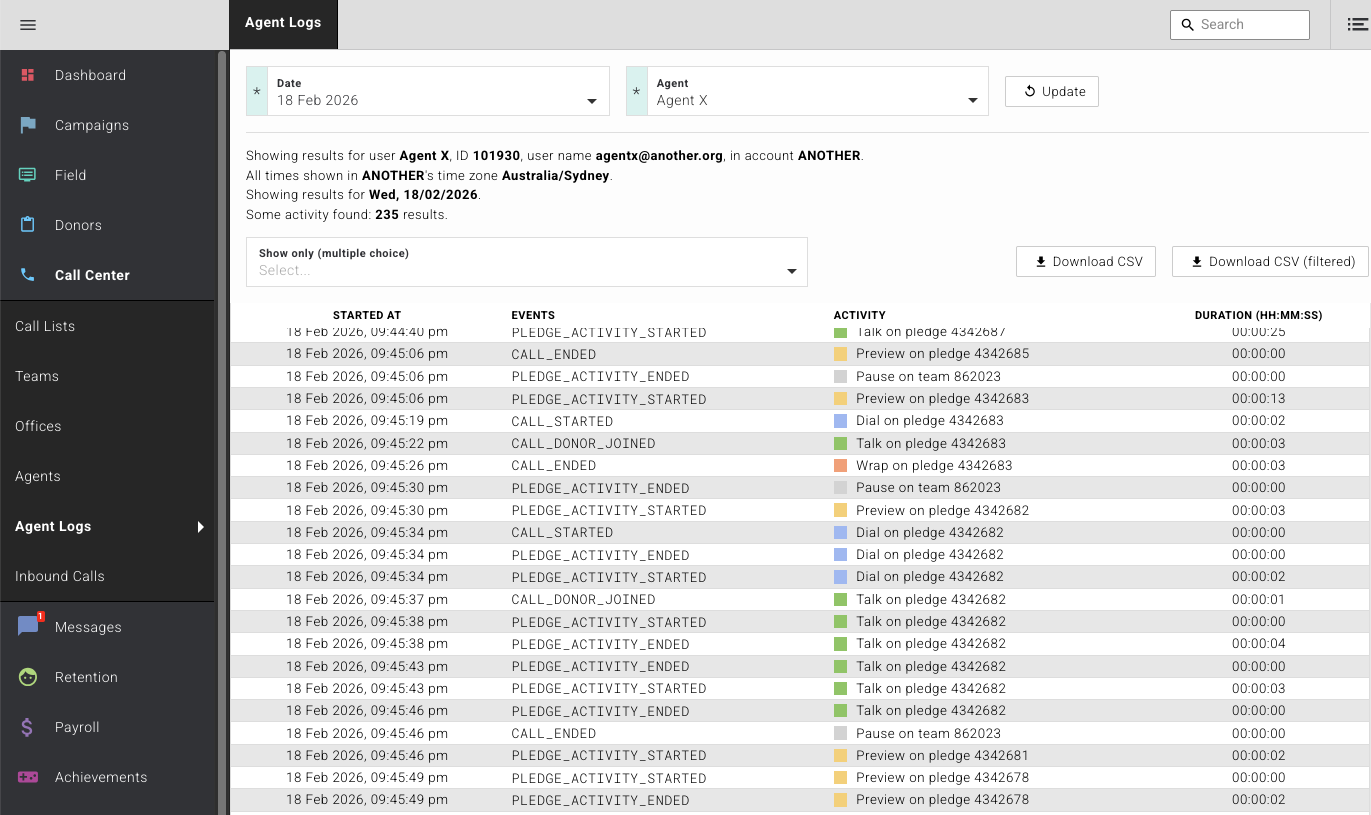
Agent logs give you a full record of every second of agent activity during a call centre session. From the moment an agent logs in, every activity is captured — including logins, pauses, record previews, dials, talk time, wrap time, and which pledges or teams the activity relates to.
The log is presented as a chronological list for a single agent on a single day, making it straightforward for managers to review individual performance and spot patterns.
What gets recorded
Each log entry includes a timestamp, the event type, the specific activity (such as "Wrap on pledge 4342683"), and how long the activity lasted. Activity types you will see include:
- Login / Logout — when the agent started and ended their session.
- Pause — periods where the agent was paused and not receiving calls.
- Preview — when the agent opened a record before dialling.
- Dial — the time spent waiting for a call to connect.
- Talk — active conversation time with a donor.
- Wrap — post-call work after a call ends, attributed to a specific pledge.
All timestamps are displayed in the account's configured time zone.
View an agent's activity
- Open the Call Center section in the left-hand menu.
- Click Agent Logs.
- Select the Date you want to review.
- Select the Agent from the dropdown.
- Click Update.
A chronological list of the agent's activity for that day will appear, showing the start time, event type, activity description, and duration of each entry.
Tip
The summary line at the top of the results confirms the agent's name, ID, account, time zone, and total number of activities found. Use this to double-check you are looking at the right person and date.
Filter by activity type
You can narrow the log down to specific activity types — for example, to see only talk time or only pauses.
- Open the Show only (multiple choice) dropdown above the results table.
- Select one or more activity types (e.g. Talk, Dial, Pause, Wrap).
The table updates immediately to show only the selected activity types.
Search for a specific pledge
If you need to find activity related to a particular pledge, type the pledge number into the search box. The results will filter to show only entries associated with that pledge.
Download the logs
You can export the log data as a CSV file for further analysis or record-keeping.
- Click Download CSV to export the full, unfiltered log for the selected agent and date.
- Click Download CSV (filtered) to export only the activity types currently shown in the filtered view.
The file downloads directly to your device.