Set Up Voicemail
Add a Voicemail recording to a campaign
- Head to https://manage.evergiving.com/campaigns and under General Settings upload a .wav file and Save Changes.
- Assign a phone number to that Campaign. Head to https://manage.evergiving.com/account/phoneNumbers and edit the phone number to assign the Campaign.
That’s it! Calls made to this phone number will be played the voicemail recording and will be able to leave a message.
Listen to Voicemail messages
You can see a list of inbound calls and listen to voicemails left at https://manage.evergiving.com/callCenter/inboundCalls.
Here you’ll see the start and end times for any calls, the number called from and the number called to. If a voicemail was left there will be a recording you can play from within the row.
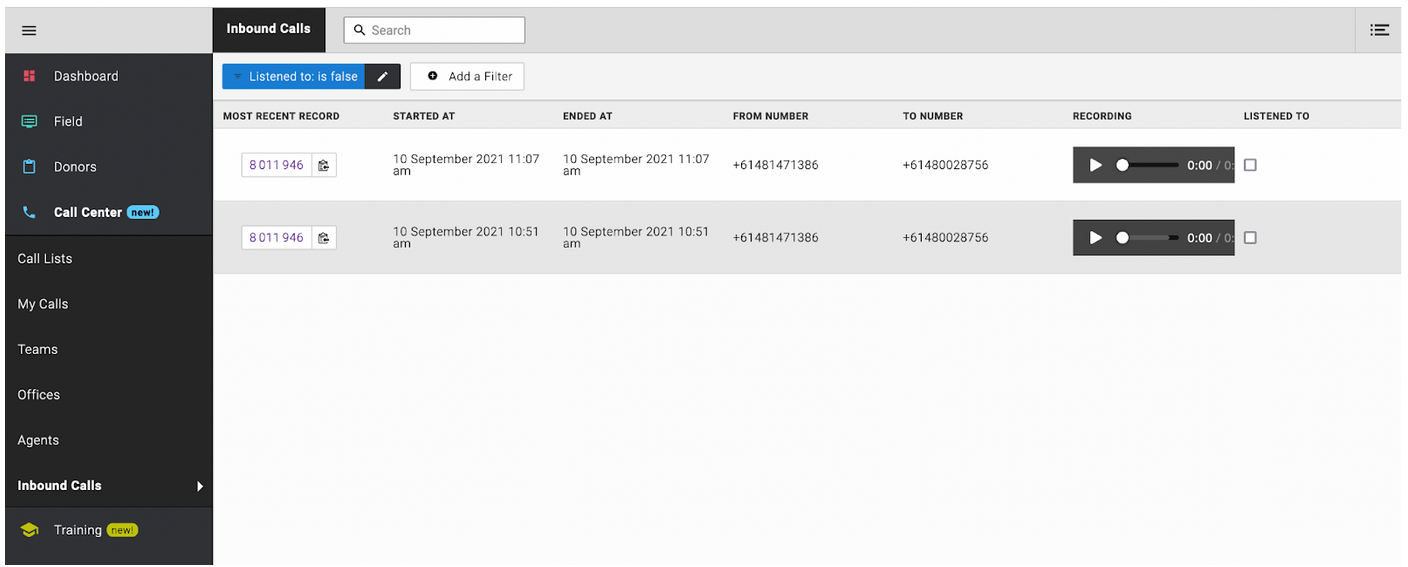
You can see which record the inbound call belongs to in the first column, ‘Most recent record’. This will show a link to the record containing the from number, that was last called. You can go to the record and call them back, action any request they might have made, or set a call back for a requested time.
You can mark records as ‘Listened to’ whether there was a voicemail or not. In the last column, tick the checkbox and the time and your username will be recorded against the action. This will remove the record from the default view. You can filter on whether a call has been listened to or not, and also whether there is a voicemail recording or not.