Creating trainings
To create a new training module, navigate to Training > All Training Modules and click Create Training Module in the top right.
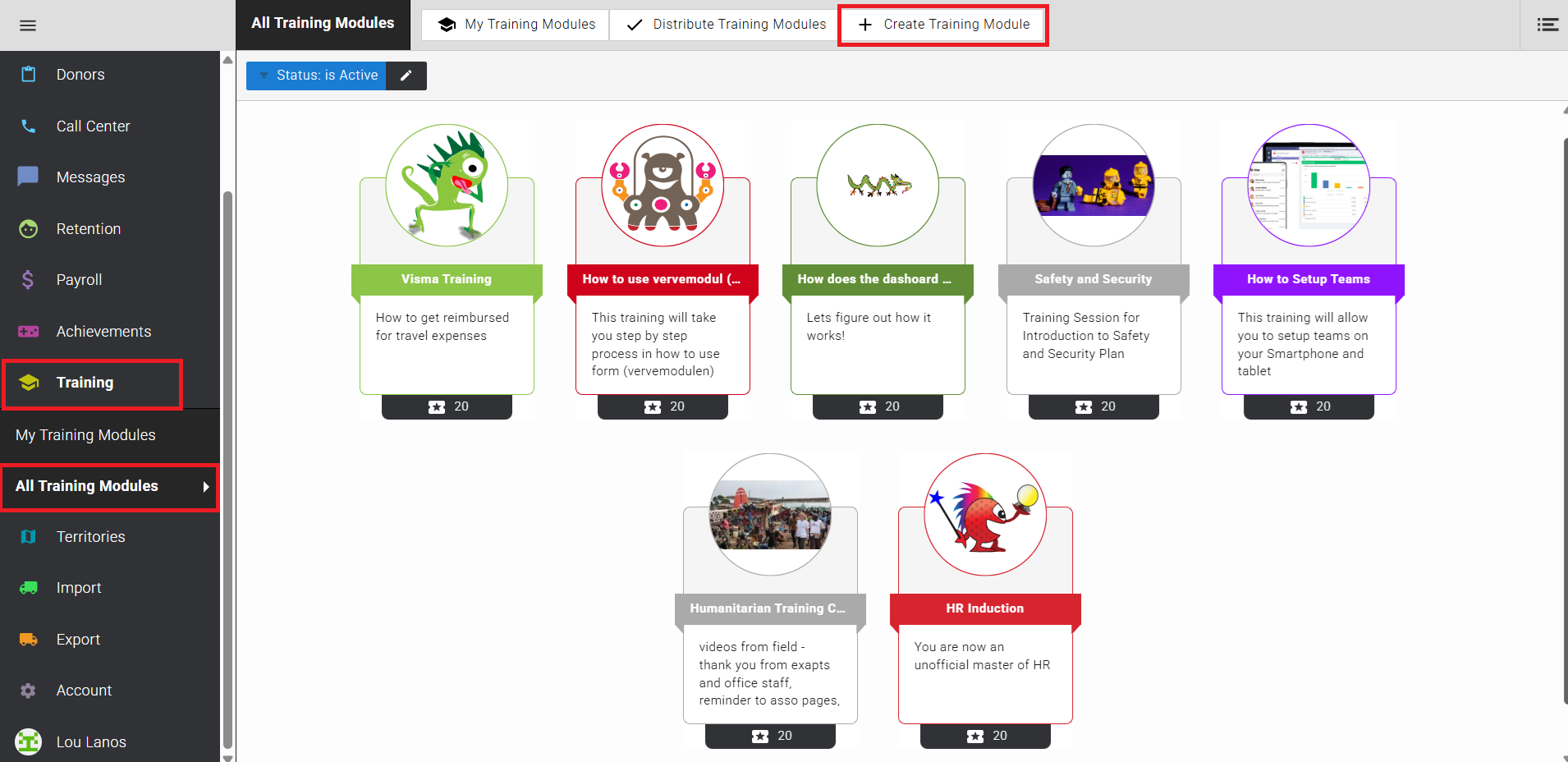
The creation screen is divided into three sections: Details, Design, and Pages. A live preview is shown on the right side of the screen throughout.
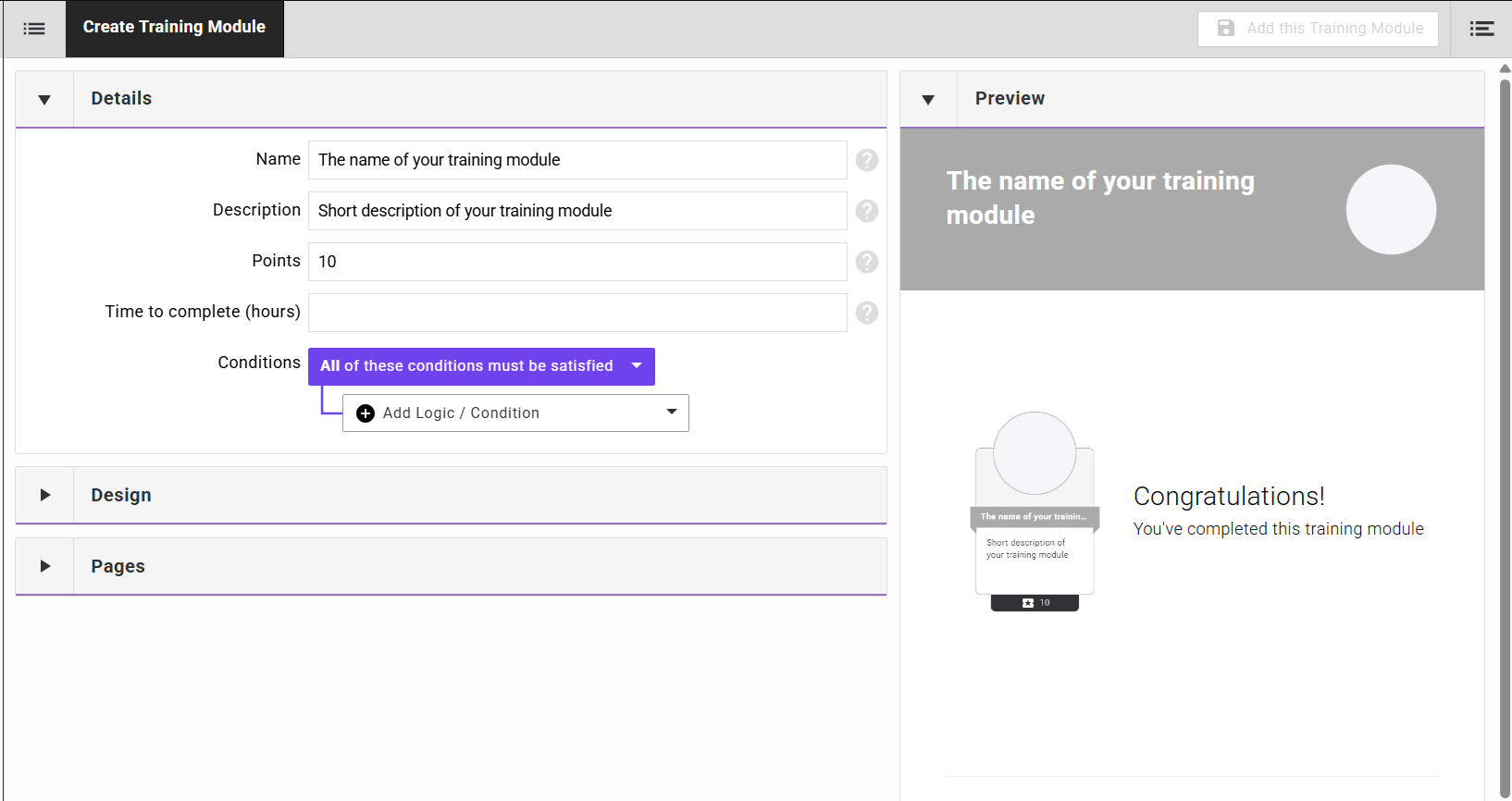
Details
Complete the following fields:
| Field | Description |
|---|---|
| Name | A name for the training module. |
| Description | A short description visible to fundraisers. |
| Points | The number of points awarded upon completion. Used in leaderboards. |
| Time to complete (hours) | Optional. Sets a deadline after which fundraisers are locked out of their forms until the module is complete. Leave blank for no time limit. |
| Conditions | The rules that determine who receives the module and when. See the Conditions section below. |
Conditions
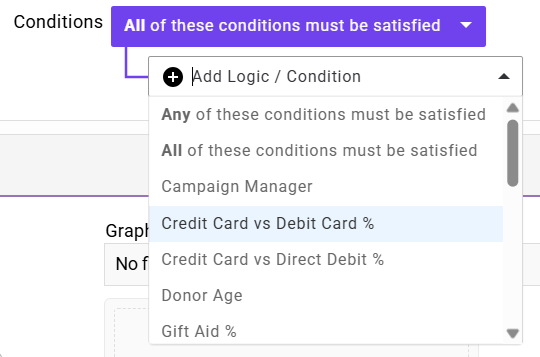
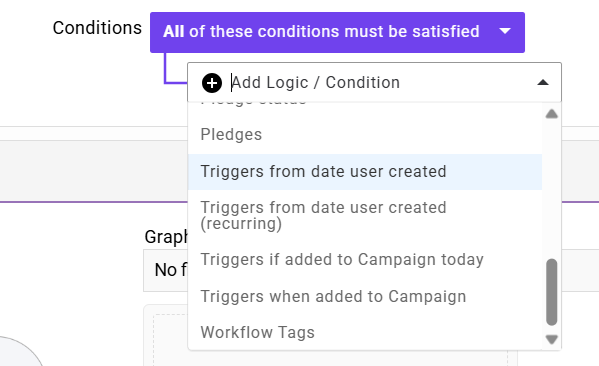
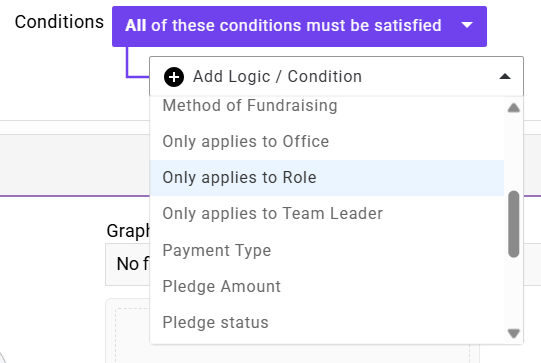
Conditions determine when and to whom a training module is distributed. Multiple conditions can be combined, and you can choose whether all or any conditions must be satisfied.
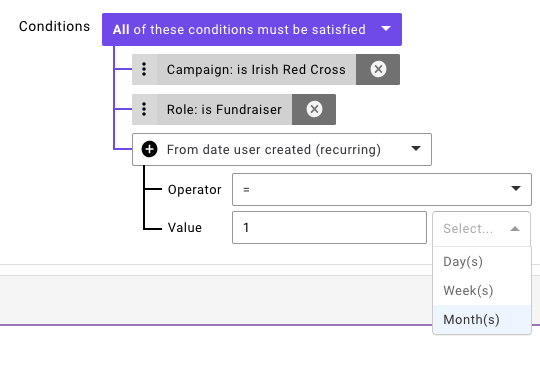
Available condition types include:
- Triggers from date user created — distributes the module a set number of days, weeks, or months after a user is added to Evergiving.
- Triggers from date user created (recurring) — repeats distribution at a set interval after the user is created.
- Triggers when added to campaign — distributes when a fundraiser is assigned to a specific campaign.
- Only applies to office — restricts distribution to users from a particular office.
- Only applies to role — restricts distribution to users with a particular role.
- Performance and quality conditions — including pledges, pledge status, pledge amount, credit card vs debit card percentage, gift aid percentage, and donor age.
Design
The Design section controls the visual appearance of the module card and header.
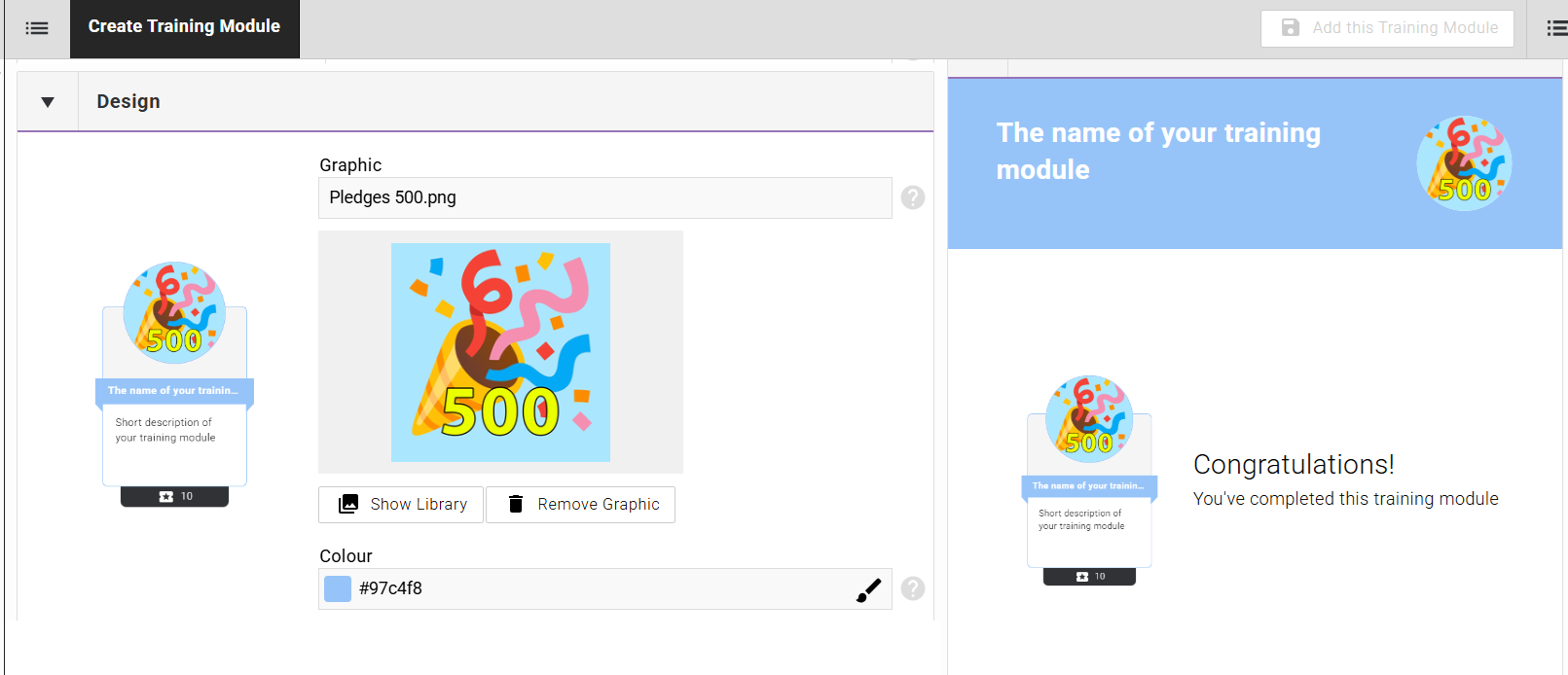
- Graphic — upload your own image, or click Show Library to choose from the built-in monster image library.
- Colour — select a colour to apply to the module card. Use this to colour-code modules or match your brand.
Pages
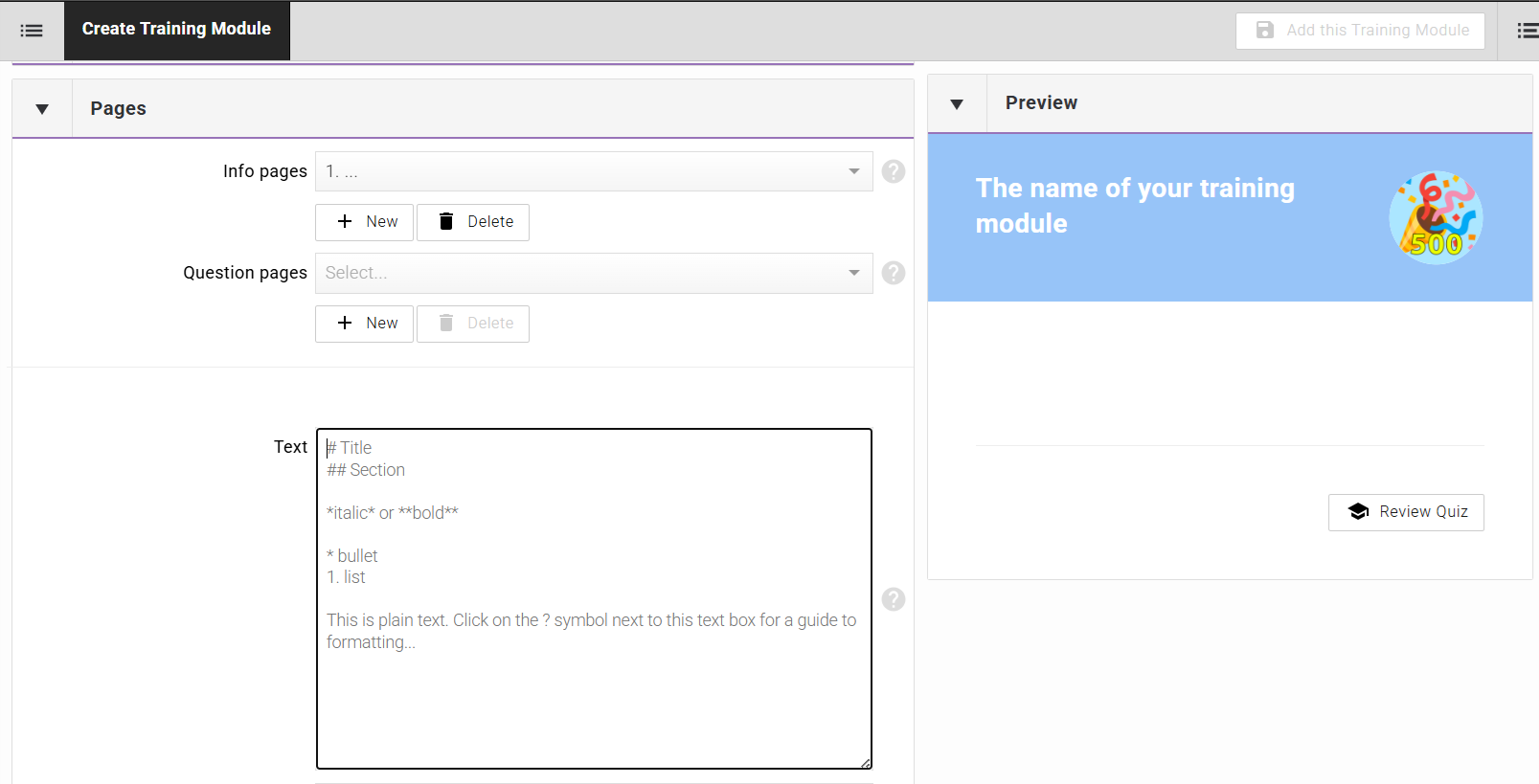
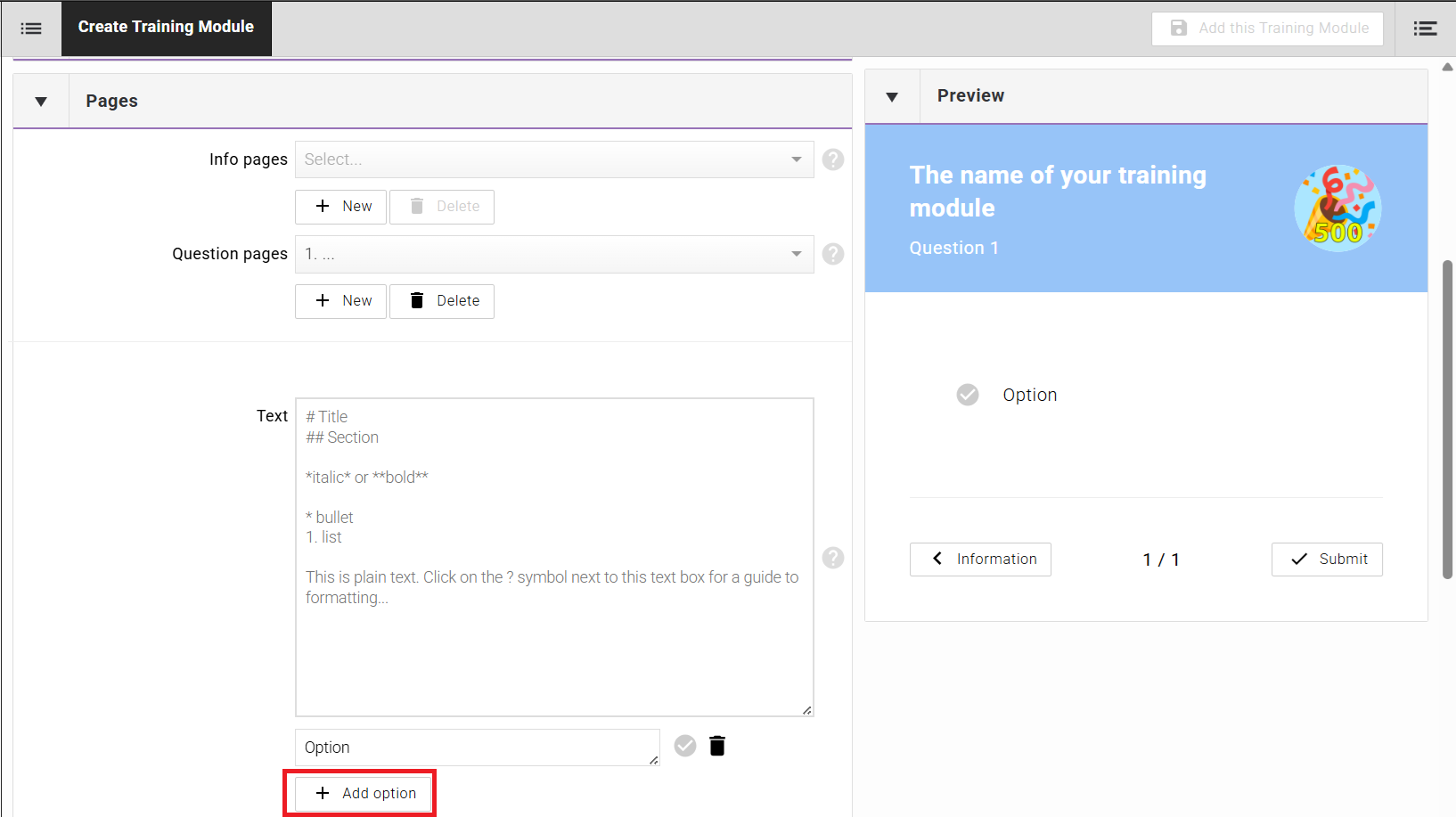
Pages contain the content of the training module. There are two page types: info pages and question pages. You can add as many of each as needed by clicking + New.
At least one info page and at least one question page are required to save a training module.
Info pages
Info pages contain learning material. Each page can include text (formatted using Markdown), images, and video.
Question pages
Question pages present a multiple-choice quiz question. Each question page can include text, images, and video in addition to the answer options.
To add answer options, click + Add option. Enable the tick next to each correct answer.
Adding images and video
Both info pages and question pages support image and video uploads. Use the image drop zone to upload an image file, or the Upload Video button to attach a video.
When adding multiple videos across a training module, it is recommended to add a text-only info page between each page that contains a video. This improves readability and gives fundraisers time to absorb content before moving to the next video.
Text formatting
Text fields support Markdown formatting. The following syntax is available:
# Title— H1 heading## Section— H2 heading*italic*or**bold**— emphasis* bullet— bulleted list item1. list— numbered list item
Click the ? icon next to any text field for a full formatting guide.
Preview and saving
A live preview is displayed on the right side of the screen throughout the build process. Use the navigation arrows in the preview to see how the module will appear on a tablet.
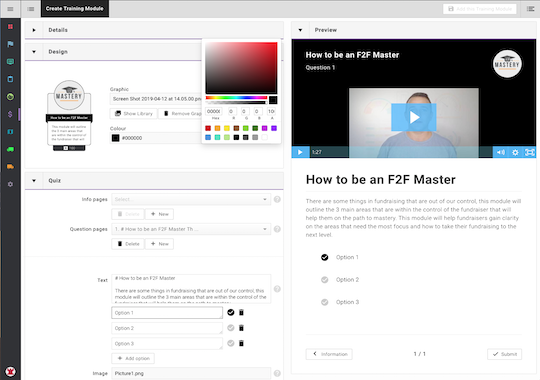
When the module is complete, click Add this Training Module in the top right corner of the screen to save it.
Archiving a module during build
If you are still working on a training module and do not want it to be distributed before it is ready, archive it while it is in progress. Archived modules are excluded from distribution — both overnight and manual — until they are re-enabled.
To archive a module, open it and set its status to archived. Once the module is complete and ready for distribution, re-enable it. It will be included in the next distribution cycle, or you can trigger distribution manually from the Training section.
Best practice: archive any training module you are actively building to prevent an incomplete module from being distributed to fundraisers. Enable it only when the content and conditions are fully configured.
Distribution
Training modules are distributed to users based on the conditions set during creation. Distribution runs automatically overnight. If you need modules to be distributed immediately, navigate to Training > All Training Modules and click Distribute Training Modules.
Automatic distribution
Overnight distribution checks all active training modules and their conditions. Any fundraiser who meets the conditions for a module and has not yet been assigned it will receive it automatically.
Manual distribution
The Distribute Training Modules button triggers the distribution process immediately, outside of the overnight schedule. Use this when a module needs to reach fundraisers urgently — for example, following a crisis communications module being published.
Crisis communications use case: when a significant news event requires immediate field messaging, publish the training module and click Distribute Training Modules to push it to fundraisers straight away. Set a time limit on the module to lock fundraisers out of their forms until they have confirmed they have read and understood the content.
Conditions and targeting
Distribution is controlled by the conditions configured on each module. Conditions can be used to target specific groups — by office, role, campaign, tenure, or performance metrics. Multiple conditions can be combined using All or Any logic.
Refer to the Conditions section above for a full list of available condition types.
Time limits
If a time limit is set on a training module, fundraisers will see a countdown clock after the module is assigned. Once the time limit expires, they are locked out of their fundraising form until the module is completed.
Archiving distributed modules
Once a training module has been assigned to at least one user, it cannot be deleted. It can be archived to remove it from active distribution. Archiving a module does not remove it from users who have already completed it.