Workflow Tags
Workflow Tags are coloured labels you can attach to pledges to help your team categorise, track, and filter records as they move through your processes. Once created, tags can be applied manually, added or removed automatically during exports, used as filters across the platform, included as a data column in exports, and used as conditions in reporting charts.
Overview
- What are Workflow Tags?
- Managing your tag library
- Applying tags to pledges
- Using tags in exports
- Filtering by tags
- Using tags in reports
- Tag activity tracking
What are Workflow Tags?
Workflow Tags are short, colour-coded labels that can be attached to pledge records. They are fully customisable — you choose the label text and colour. Tags are visible at a glance wherever pledges are displayed, and they can be used to drive logic across exports, filters, and reports.
Common uses include:
- Marking pledges as Billable before a billing run
- Flagging records that have been exported with GPG encryption
- Assigning agent names or team identifiers to records
- Tracking manual review or exception handling steps
Managing your tag library
Your organisation's tags are managed centrally. All tags you create are available for use across the platform.
Viewing your tags
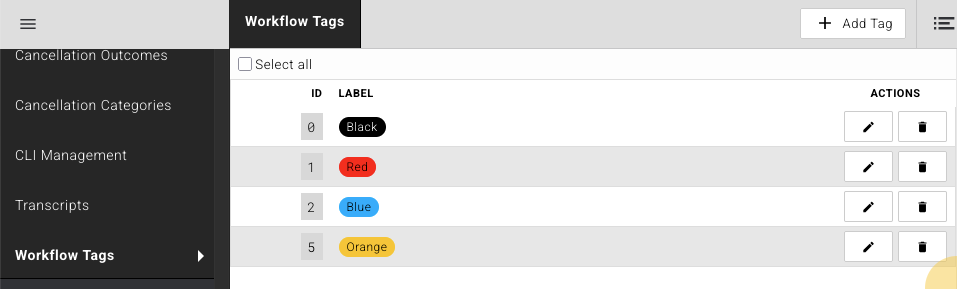
Go to Account → Workflow Tags in the left-hand navigation. You will see a list of all existing tags, each showing its ID, coloured label, and action buttons.
Creating a tag
- Navigate to Account → Workflow Tags.
- Click + Add Tag in the top right.
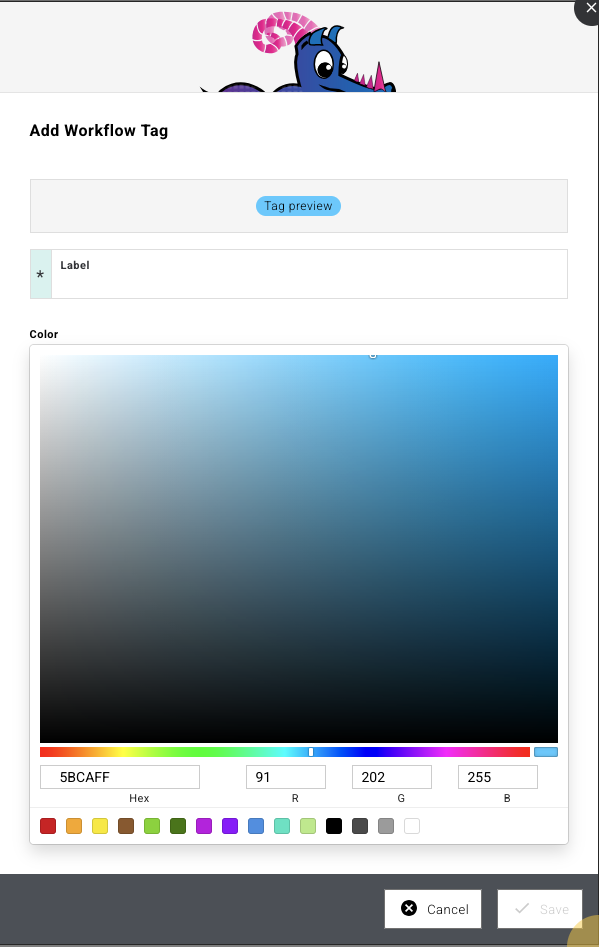
- In the dialog that opens, enter a Label for the tag. The label is required and can contain letters, numbers, underscores, and hyphens. A live preview of the tag is shown at the top of the dialog.
- Select a Colour using the colour picker — you can choose from the preset swatches or enter a custom hex value.
- Click Save.
Editing a tag
- In the tag list, click the pencil icon next to the tag you want to edit.
- Update the label or colour as needed.
- Click Save.
Changes to a tag's label or colour are reflected everywhere that tag is used.
Deleting a tag
- Click the trash icon next to the tag you want to remove.
- Confirm the deletion when prompted.
Deleting a tag removes it from all pledges it was attached to. This action cannot be undone.
Applying tags to pledges
Tags can be applied to one or more pledges in bulk from the Pledges list.
Bulk tagging
- Go to Donors → Pledges.
- Use the filter to select the pledges you want to tag (e.g. Status: is approved), or use the checkboxes to select individual records.
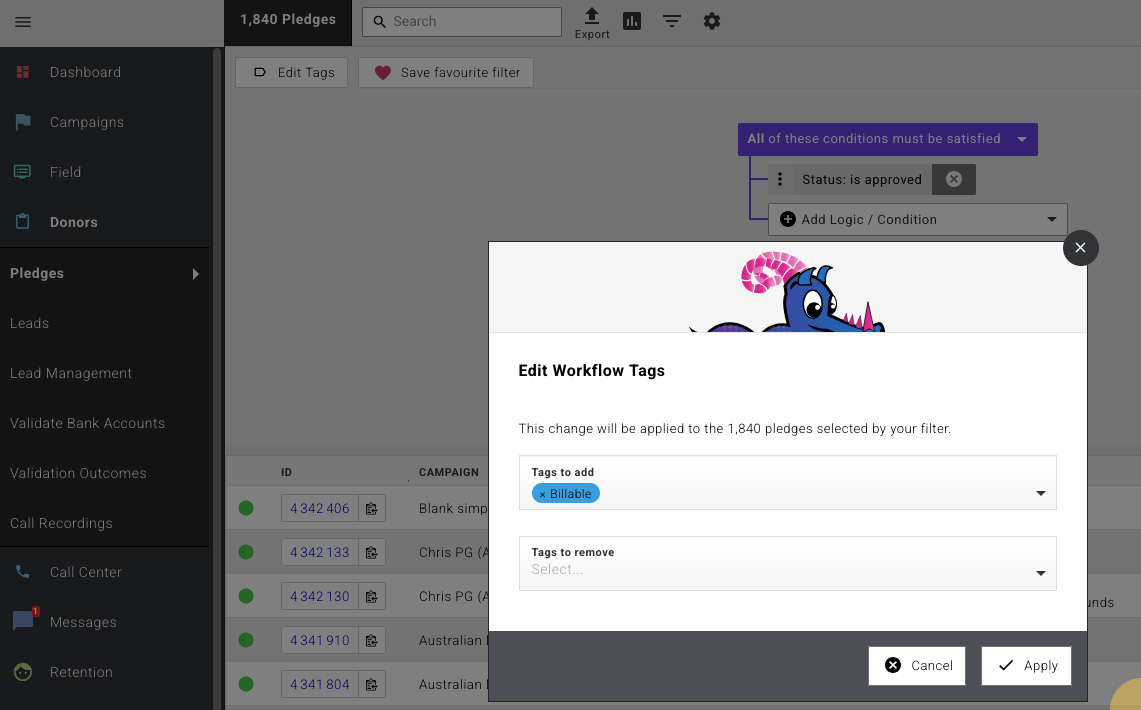
- Click Edit Tags in the toolbar.
- In the Edit Workflow Tags dialog, use the Tags to add field to select the tags you want to apply and the Tags to remove field to select any tags you want to remove.
- Click Apply.
The dialog confirms how many pledges will be affected (e.g. "This change will be applied to the 1,840 pledges selected by your filter").
Using tags in exports
Workflow Tags integrate with the export system in two ways: as an automatic action during export, and as a data column in the export schema.
Automatically adding or removing tags on export
You can configure an export to automatically apply or remove tags from every pledge it processes.
- Open an export configuration.
- Expand the Workflow Tags section.
- Use the Add tags on export field to select tags that should be applied to pledges when they are exported.
- Use the Add tags on export, or Remove tags on export field to select tags that should be added or removed from pledges when they are exported.
- Save the export configuration.
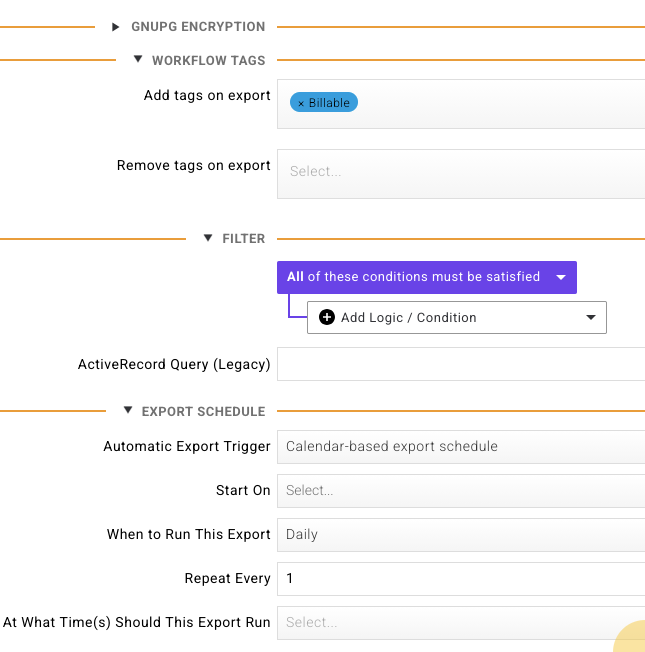
Clicking on the tag field opens a dropdown showing all available tags in your library.
This is useful for marking records as "processed" after a billing run or clearing a tag once a record has been sent downstream.
Including tags as an export column
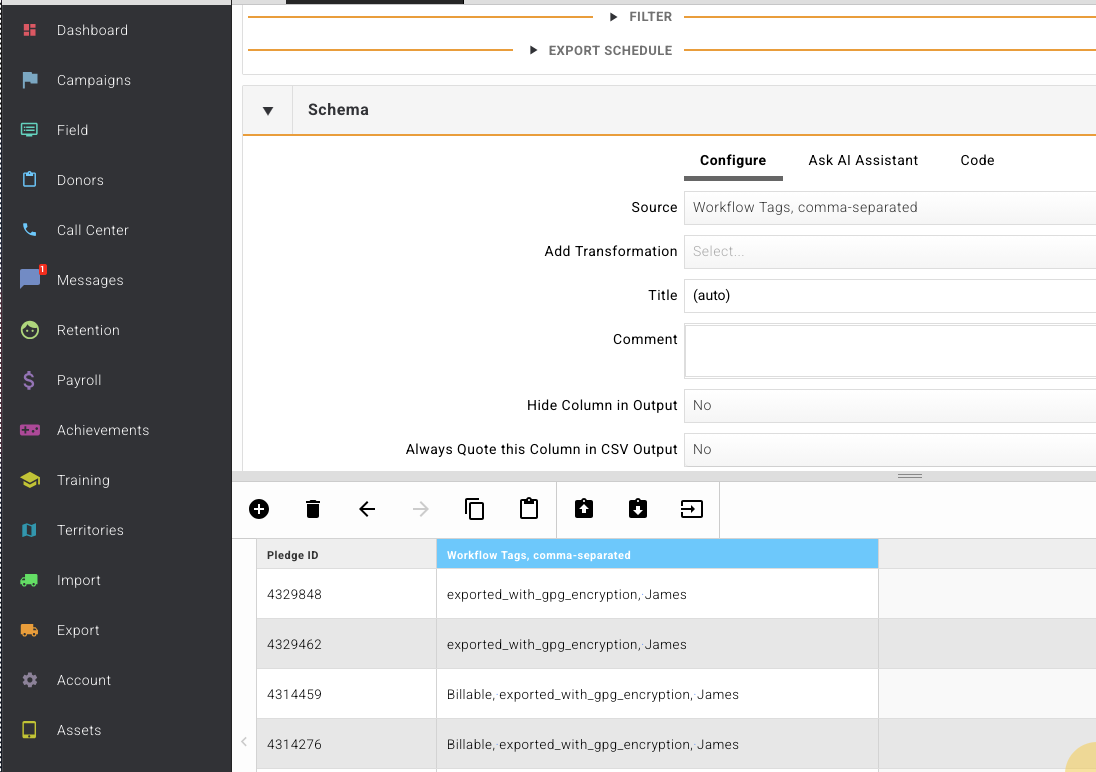
You can include a pledge's tags as a column in the exported file.
- In the export configuration, expand the Schema section.
- Add a new column.
- Set the Source to Workflow Tags, comma-separated.
- The column will output the pledge's tags as a comma-separated list in the exported file.
Filtering by tags
Workflow Tags are available as a filter condition wherever the platform provides a filter or condition builder — including pledge lists, export filters, and report chart conditions.
To add a tag filter:
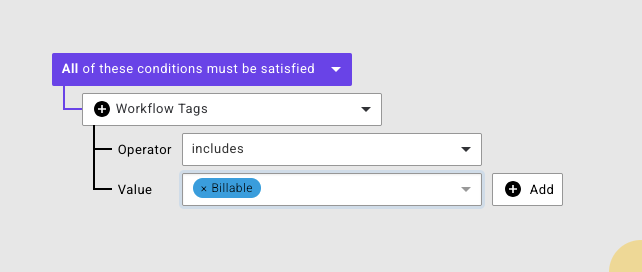
- Open the condition builder in the relevant area (e.g. Pledges list, export configuration, or report chart).
- Add a new condition and select Workflow Tags from the dropdown.
- Choose an Operator (e.g. "includes").
- Select the tag Value (e.g. "Billable").
Filter operators
| Operator | Behaviour |
|---|---|
| includes | Matches pledges that have the specified tag |
| doesn't include | Matches pledges that do not have the specified tag |
Using tags in reports
Workflow Tags can be used as conditions when configuring charts in the reporting module.
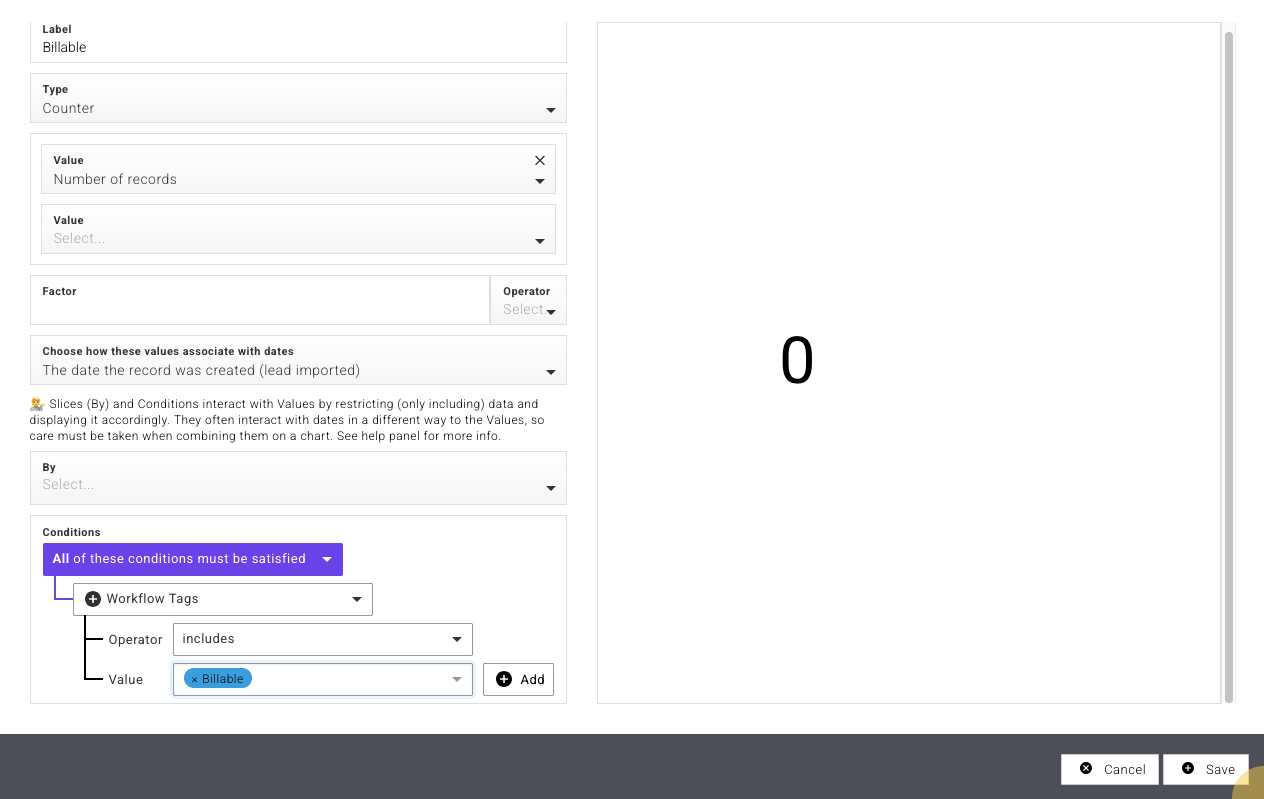
- Open a report and edit (or create) a chart.
- In the chart configuration, expand the Conditions section.
- Add a condition for Workflow Tags using any of the operators listed above (e.g. "includes" → "Billable").
- The chart will only include data from pledges matching the tag condition.
Tag activity tracking
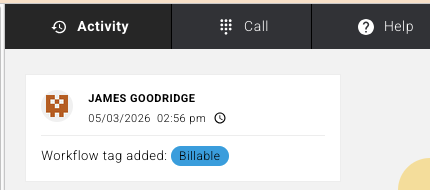
When a tag is added to or removed from a pledge, the change is recorded in the pledge's Activity log. The entry shows:
- The name of the user who made the change
- The date and time
- Which tag was added or removed
This gives you a full audit trail of how tags have been applied across your records.
Selecting tags across the platform
Wherever you can apply or filter by tags (exports, bulk editing, filters), the tag selector displays all tags from your library as colour-coded labels, making it easy to identify and select the right tag.

Quick reference
| Action | Where |
|---|---|
| Create / edit / delete tags | Account → Workflow Tags |
| Apply tags to pledges in bulk | Donors → Pledges → Edit Tags |
| Add/remove tags automatically on export | Export config → Workflow Tags section |
| Include tags as an export column | Export config → Schema → Source: Workflow Tags, comma-separated |
| Filter records by tag | Any filter / condition builder → Workflow Tags |
| Filter a report chart by tag | Chart config → Conditions → Workflow Tags |
| View tag history on a pledge | Pledge record → Activity tab |