F2F Form preview
Form preview
This guide explains how to access and use the Form Preview feature in the Campaigns module to view and download donor-facing sign-up forms.
Note: Access to the Campaigns module is restricted to Admin Ops users with the appropriate permissions. Contact your system administrator if you do not see the options described in this guide.
Accessing form preview
- Navigate to Campaigns in the left-hand menu, then select Overview.
- Search for the campaign you want to view using the search bar, or scroll to locate it in the list.
- Hover over the campaign card. A settings menu will appear showing the available options for that campaign.
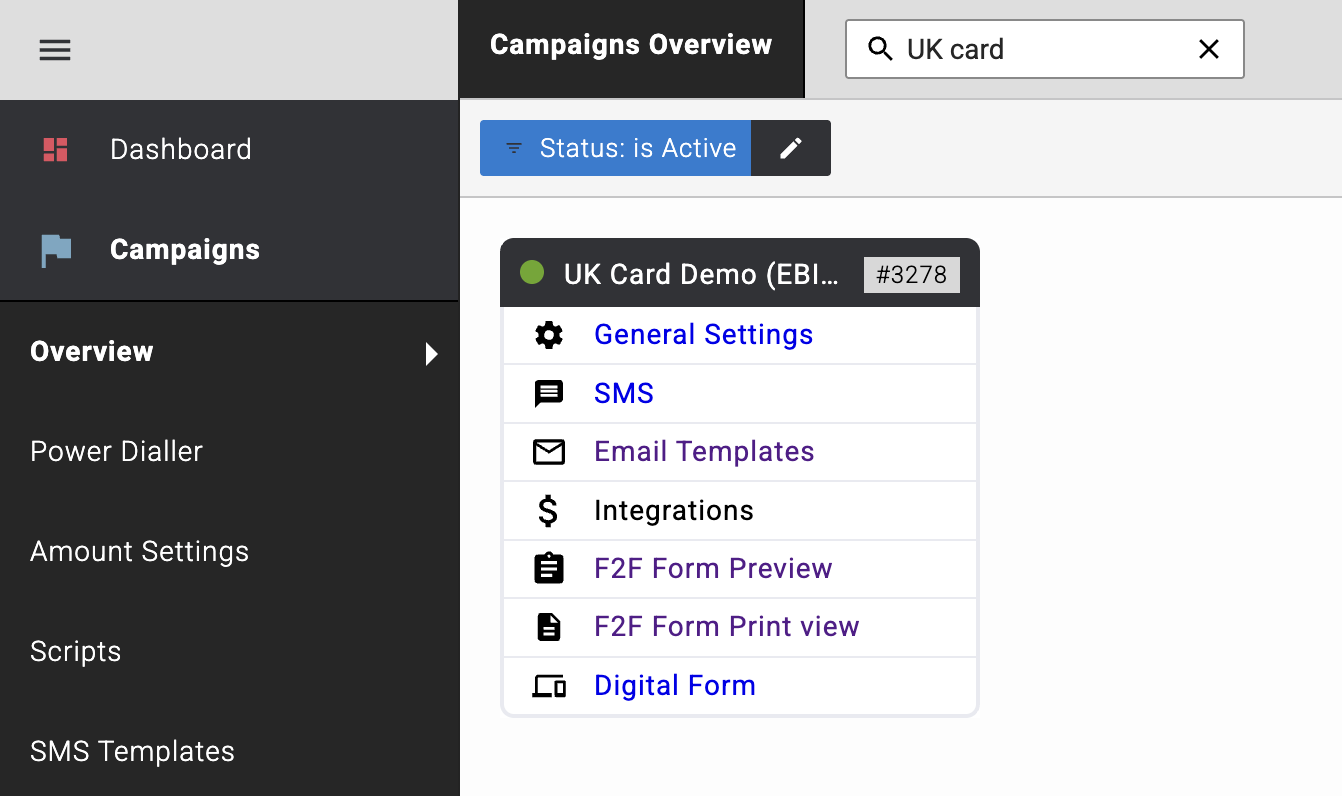
F2F Form Preview
F2F Form Preview allows you to view the donor form one page at a time and download each page individually as either a screenshot or a PDF.
Select F2F Form Preview from the campaign card menu. The form preview screen will open, displaying the first page of the form.
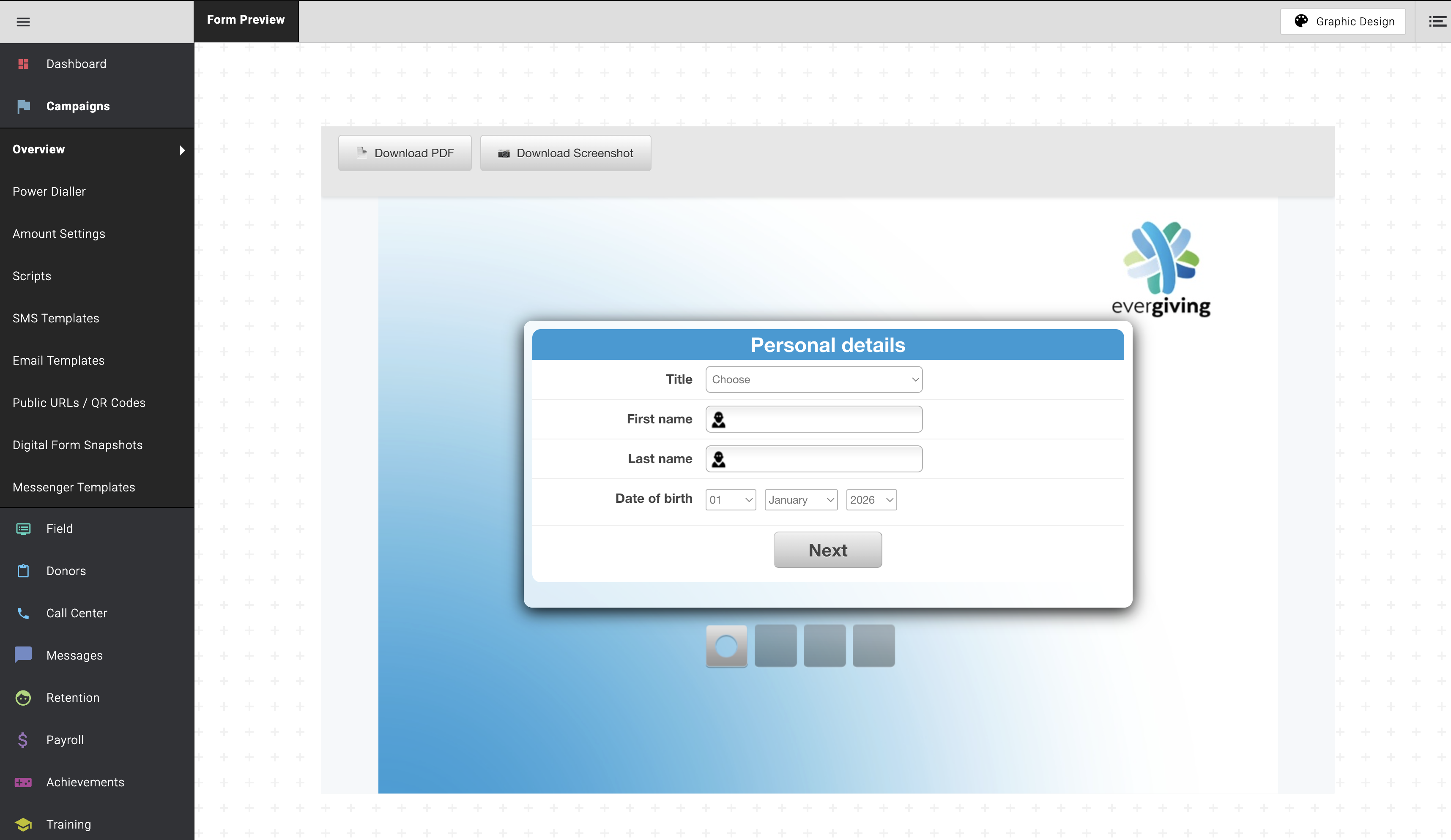
From this screen you can:
- Click Download PDF to save the current page as a PDF file. The download will begin in your browser.
- Click Download Screenshot to save the current page as an image file. The download will begin in your browser.
- Navigate between form pages using the page indicators at the bottom of the preview panel to download each page in turn.
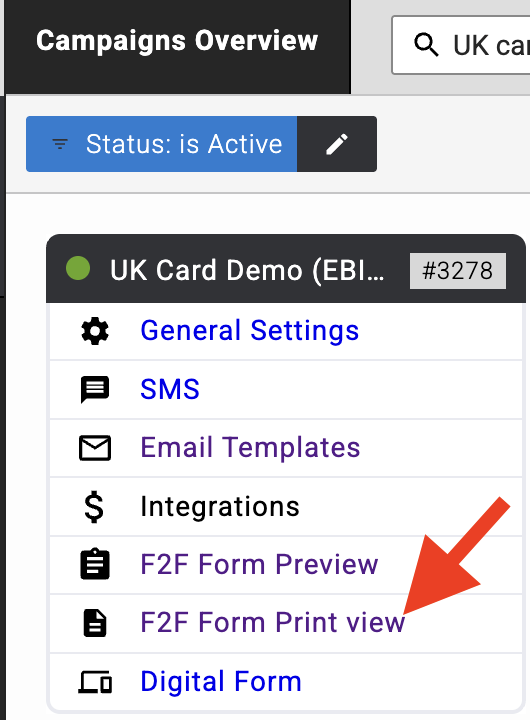
F2F Form Print view
F2F Form Print view allows you to download the complete form — all pages — as a single file. You can also interact with the form fields to preview how the form will appear when populated.
Select F2F Form Print view from the campaign card menu.
Once the print view has loaded:
- Click Download Screenshot to download the entire form as a single image file.
- Click Download PDF to download the entire form as a single PDF file.
- Use the toggle controls to show or hide form field options and preview how the form will appear when completed.
Note: On the F2F Form Print view, the background image will only appear on the first page of the form.
You can now access and download donor sign-up forms from any active campaign. For further help, contact the Evergiving support team at support@evergiving.com.