Send new donors to Conversr for SMS stewardship journeys
Evergiving can send every new donor you sign up, whether face-to-face or by phone, straight into a Conversr SMS journey. This article covers everything in one place:
- Understanding the integration – what Conversr does and how the Evergiving exporter feeds it
- Tutorial: set up your first Conversr exporter – a start-to-finish walkthrough
- How-to guides – specific tasks once you're up and running
- Reference – field mappings, settings and schedule options
Understanding the integration
What is Conversr?
Conversr is a conversational fundraising agency. It designs and runs stewardship and engagement journeys delivered by SMS, built on a simple idea: supporters respond better to a person than to a faceless organisation. Every Conversr program puts a single, named point of contact at its centre, whose job is to build a genuine one-to-one relationship with each supporter. Stronger relationships build trust, and trust grows lifetime value.
Conversr runs programs across most areas of fundraising, each with its own objective:
- Regular giving stewardship – retention. Supporters hear, from a real person, that they are valued and that their support matters, so they stay longer.
- Peer-to-peer events – fundraising revenue. Participants are encouraged, looked after and given the tools to become great fundraisers.
- Gifts in wills – stewarding prospects and identifying who in your audience is moving through the bequest pipeline.
Conversr delivers programs end to end: strategy, copywriting, building the conversations and automated journeys in its platform, and integration. Once the journey is live it runs in the background.
Where Evergiving fits
Conversr needs a steady feed of new supporters to start each journey. For direct dialogue programs, that feed comes from Evergiving. Every donor who arrives in Evergiving, whether signed up face-to-face or over the phone, is available to Evergiving's exporters.
Exporters are Evergiving's middleware. Each exporter decides:
- what data is sent (the schema),
- where it goes (the output type and target),
- how often it is sent (the schedule), and
- under what conditions a record qualifies (the filters).
For Conversr, you build a Pledge Export Builder that posts each new donor to the Conversr API as a JSON webhook. When Conversr receives the record, it adds the supporter to the right contact list and the SMS journey begins.
Supporter signs up (F2F / phone)
        │
        ▼
Evergiving pledge ──► Pledge Export Builder ──► Conversr API ──► SMS journey starts
                                                                        │
Evergiving record updated ◄── Zapier "Create Lead" ◄── Conversr webhook ◘ (optional return data)
Why the details matter
- Phone number format. Conversr sends SMS internationally, so it needs the full international number (E.164) without the leading
+, e.g.61412345678, not0412 345 678. A badly formatted number means no journey. - Sending each donor once. The exporter can run as often as every minute. The "Pledge has not been exported before" filter condition is what stops a donor receiving the welcome message twice.
- Pledge ID as a number. Passing the Evergiving pledge ID lets Conversr's data be tied back to the original pledge. Formatting it as a plain number keeps it consistent between the two systems.
- Personal information. This integration sends donor names and mobile numbers to a third party. Make sure your organisation has an appropriate basis for SMS contact and that Conversr is covered as a service provider in your privacy arrangements before you go live.
Tutorial: set up your first Conversr exporter
In this tutorial you'll create an exporter that sends each new donor to Conversr within a minute of sign-up, then send a test record.
Before you start, get these from Conversr:
- API key and API secret
- The list ID for the contact list your donors should join
- What (if anything) to send in the custom fields
field_3andfield_4
Step 1. Create a Pledge Export Builder
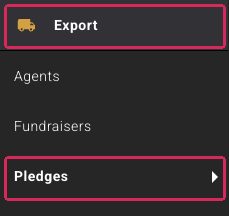
- In the left-hand menu, go to Export > Pledges.
- Click Add Pledge Export Builder at the top right. This opens a blank exporter template.

Step 2. Configure the exporter settings
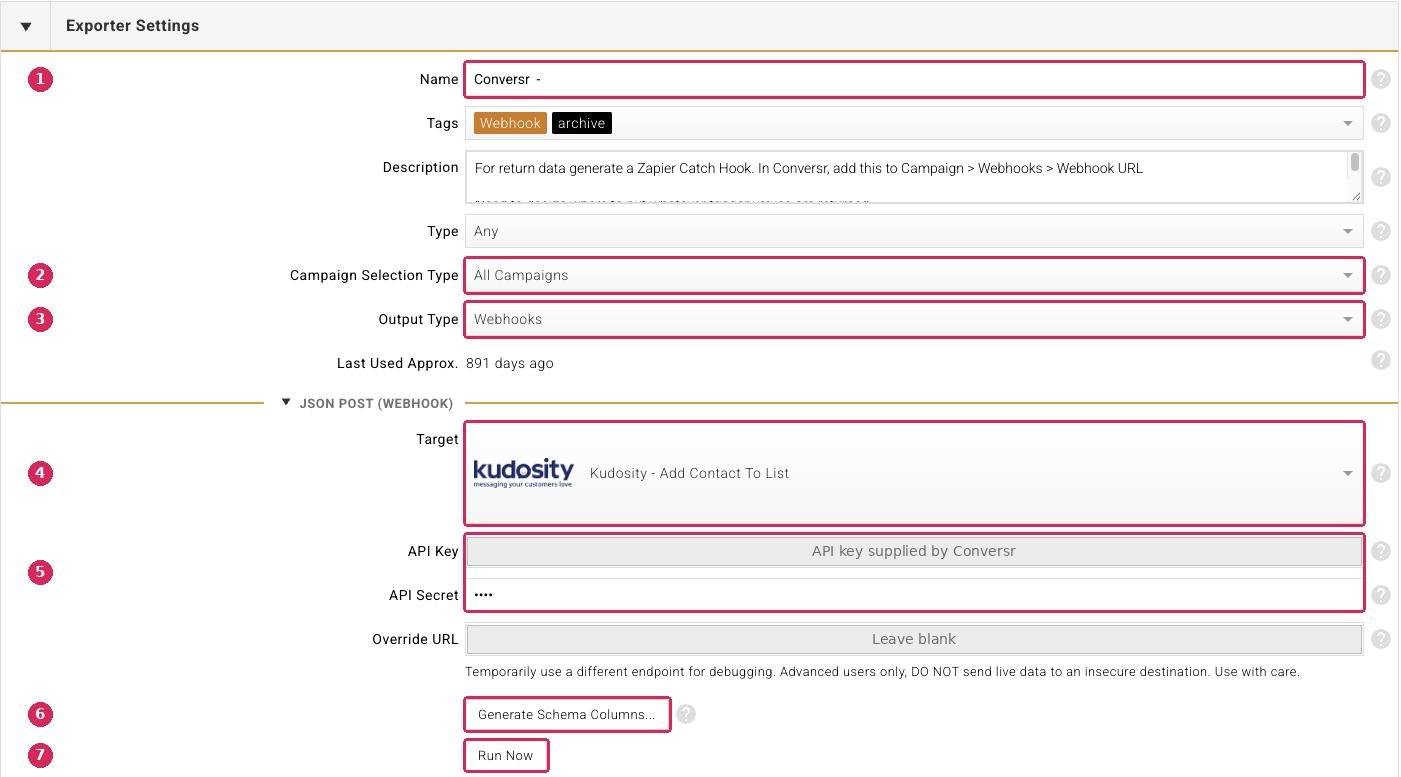
- Name – make it obvious where the data is going and where it comes from, e.g.
Conversr – [Charity name] – F2F. If you run exporters for more than one charity or channel, you'll be glad you did. - Campaign Selection Type – choose which campaigns should feed this Conversr journey. Pick specific campaigns if the journey is for one program only.
- Output Type – select Webhooks. A JSON POST (Webhook) section appears below.
- Target – select Kudosity – Add Contact To List (Conversr runs on the Kudosity platform).
- API Key and API Secret – paste in the credentials Conversr gave you.
Leave Override URL blank. It exists only for temporary debugging and must never point live donor data at an untrusted endpoint. - Click Generate Schema Columns. Evergiving creates the standard Conversr columns for you in the Schema section below.
Click Save Changes.
Step 3. Map your data in the schema
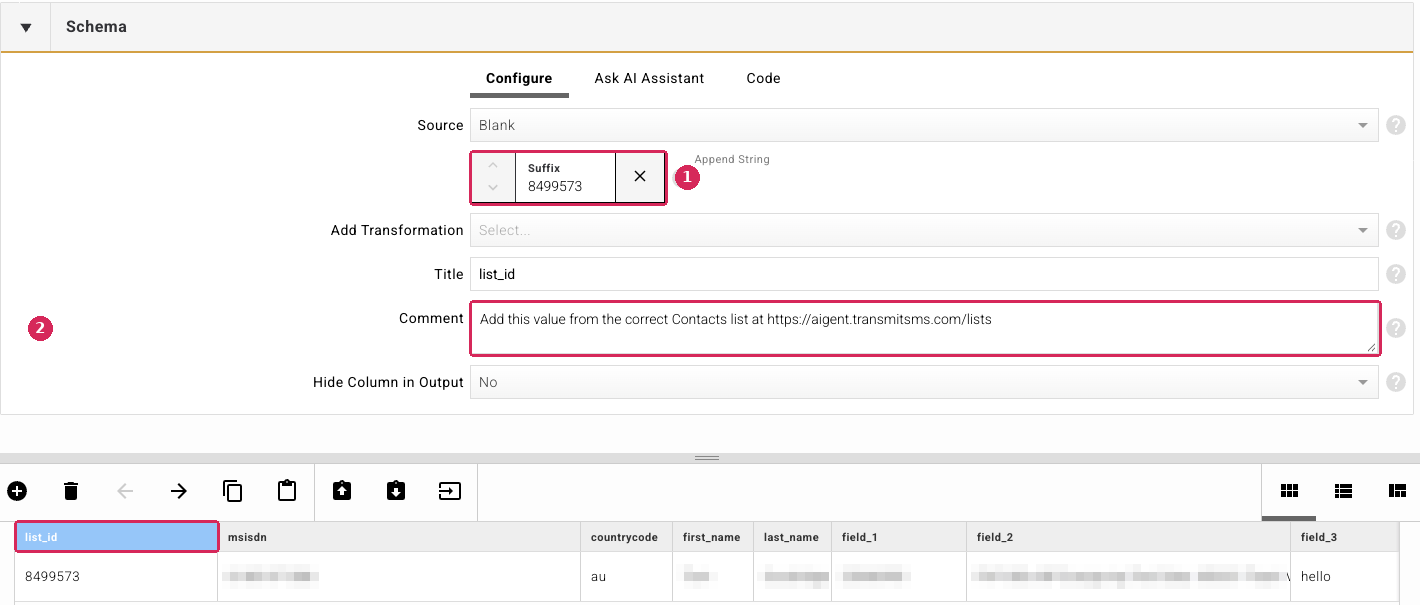
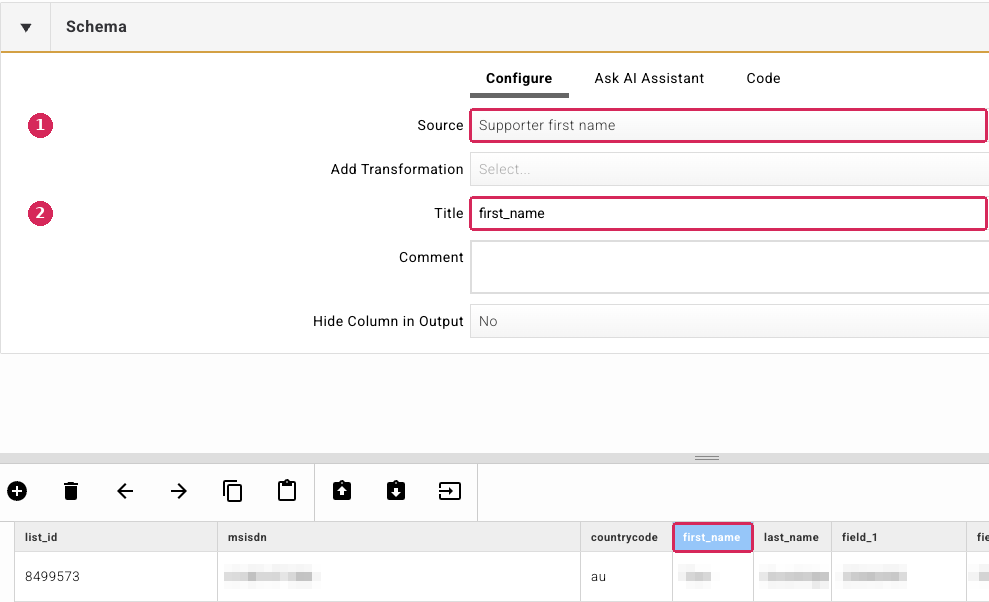
Scroll down to the Schema section. Click a column in the grid at the bottom to select it, then set its Source (where the data comes from in Evergiving) and Title (the field name Conversr expects).
list_id – set Source to Blank and add an Append String with the list ID Conversr gave you. The comment on this column reminds you where to find it in Conversr's contact lists.
first_name – set Source to Supporter first name and Title to first_name.
Map every column the same way. The full set, in order:
| Column | Source |
|---|---|
list_id |
Blank + Append String with your Conversr list ID |
msisdn |
Supporter mobile phone, in E.164 format without the + |
countrycode |
Blank + Append String au (or your country code, lowercase) |
first_name |
Supporter first name |
last_name |
Supporter last name |
field_1 |
Pledge ID, with a Format Number transformation set to 0 decimal places |
field_2 |
Source, as agreed with Conversr |
field_3, field_4 |
As advised by Conversr, or leave blank |
See the field reference for full details.
Step 4. Set the schedule
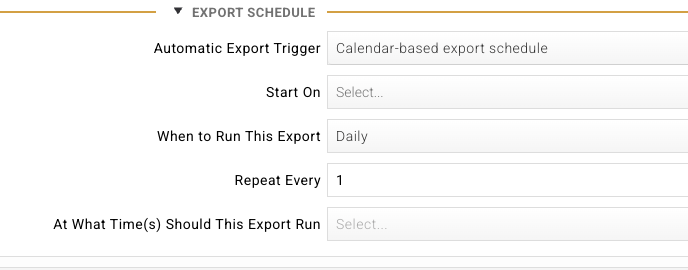
Open the Export Schedule section and set Automatic Export Trigger to Cron-based export schedule (advanced). Enter:
* * * * *
This checks for new donors every minute.
Step 5. Send each donor only once
Open the Filter section and set up this condition:
- Condition: Has been exported with this schema?
- Operator: is
- Value: Pledge has not been exported before
Leave the group set to All of these conditions must be satisfied.
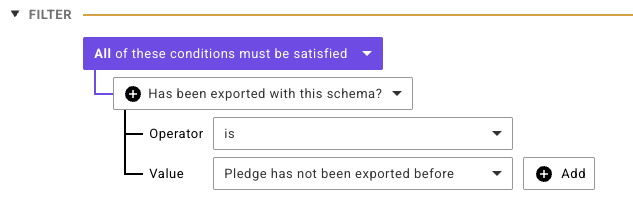
With the every-minute schedule, the exporter now picks up each new donor once and sends them to Conversr straight away. To narrow it further, click Add and add more conditions to the same group.
Click Save Changes.
Step 6. Send a test record
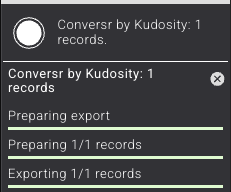
Scroll back to Exporter Settings and click Run Now. A progress panel appears at the top left:
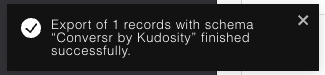
When the export completes you'll see a confirmation:
Check with Conversr that the contact has arrived in the right list and the journey has triggered.
You're done. New donors on the selected campaigns will now flow into Conversr automatically.
How-to guides
Send donors on a calendar schedule instead of in real time
Some journeys don't need to start within a minute, for example a welcome sequence that should begin the morning after sign-up.
- In Export Schedule, set Automatic Export Trigger to Calendar-based export schedule.
- Set Start On, When to Run This Export (e.g. Daily), Repeat Every and At What Time(s) Should This Export Run.
- Keep the Has been exported with this schema? is Pledge has not been exported before filter so each donor is still sent only once.
Use a different cron frequency
Cron expressions give you finer control than the calendar options. A few common ones:
| Expression | Runs |
|---|---|
* * * * * |
Every minute |
*/15 * * * * |
Every 15 minutes |
0 * * * * |
On the hour, every hour |
0 9 * * * |
Daily at 9:00 am |
0 9 * * 1-5 |
Weekdays at 9:00 am |
Any cron reference site or AI assistant can build other expressions for you. Evergiving shows a plain-English description under the field so you can check it.
Derive the country code from the supporter's address
If one exporter covers donors from more than one country, don't hard-code au.
- Select the
countrycodecolumn. - Set Source to Supporter primary address country name (this returns e.g.
Australia). - Add a transformation that maps each country name to its lowercase ISO code, e.g.
Australia→au,New Zealand→nz.
Send different campaigns to different Conversr journeys
Each Conversr contact list has its own list ID, and each exporter sends to one list. Create one exporter per journey:
- Open your working exporter and duplicate it.
- Rename it, change Campaign Selection Type to the relevant campaigns, and update the list_id Append String.
- Update
field_2–field_4if the journey needs different values.
Send Conversr results back to Evergiving
To update Evergiving records with outcomes from the Conversr journey:
- In Zapier, create a Zap with a Webhooks by Zapier – Catch Hook trigger and copy the hook URL.
- In Conversr, go to Campaign > Webhooks > Webhook URL and paste in the Zapier hook URL.
- Add an Evergiving – Create Lead action to the Zap and map the Conversr data to the Evergiving fields you want to update. Use the pledge ID from
field_1to match the record.
Troubleshoot a donor who didn't receive an SMS
- Check the phone number. It must be E.164 without the
+(61412345678). Leading zeros, spaces or a+will cause problems. - Check the campaign. Is the donor's campaign included in Campaign Selection Type?
- Check whether they've already been sent. If a record was exported during testing, the "Pledge has not been exported before" filter will skip it.
- Check the list ID. A wrong or old list ID sends donors to the wrong Conversr list, or nowhere.
- Check the credentials. If the API key or secret has been changed in Conversr, update the exporter.
Reference
Exporter settings
| Setting | Value for Conversr | Notes |
|---|---|---|
| Name | e.g. Conversr – [Charity] – [Channel] |
Free text. Identify the destination and source. |
| Tags | e.g. Webhook | Optional. Helps filtering on the Pledge Export Builders list. |
| Campaign Selection Type | All Campaigns, or specific campaigns | Controls which donors are eligible. |
| Output Type | Webhooks | Required. |
| Target | Kudosity – Add Contact To List | Required. |
| API Key | Supplied by Conversr | Required. Keep confidential. |
| API Secret | Supplied by Conversr | Required. Keep confidential. |
| Override URL | Leave blank | Debugging only. Never send live data to an insecure destination. |
| Generate Schema Columns | Click once | Creates the standard Conversr columns. |
| Run Now | – | Runs the exporter immediately for testing. |
Schema field reference
| Column | Required | Evergiving source | Format / example |
|---|---|---|---|
list_id |
Yes | Blank + Append String | Conversr contact list ID, e.g. 8499573 |
msisdn |
Yes | Supporter mobile phone | E.164 without +, e.g. 61412345678 |
countrycode |
Yes | Blank + Append String, or Supporter primary address country name + mapping | ISO 3166-1 alpha-2, lowercase, e.g. au |
first_name |
Yes | Supporter first name | Text |
last_name |
Yes | Supporter last name | Text |
field_1 |
Recommended | Pledge ID | Format Number, 0 decimal places, e.g. 25846990 |
field_2 |
As agreed | As agreed with Conversr | Maps to Source in Conversr |
field_3 |
Optional | As advised by Conversr | Program- or campaign-specific custom field |
field_4 |
Optional | As advised by Conversr | Program- or campaign-specific custom field |
Export schedule options
| Automatic Export Trigger | Settings | Use when |
|---|---|---|
| Calendar-based export schedule | Start On, When to Run This Export, Repeat Every, At What Time(s) | Batched sends at set times |
| Cron-based export schedule (advanced) | Cron Expression | Near-real-time sends, or custom frequencies |
Recommended filter condition
| Condition | Operator | Value | Purpose |
|---|---|---|---|
| Has been exported with this schema? | is | Pledge has not been exported before | Sends each donor to Conversr exactly once |
Set the group to All of these conditions must be satisfied if you add further conditions.