DonorVoice Integration
Send the details of each new donor your fundraisers sign up to DonorVoice. You build one exporter in Evergiving from a ready-made schema, then give DonorVoice three details so it can collect the data through the Evergiving API.
Overview
- What is the DonorVoice integration?
- Tutorial: set up the DonorVoice exporter
- How-to guides
- Reference
- Good to know
What is the DonorVoice integration?
DonorVoice is a behavioural science fundraising agency working with charities in the US, Canada, the UK, Europe and Australia. When a charity works with DonorVoice, DonorVoice needs the details of each donor recruited for that charity: who the donor is, what they pledged, how they want to be contacted, and who signed them up and where.
The integration uses a Pledge Export Builder with the JSON API output type. Evergiving doesn't push data to DonorVoice. Instead, DonorVoice requests it from the Evergiving API whenever it needs it, and Evergiving answers with each pledge laid out the way the exporter's schema describes.
To make those requests, DonorVoice needs three things from you:
| Detail | What it tells Evergiving |
|---|---|
| Schema ID | Which exporter to use, and so which columns to return |
| Campaign ID | Which campaign's pledges to return. One per campaign |
| API token | That the request is allowed |
The schema. DonorVoice expects 69 fields with fixed names, such as recruitment_donor_first_name and recruitment_contract_amount_initial. You don't need to build them by hand: you import them from the DonorVoice schema file in one step. Most columns arrive already mapped to the right Evergiving data. About a dozen need details only you know, such as your agency's name or the consent questions on your form. Every column carries a comment saying what DonorVoice expects in it.
Personal information. This integration sends donors' names, dates of birth, addresses, email addresses, phone numbers and consent choices to a third party. Bank details are not sent. Before you go live, make sure the charity has agreed to the transfer and that DonorVoice is covered as a service provider in your privacy arrangements.
Tutorial: set up the DonorVoice exporter
In this tutorial you'll create the exporter, import the DonorVoice columns, complete the columns that need your input, and send DonorVoice what it needs to connect. It takes about twenty minutes.
Before you start, have these ready:
- The DonorVoice schema file: schema-donorvoice.csv
- Your agency name or ID, as DonorVoice will know you
- The campaign code agreed between your agency and the charity
- The consent questions on your donation form, and the DCS statements DonorVoice has asked you to include in the form's survey
Step 1. Create a Pledge Export Builder
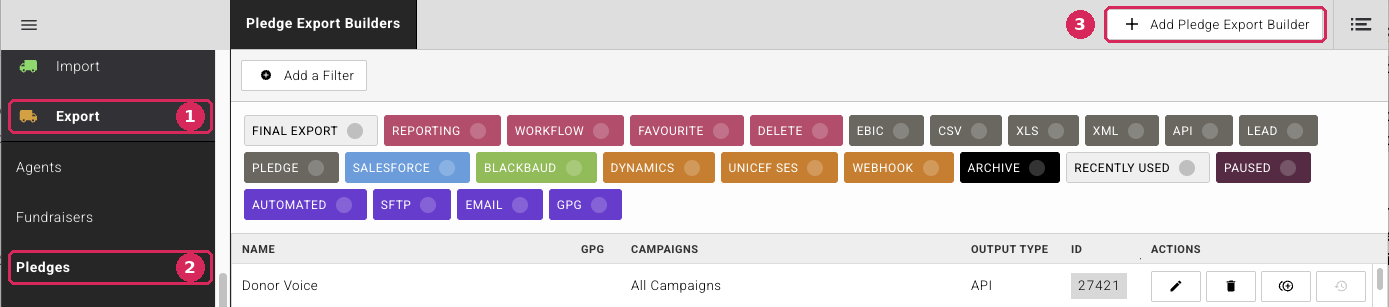
- In the left-hand menu, click Export.
- Click Pledges.
- Click Add Pledge Export Builder at the top right. A blank exporter opens.
Step 2. Configure the exporter settings
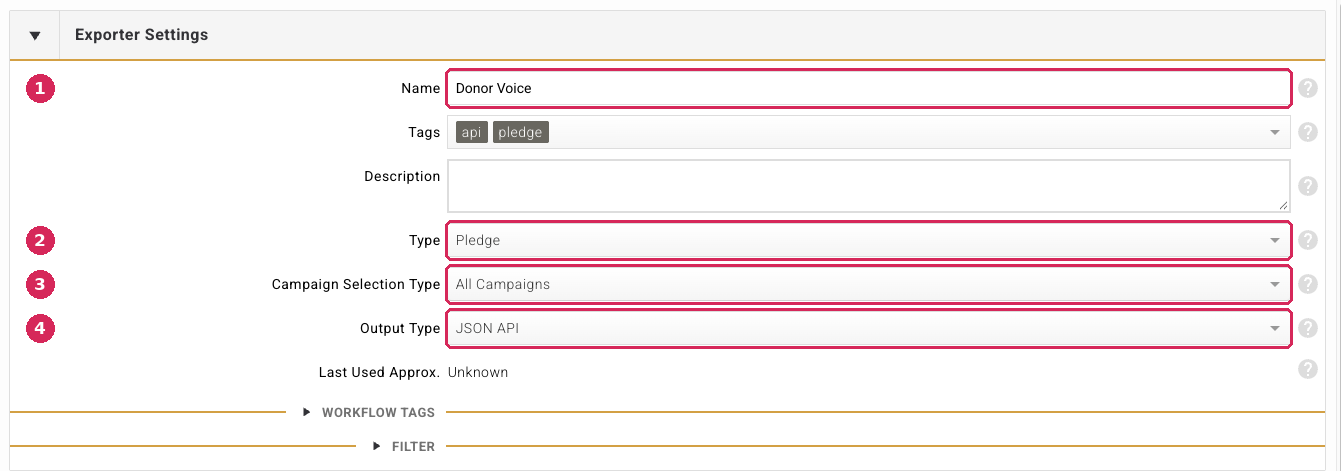
- Name – make it obvious where the data is going and where it comes from, for example
DonorVoice – [Charity name] – F2F. - Type – select Pledge.
- Campaign Selection Type – select the campaign, or campaigns, whose pledges DonorVoice should receive. Avoid All Campaigns unless DonorVoice should be able to request every campaign on your account.
- Output Type – select JSON API.
Tags are optional, but adding API and Pledge makes the exporter easy to find in the list later.
Step 3. Import the DonorVoice columns
Scroll down to the grid at the bottom of the page and click the Import Columns button in the toolbar.

Drag schema-donorvoice.csv into the dashed box, then click Import Columns.
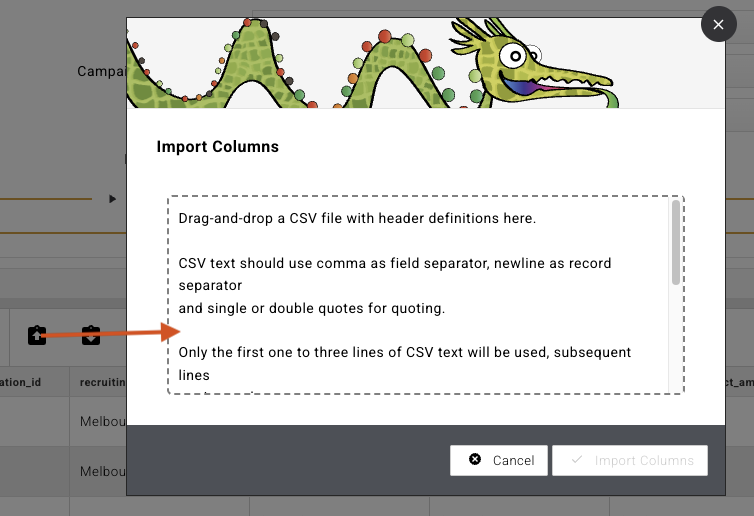
The 69 DonorVoice columns appear in the grid, each with its name, its mapping and DonorVoice's comment. The grid previews pledges from your account, so you can see straight away what each column will send.
Step 4. Complete the columns that need your input
Click a column heading in the grid to select it. Its settings appear in the Schema section above.
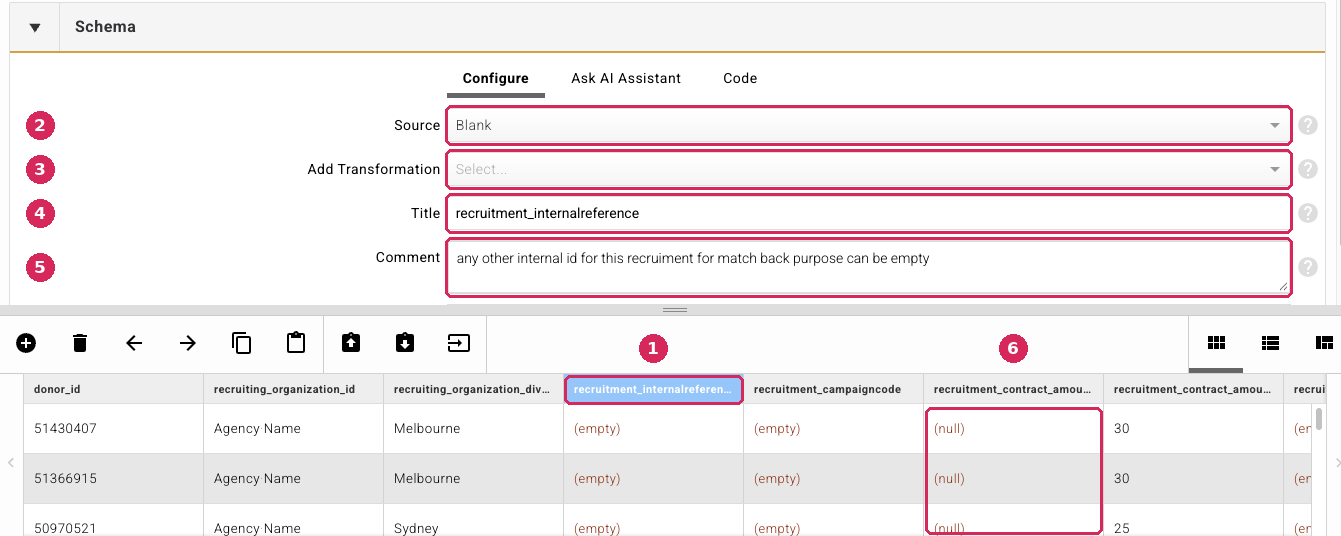
- The selected column. Its heading is highlighted in the grid.
- Source – where the value comes from in Evergiving. Blank sends an empty value unless a transformation adds one.
- Add Transformation – changes the value before it is sent. Append String adds fixed text, so Blank plus Append String sends the same value for every pledge.
- Title – the field name DonorVoice expects. Don't change it.
- Comment – DonorVoice's description of the field. Read it before you change anything.
- Preview.
(empty)means the column sends nothing for that pledge.(null)means Evergiving has no value for the source on your account, so the column needs fixing.
Complete these columns:
| Column | What to set |
|---|---|
recruiting_organization_id |
It arrives as Blank with an Append String of Agency Name. Replace Agency Name with your agency name or ID, exactly as agreed with DonorVoice. |
recruitment_campaigncode |
The campaign code agreed between your agency and the charity, as Blank plus Append String. If the exporter covers several campaigns with different codes, map it to a campaign field instead. |
recruitment_contract_amount_currency |
Check the preview. If it shows (null), set Source to Blank and add an Append String with your currency code, for example AUD. |
recruitment_contract_paymentmethod |
How the donor pays, for example direct_debit or credit_card. If the campaign takes one payment method, use Blank plus Append String. If it takes several, map the column to the pledge's payment method and agree with DonorVoice how your values translate to theirs. |
recruitment_donor_country |
The donor's 2-letter ISO country code, for example AU. Use Blank plus Append String if all your donors are in one country. Otherwise map the donor's address country with a mapping transformation to the 2-letter codes. |
recruitment_type |
Where the recruitment happened, for example door, street, shopping centre or event, as Blank plus Append String. |
recruitment_newsletter, recruitment_optin_email, recruitment_optin_mail, recruitment_optin_phone, recruitment_optin_sms |
Map each one to the matching consent question on your form, with a mapping transformation so it sends Y or N. Send Y only for an explicit opt-in. If your form doesn't ask, leave the column blank. Never set a fixed Y. |
Then check these columns:
| Column | What to check |
|---|---|
recruiting_organization_division_id |
Sends the fundraiser's office name. If your account doesn't use offices it will be blank. Tell DonorVoice if that's the case. |
recruitment_location |
Sends your team labels. They should describe where the recruitment happened, not the donor's address. |
recruitment_contract_reference_id |
Sends the Evergiving pledge ID. If the charity's CRM or payment processor gives the giving contract its own ID, map that instead. |
recruitment_typemain |
Sends F2F. For a telephone campaign, change it to Blank plus Append String TM. |
recruitment_dcs_statement1, 2 and 3 |
Send the answers to the first, second and third survey questions on your form, with 1, 5 and 10 appended. Check that those three questions are DonorVoice's DCS statements, in that order. If other survey questions come first, the answers will land in the wrong columns. |
Leave every other column as it arrives. The two bank columns must stay blank. The full list is in the Reference.
Click Save Changes at the top right of the page.
Step 5. Copy the Schema ID
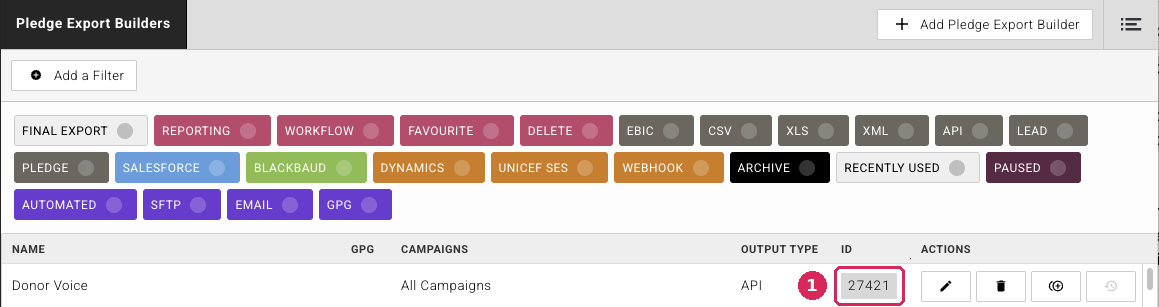
Go back to Export > Pledges. Your new exporter is in the list. Copy the number in its ID column. This is the Schema ID.
Step 6. Copy the Campaign ID
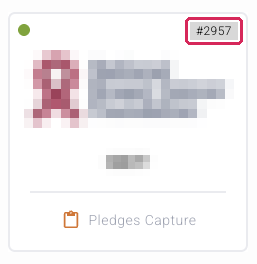
Go to Campaigns. Each campaign's card shows its ID at the top right, after the #. Copy the number for each campaign DonorVoice should receive.
Step 7. Create an API token
- Go to Account > API Tokens and create a new token.
- Name it after DonorVoice and the charity, for example
DonorVoice – [Charity name], so you know what to revoke later. - Give it only the permissions DonorVoice needs to read this exporter's data.
- Copy the token.
Step 8. Send the details to DonorVoice
Send your DonorVoice representative:
- the Schema ID
- the Campaign ID, or one for each campaign
- the API token
The Schema ID and Campaign ID aren't secret. The API token is: anyone who holds it can request the donor data this exporter returns. Send it through a secure channel, such as a password manager share or a one-time secret link, and never in a plain email, chat message or support ticket.
Once DonorVoice confirms they're connected, you're done.
How-to guides
Send DonorVoice another campaign
- Open the DonorVoice exporter and make sure the new campaign is included in Campaign Selection Type. Click Save Changes.
- Check that the new campaign's form asks the consent questions and DCS statements the schema relies on, in the same order.
- Copy the new campaign's ID from its card on the Campaigns page and send it to your DonorVoice representative.
You don't need a new API token.
Replace or revoke the API token
Do this when the relationship with DonorVoice ends, when someone who had the token leaves, or if the token may have been exposed.
- Go to Account > API Tokens and delete the DonorVoice token. DonorVoice can no longer use it to request data.
- If the integration should continue, create a new token as in Step 7 and send it securely.
Fix a column that shows (null)
(null) in the preview means the column's source has no value on your account. Select the column, set Source to a field that does hold the value, or to Blank with an Append String if the value is the same for every pledge, and click Save Changes. Check the preview again before you tell DonorVoice.
Send only some pledges
To limit what DonorVoice receives, for example to particular pledge statuses, expand Filter in the exporter settings and add a condition. Agree the rule with DonorVoice first, so they know why pledges they expect are missing.
Reference
Exporter settings
| Setting | Value |
|---|---|
| Name | Your choice, e.g. DonorVoice – [Charity name] – F2F |
| Tags | Optional. API and Pledge recommended |
| Type | Pledge |
| Campaign Selection Type | The campaigns DonorVoice should receive |
| Output Type | JSON API |
What DonorVoice needs
| Detail | Where to find it | Secret? |
|---|---|---|
| Schema ID | Export > Pledges, the exporter's ID column, e.g. 27421 |
No |
| Campaign ID | Campaigns, top right of the campaign card, e.g. #2957 |
No |
| API token | Account > API Tokens | Yes. Share securely |
Schema file format
schema-donorvoice.csv has three lines, which is what Import Columns reads:
- The column titles.
- The comment for each column.
- Each column's settings: source, transformations and any JavaScript.
Don't edit the file by hand. Make changes in the exporter after you import it.
Schema columns
"Maps from" describes where each column's value comes from after import.
| Column | Maps from | What to do |
|---|---|---|
donor_id |
Pledge ID | Pre-set. Must stay as the Evergiving pledge ID |
recruiting_organization_id |
Blank + Append String Agency Name |
Complete. Replace Agency Name with your agency name or ID, as agreed with DonorVoice |
recruiting_organization_division_id |
Office name | Check. Your office name. Blank if your account doesn't use offices |
recruitment_internalreference |
Blank | Optional. Any other internal ID you want to match back on |
recruitment_campaigncode |
Blank | Complete. The campaign code agreed between the agency and the charity |
recruitment_contract_amount_currency |
Currency locale | Complete. Check the preview. If it shows (null), use Blank + Append String with the currency code, e.g. AUD |
recruitment_contract_amount_initial |
Original amount | Pre-set. Amount per payment, e.g. 12.50 |
recruitment_contract_bank_name |
Blank | Leave blank. Bank details are not sent |
recruitment_contract_bankaccount |
Blank | Leave blank. Bank details are not sent |
recruitment_contract_cancellation |
Blank | Optional. Leave blank unless agreed with DonorVoice |
recruitment_contract_end_date |
Blank | Optional. Leave blank unless agreed with DonorVoice |
recruitment_contract_frequency_unit |
JavaScript: pledge frequency in lowercase, e.g. monthly, one_time |
Pre-set |
recruitment_contract_paymentmethod |
Blank | Complete. How the donor pays, e.g. direct_debit, credit_card |
recruitment_contract_reference_id |
Pledge ID | Check. Change if the charity's CRM or payment processor has its own ID for the giving contract |
recruitment_contract_start_date |
Blank | Optional. Leave blank unless agreed with DonorVoice |
recruitment_contract_type |
JavaScript: recurring or oneoff, from the pledge frequency |
Pre-set |
recruitment_contract_validated |
Blank | Optional. Leave blank unless agreed with DonorVoice |
recruitment_contract_validateddate |
Blank | Optional. Leave blank unless agreed with DonorVoice |
recruitment_customcoding1 to recruitment_customcoding10 |
Blank | Optional. Custom codes agreed between the agency and the charity, e.g. a segment code |
recruitment_date |
Pledge created date, formatted YYYY-MM-DD |
Pre-set. Sign-up date |
recruitment_donor_birth_date |
Supporter date of birth, formatted YYYY-MM-DD |
Pre-set |
recruitment_donor_city |
Primary address city | Pre-set |
recruitment_donor_country |
Blank | Complete. 2-letter ISO country code, e.g. AU, GB, US |
recruitment_donor_email |
Supporter email | Pre-set |
recruitment_donor_first_name |
Supporter first name | Pre-set |
recruitment_donor_gender |
Supporter gender | Pre-set |
recruitment_donor_language |
Blank | Optional. Leave blank unless agreed with DonorVoice |
recruitment_donor_last_name |
Supporter last name | Pre-set |
recruitment_donor_mobile1 |
Supporter mobile phone | Pre-set |
recruitment_donor_mobile2 |
Blank | Optional. Leave blank unless agreed with DonorVoice |
recruitment_donor_postal_code |
Primary address postcode | Pre-set |
recruitment_donor_provincestate |
Primary address state | Pre-set |
recruitment_donor_street |
Primary address line 1 | Pre-set |
recruitment_donor_telephone1 |
Supporter phone | Pre-set |
recruitment_donor_telephone2 |
Blank | Optional. Leave blank unless agreed with DonorVoice |
recruitment_donor_title |
Supporter title | Pre-set |
recruitment_donor_type |
JavaScript: individual |
Pre-set |
recruitment_followup |
Blank | Optional. Leave blank unless agreed with DonorVoice |
recruitment_interests |
Supporter interests | Pre-set. Blank if your form doesn't ask |
recruitment_isdonor |
Blank | Optional. Leave blank unless agreed with DonorVoice |
recruitment_location |
Team labels | Check. Your team labels should describe where the recruitment happened (not the donor's address) |
recruitment_location_geo |
Blank | Optional. Leave blank unless agreed with DonorVoice |
recruitment_newsletter |
Blank | Complete. Map to the matching consent question on your form, output as Y or N. Y only with an explicit opt-in |
recruitment_notes |
Blank | Optional. Leave blank unless agreed with DonorVoice |
recruitment_optin_email |
Blank | Complete. Map to the matching consent question on your form, output as Y or N. Y only with an explicit opt-in |
recruitment_optin_mail |
Blank | Complete. Map to the matching consent question on your form, output as Y or N. Y only with an explicit opt-in |
recruitment_optin_phone |
Blank | Complete. Map to the matching consent question on your form, output as Y or N. Y only with an explicit opt-in |
recruitment_optin_sms |
Blank | Complete. Map to the matching consent question on your form, output as Y or N. Y only with an explicit opt-in |
recruitment_recruiter_id |
Fundraiser code | Pre-set |
recruitment_recruiter_name |
Fundraiser full name | Pre-set |
recruitment_resultcode |
Blank | Leave blank. Mainly for telephone |
recruitment_resultcode_custom |
Blank | Leave blank. Mainly for telephone |
recruitment_signupdata_pitchversion |
Blank | Optional. Leave blank unless agreed with DonorVoice |
recruitment_teamlead_id |
Blank | Optional. Leave blank unless agreed with DonorVoice |
recruitment_teamlead_name |
Blank | Optional. Leave blank unless agreed with DonorVoice |
recruitment_type |
Blank | Complete. e.g. door, street, shopping centre, event |
recruitment_typemain |
JavaScript: F2F |
Check. Change to TM for telephone campaigns |
recruitment_dcs_statement1 |
JavaScript: answer to survey question 1, with 1 appended |
Check. Survey question 1 on your form must be DCS statement 1 |
recruitment_dcs_statement2 |
JavaScript: answer to survey question 2, with 5 appended |
Check. Survey question 2 on your form must be DCS statement 2 |
recruitment_dcs_statement3 |
JavaScript: answer to survey question 3, with 10 appended |
Check. Survey question 3 on your form must be DCS statement 3 |
Good to know
- Don't rename columns. DonorVoice matches data on the column titles. A renamed column arrives as a field DonorVoice doesn't recognise.
- Survey order matters. The DCS columns read survey questions by position, not by name. Adding a survey question ahead of the DCS statements on the form shifts every answer into the wrong column.
- Opt-ins must be real. A
Yin an opt-in column tells the charity it may contact the donor that way. Only sendYwhere the donor actively opted in on the form. - Bank details stay in Evergiving. The bank name and account columns are in DonorVoice's format but are deliberately left blank. Keep them that way.
- One token per integration. A token used only by DonorVoice can be revoked without affecting anything else that uses the Evergiving API.
- Where the data goes. DonorVoice works across several countries. Check with DonorVoice and the charity where donor data will be stored and processed, and that this is covered in the charity's privacy notice.