How to block custom card BINs on a campaign
Evergiving rejects cards from a global list of invalid BINs on every fundraiser form. If a campaign needs to go further — to stop a new card range, say, or an issuer whose cards decline at a high rate — you can give that campaign its own block list. Cards beginning with a blocked BIN are rejected on the fundraiser form before a pledge is captured.
A BIN (Bank Identification Number, also called an IIN) is the first six digits of a card number. It identifies the issuing bank and the card's type and level.
Before you start
- You need a role that can edit the campaign's General Settings.
- You need the six-digit BIN of each card range you want to block.
- The block list is per campaign. Blocking a BIN here does not affect any other campaign.
Note Changes to the block list take effect immediately. They are not affected by the Save Changes button at the top of the General Settings page.
Open the campaign's block list
- Go to Campaigns and open the campaign.
- Open Overview → General Settings.
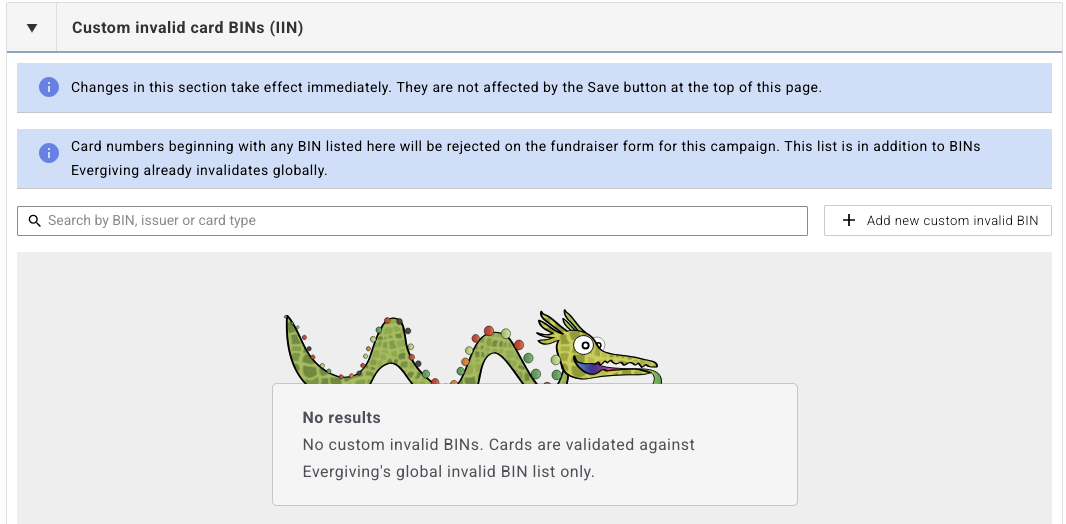
- Scroll to the bottom of the page to the Custom invalid card BINs (IIN) section.
If nothing has been blocked yet, the table shows No custom invalid BINs. Cards are validated against Evergiving's global invalid BIN list only.
Add a BIN to the block list
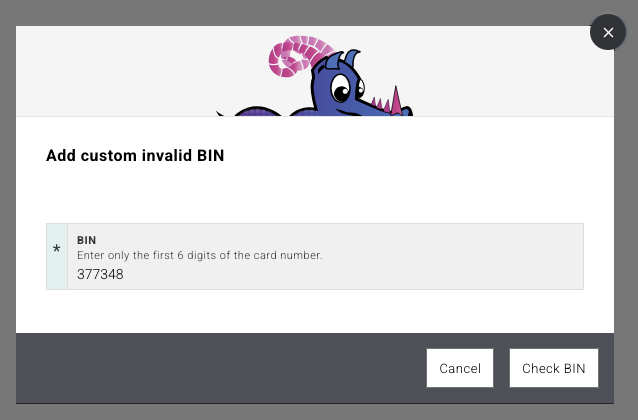
- Click Add new custom invalid BIN.
- In the BIN field, enter the first six digits of the card number. The field accepts digits only, and Check BIN stays disabled until you have entered exactly six.
-
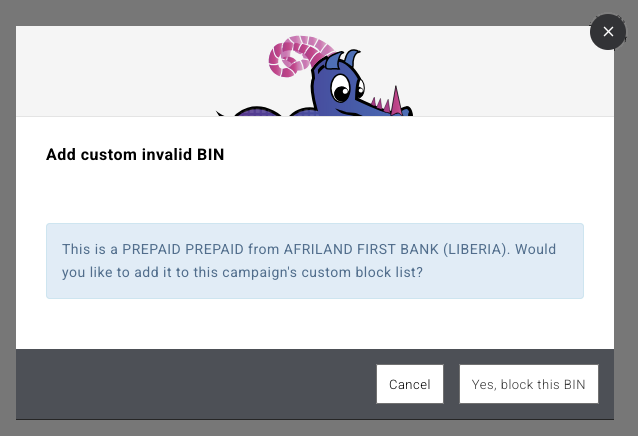
Click Check BIN. Evergiving looks the BIN up against its global invalid list, this campaign's list and its BIN reference database, then shows one of the following:
- The BIN is recognised and not yet blocked. Evergiving shows the card level, card type and issuer, and asks Would you like to add it to this campaign's custom block list? Check that the details match the card range you mean to block, then click Yes, block this BIN.
-
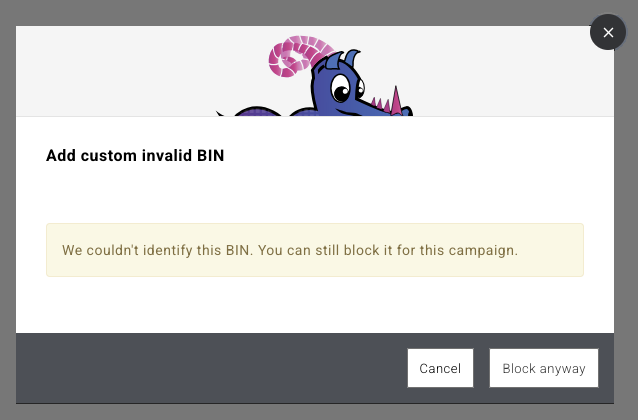
The BIN is not in the reference database. Evergiving shows We couldn't identify this BIN. You can still block it for this campaign. Check you have typed the digits correctly, then click Block anyway. The BIN is added with Unknown card level, type and issuer.
-
The BIN is already invalid across Evergiving, or already on this campaign's list. There is nothing to add. Click Close.
-
The BIN appears in the table and a message confirms it was added. Cards beginning with that BIN are now rejected on the campaign's fundraiser forms.
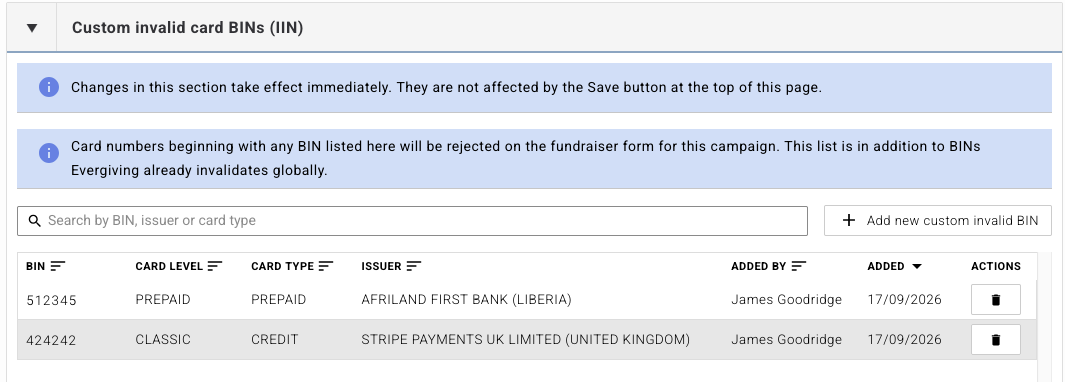
BINs are added one at a time. Repeat these steps for each BIN you want to block.
Find a BIN in the list
- Type in the Search by BIN, issuer or card type field to filter the table as you type. The search matches the BIN, card level, card type and issuer columns.
- Click a column heading to sort by that column.
Remove a BIN from the block list
- Find the BIN's row in the table.
- Click the delete icon in the Actions column.
- Confirm the removal.
Cards beginning with that BIN are accepted on the campaign's fundraiser forms again immediately, unless the BIN is on Evergiving's global invalid list.
What fundraisers see
When a donor's card number begins with a blocked BIN, the card fails validation on the fundraiser form and the pledge cannot be captured with that card. This is the same behaviour as for a card on Evergiving's global invalid BIN list, and it applies to every fundraiser form for the campaign. Fundraisers should ask the donor for another card.
Things to note
- The campaign block list adds to Evergiving's global invalid BIN list. It cannot be used to allow a BIN that is invalid globally.
- A BIN identifies one card range from one issuer, not a card type. Blocking one prepaid BIN does not block all prepaid cards — add each BIN you want blocked.
- Only the six-digit BIN is stored. A BIN on its own is not cardholder data, and the field will not accept more than six digits. Never enter any more of a card number than the first six.
- Every addition and removal is logged with the BIN, campaign, user and time. The Added by and Added columns show who added each BIN and when, in the campaign's timezone.