Fundraiser callback
This guide covers how to set up and use the fundraiser callback feature, which allows fundraisers to save a pledge without bank details and complete the donation later by calling the donor back.
Tip: Fundraisers can skip ahead to Part 2: My Callbacks — Part 1 is for Admin Ops users only.
Part 1: Admin setup
For Admin Ops users
Complete the following steps before fundraisers can use the callback feature.
Step 1 — Enable the callback feature
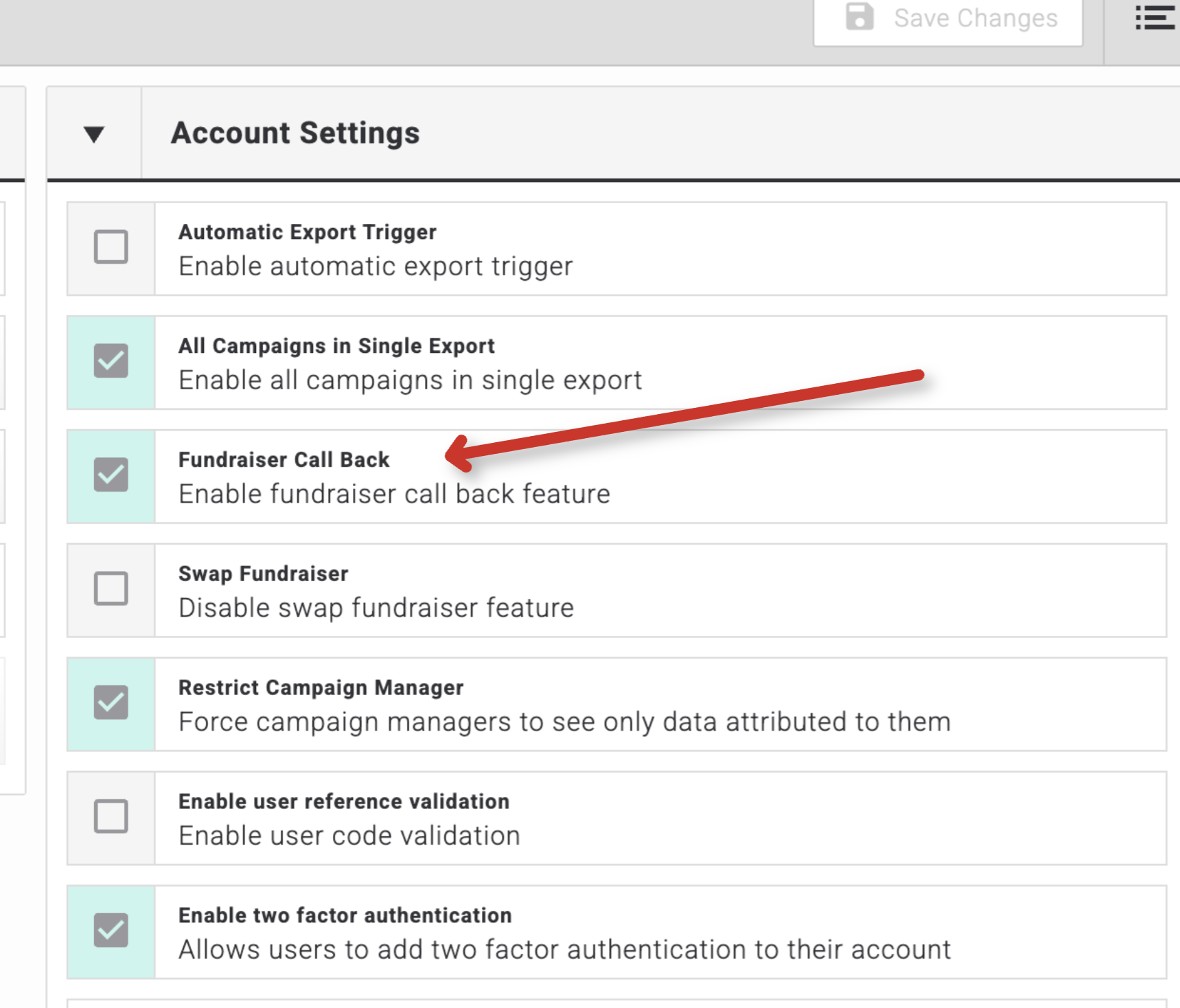
- Go to Account Settings.
- Locate the Fundraiser Call Back option and enable it.
Step 2 — Configure a validation outcome
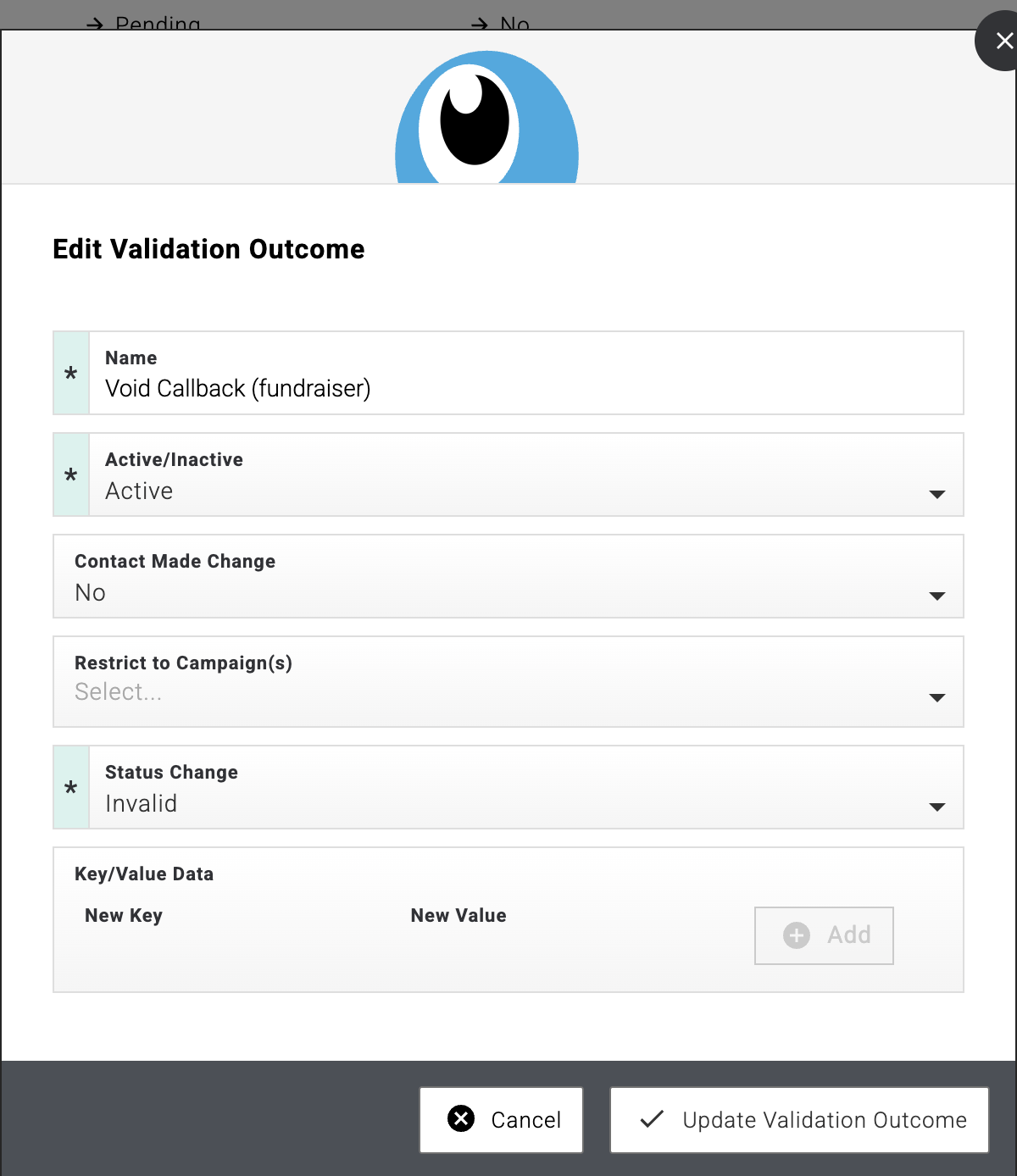
A validation outcome determines what happens to a pledge when a fundraiser voids an unsuccessful callback. Set this up before fundraisers begin using the feature.
- Navigate to Donors, then select Validation Outcomes from the sub-menu.
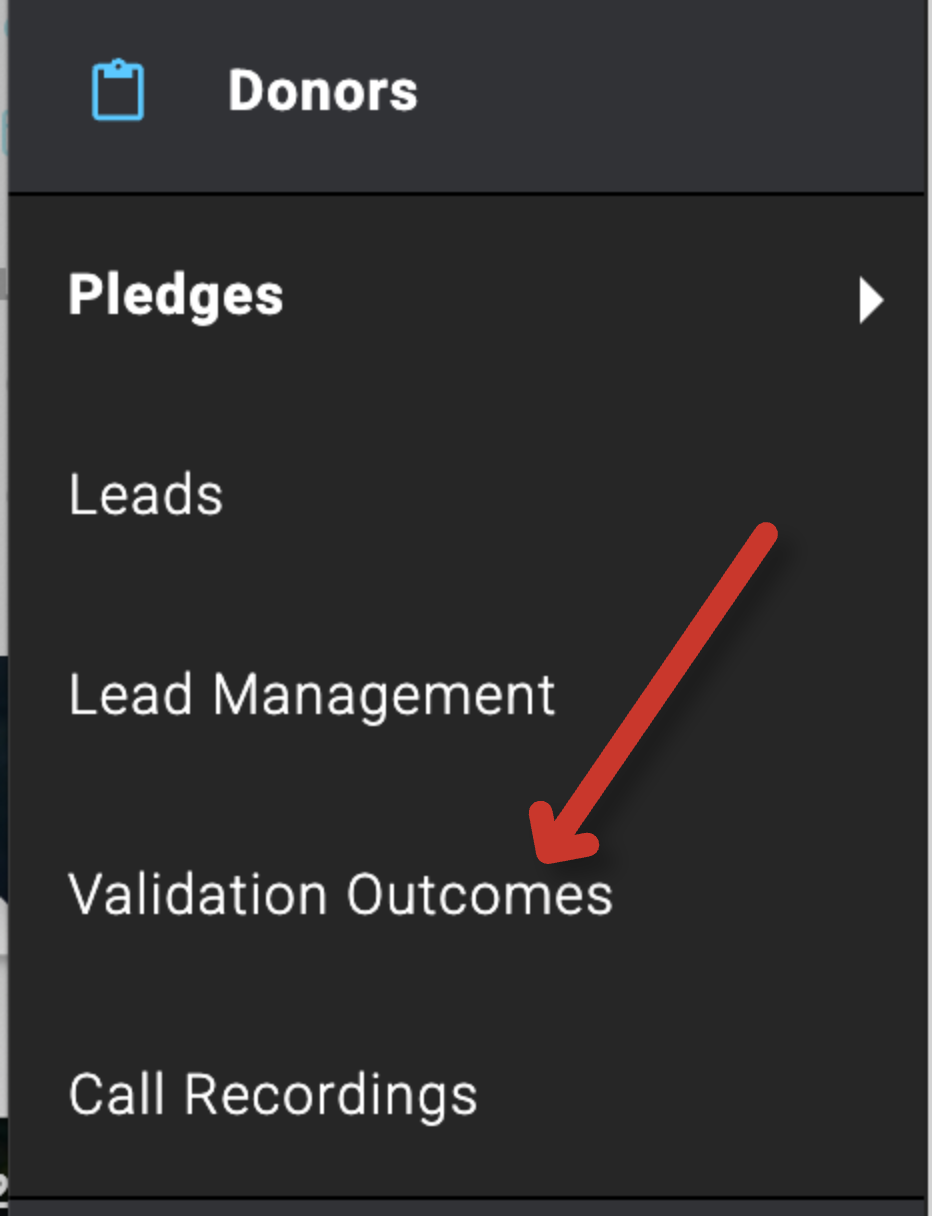
- Either add a new outcome (recommended) or select an existing outcome that invalidates the pledge.
- Note the name of the outcome you have selected — you will need this in Step 3.
Step 3 — Contact Evergiving support
Once you have configured your validation outcome, contact the Evergiving support team so they can assign it to your campaign.
Action required: Email support@evergiving.com with the name of the validation outcome you have set up. Evergiving will then link it to your campaign so that voided callbacks are handled correctly.
Part 2: My Callbacks — fundraiser workflow
For fundraisers
Once the callback feature is enabled on your campaign, you can save a pledge without bank details and return to complete it later.
Saving a pledge for callback
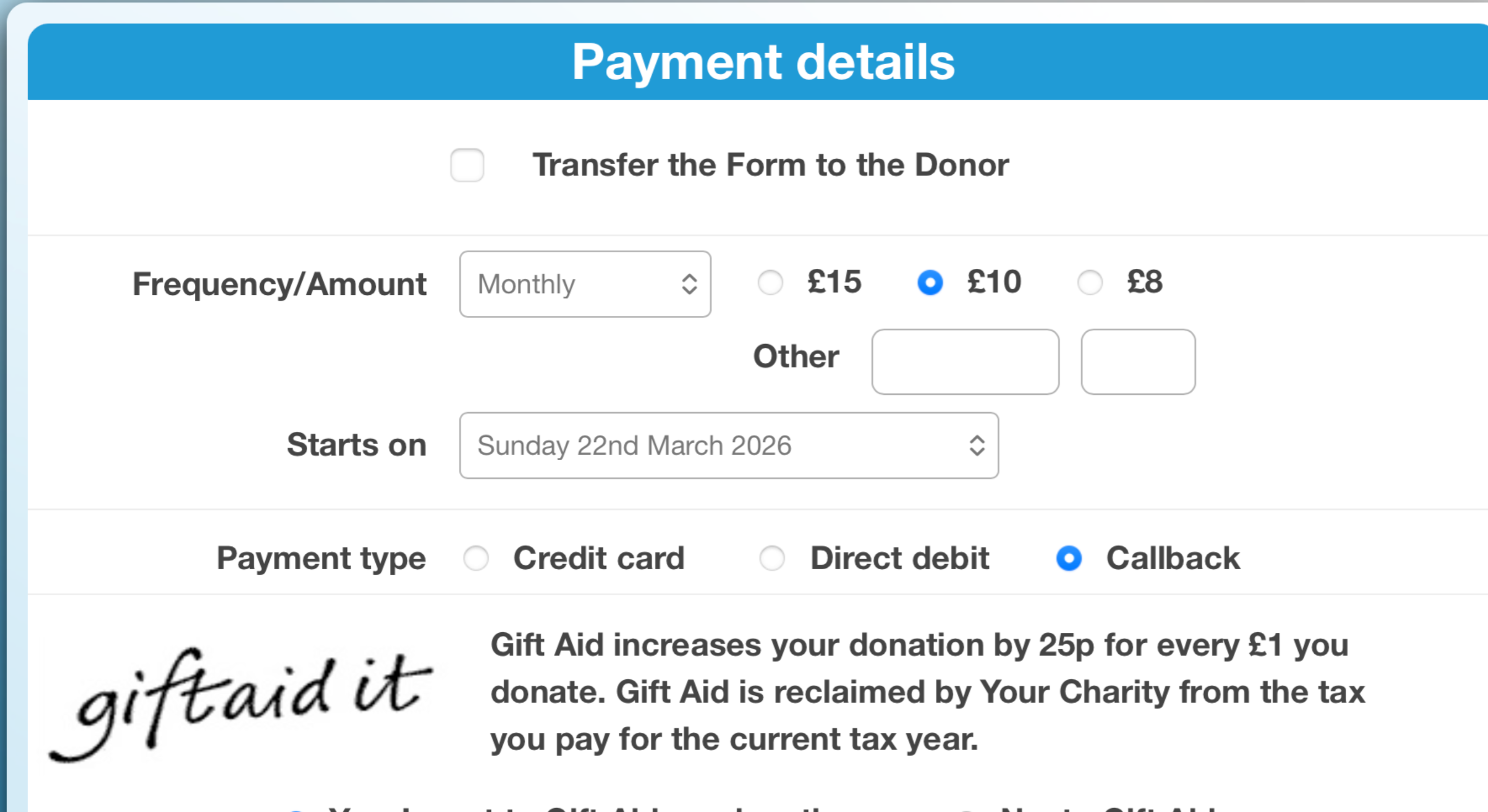
- On the payment details form, set Payment type to Callback. This allows the pledge to be saved without bank details.
Accessing your callbacks
Once you have saved one or more callback pledges, you can manage them from the My Call Backs section.
- Tap the settings icon in the top-right corner of the screen.
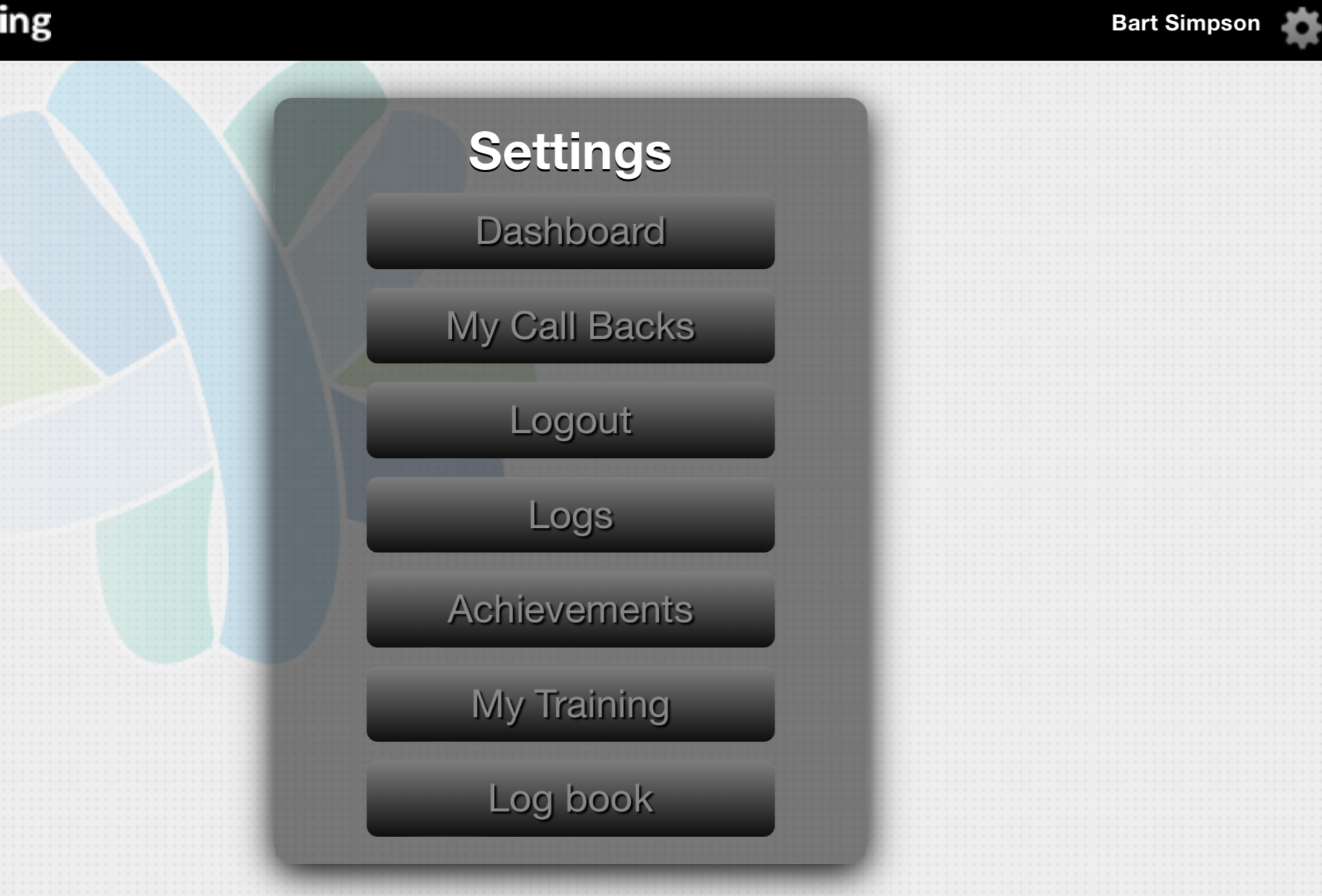
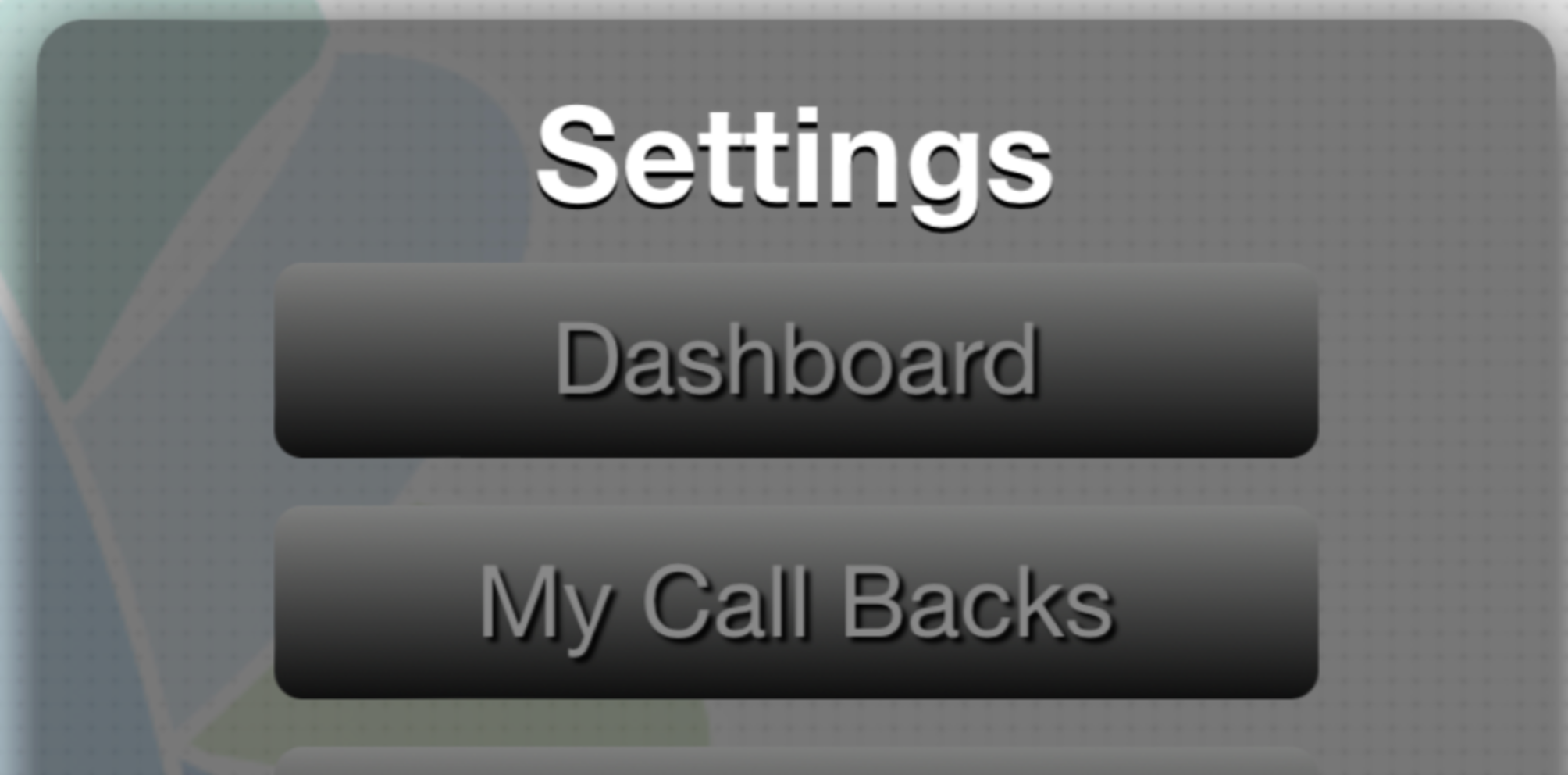
- Tap My Call Backs.
- Tap Refresh to load the latest list of callbacks.
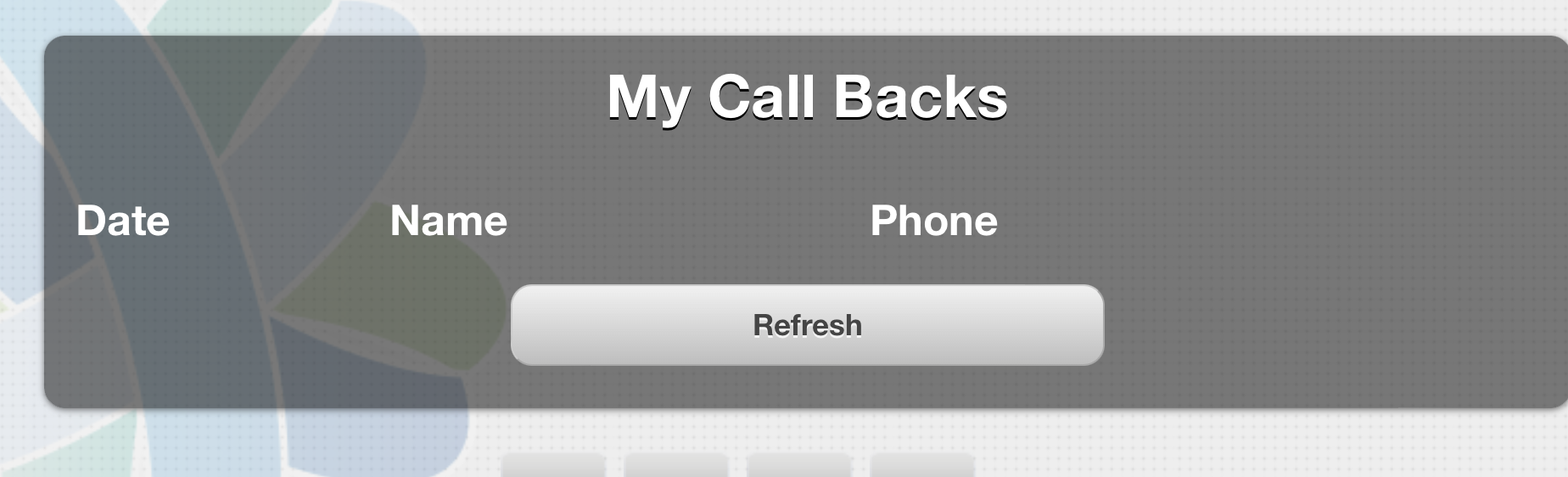
- Your pending callbacks will appear in the list.
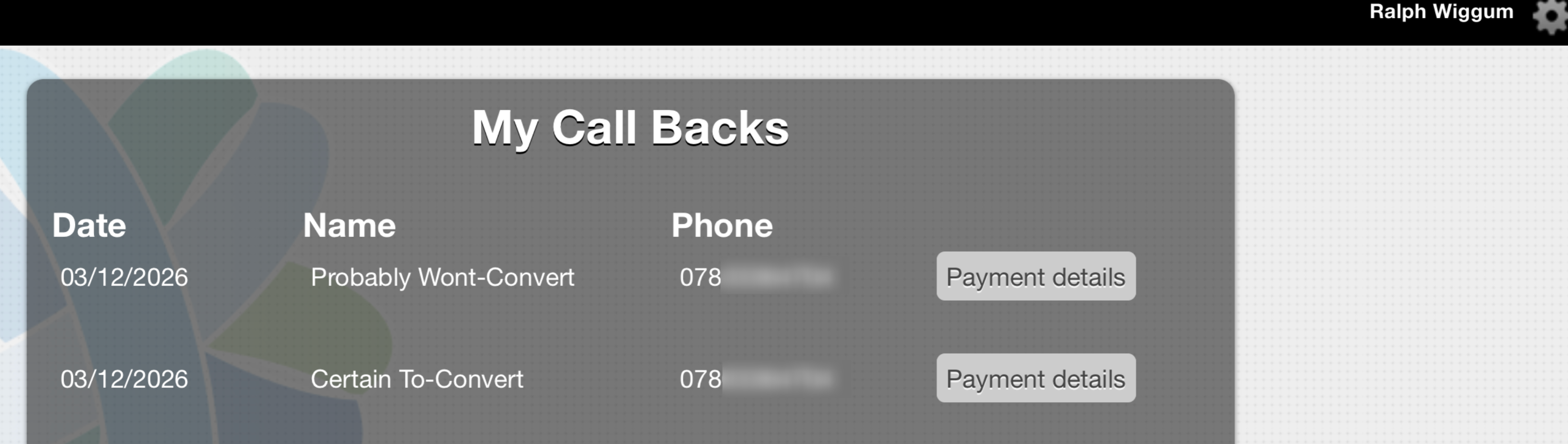
Successful callback
When you reach the donor and they wish to proceed with their donation:
- Call the donor.
- Tap Payment details next to their record.
- Enter their bank details and tap Submit to complete the pledge.
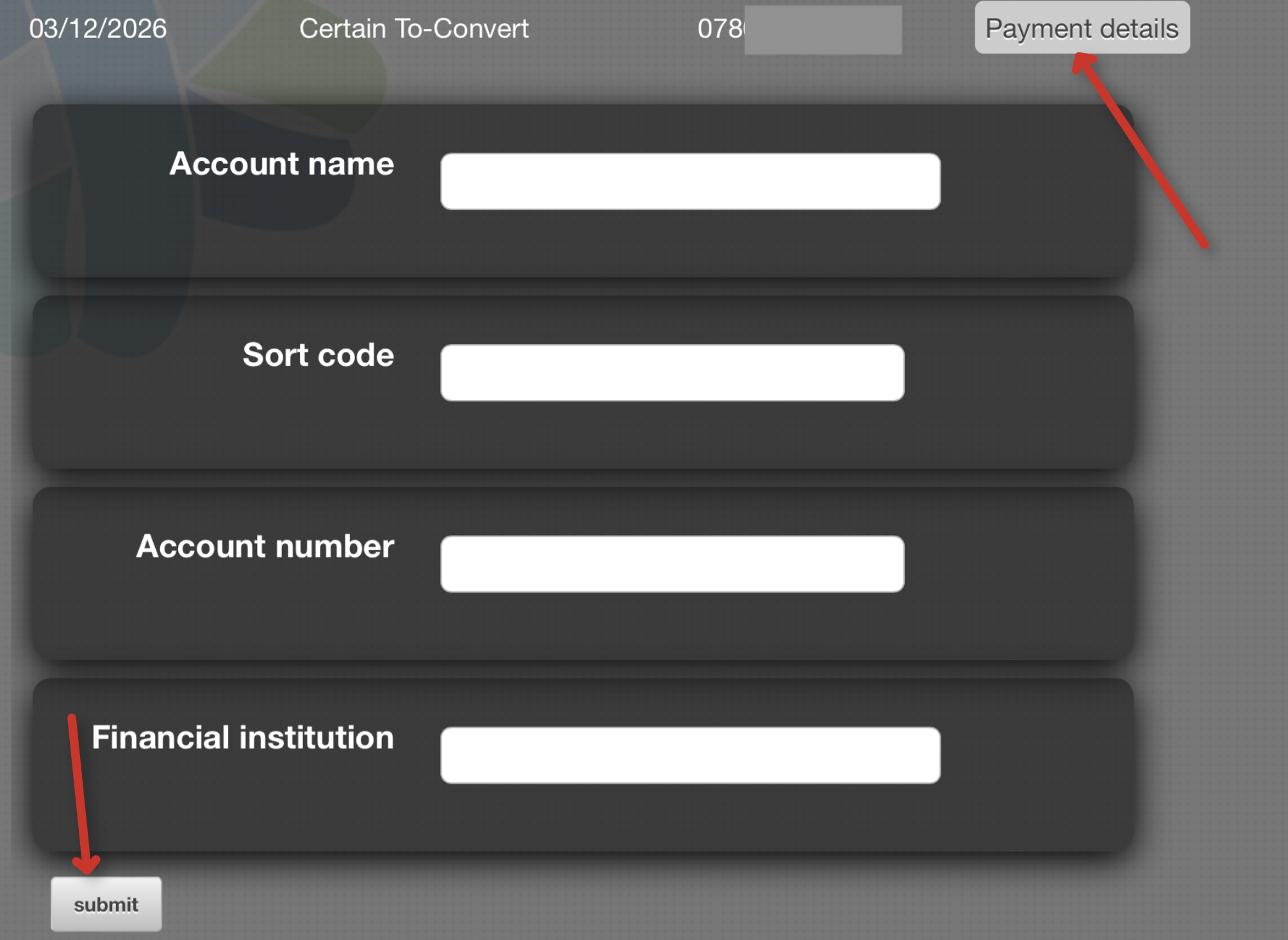
Once submitted, the pledge will be removed from your My Call Backs list.
Unsuccessful callback
If you are unable to reach the donor, or the donor decides not to continue, you must void the pledge. This removes it from your My Call Backs list and applies the correct outcome to the record.
- Open the callback from your list and tap Submit.
- When the confirmation box appears, type
Void Pledgeand tap OK.
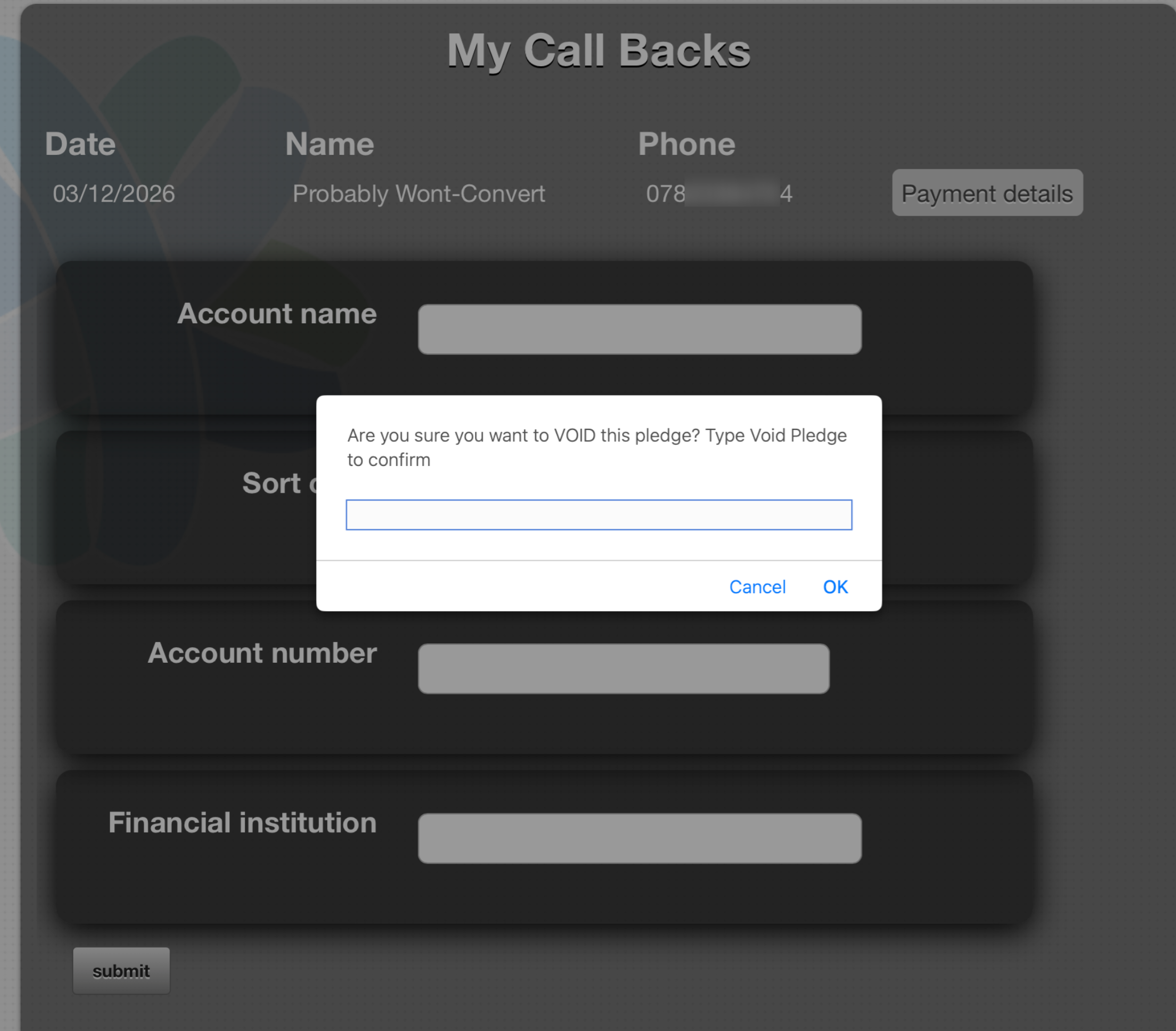
The pledge will be removed from your My Call Backs list and marked as unsuccessful.
Part 3: Pledge overview
For Admin Ops users
After fundraisers have completed their callbacks, you can review the outcomes in the Donors overview section.
Unsuccessful callbacks will display the unsuccessful validation outcome and will be set to invalid status, as configured in Step 2.
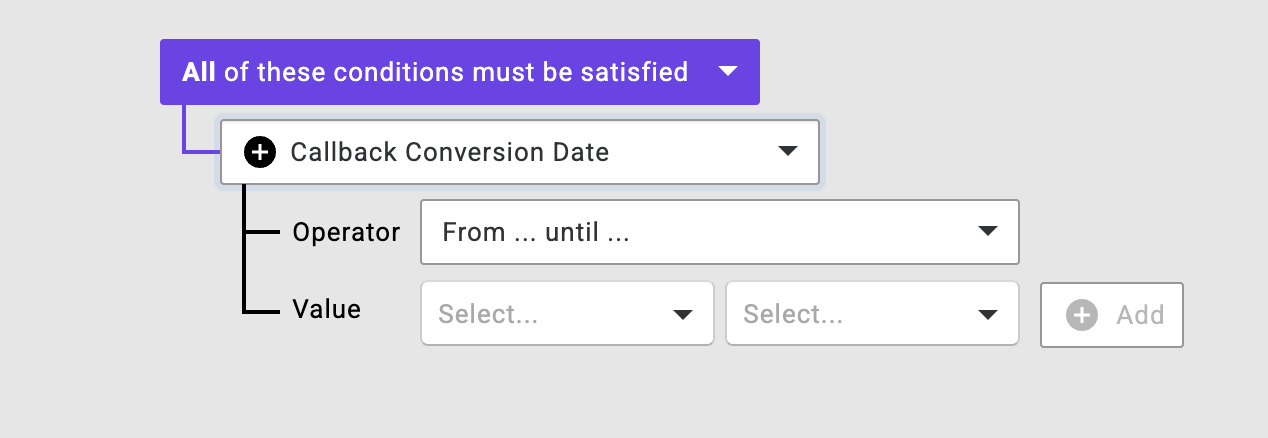
Pledges from converted callbacks can be filtered in the donors overview by their converted callback date.