Remove duplicate child profiles before importing
Before importing child profiles, check your import file against the children already in Evergiving so you only upload new records. This guide covers exporting your existing child profiles, using a lookup in Excel to find codes that already exist, and saving a clean file ready to import.
Export your existing child profiles
- Go to Children in the main menu to open the Children Management screen.
-
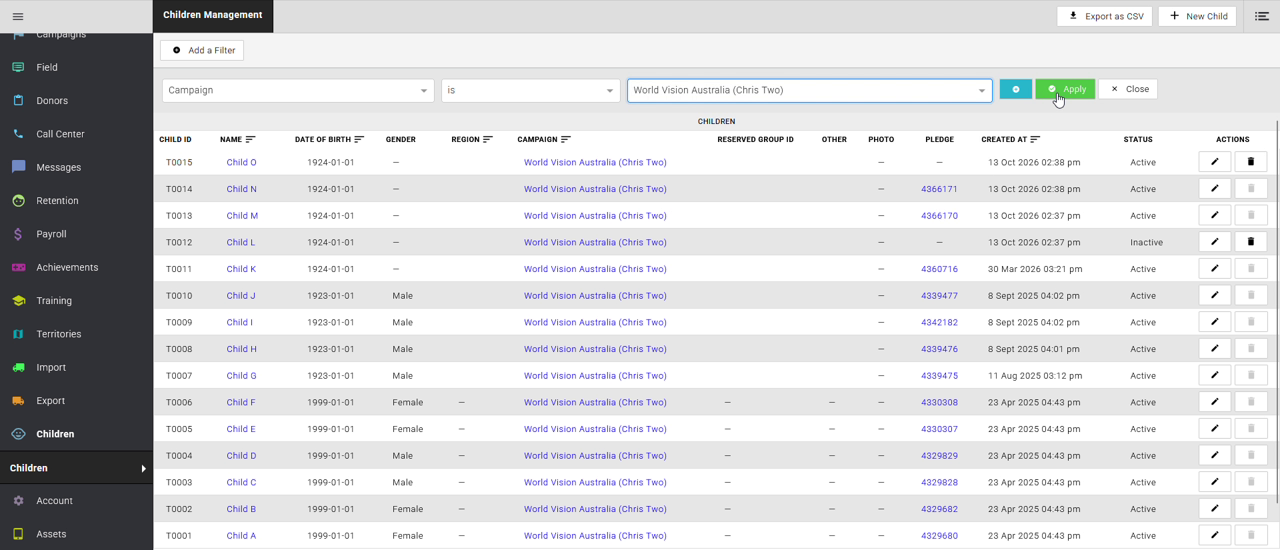
Click Add a Filter, set the filter to Campaign is, select the campaign you're importing children for, then click Apply.
-
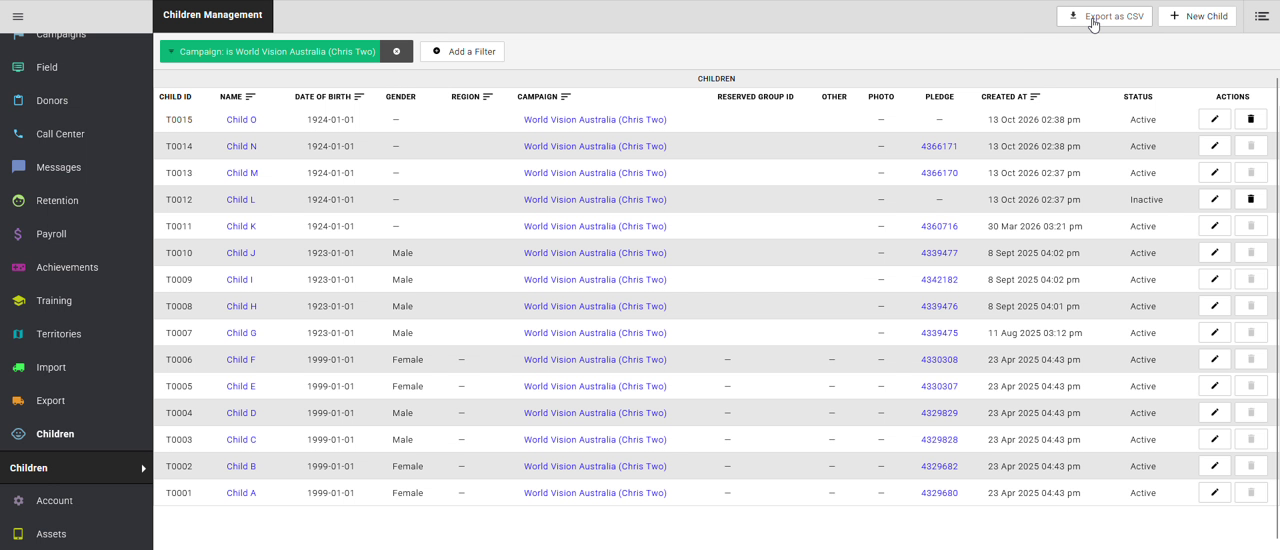
Click Export as CSV in the top right. The file downloads to your computer as a CSV, for example `children.csv`.
-
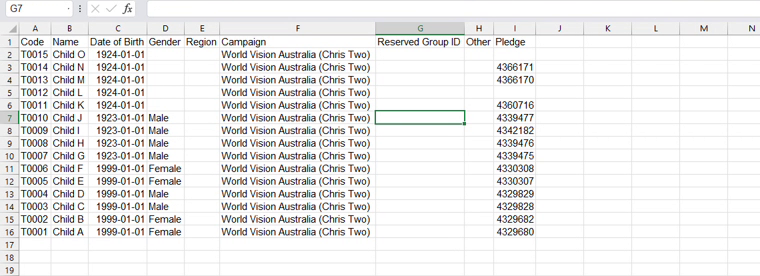
Open the downloaded file in Excel. It lists every child in the campaign, with the Code in column A and the Pledge in column I.
Check your import file for existing codes
-
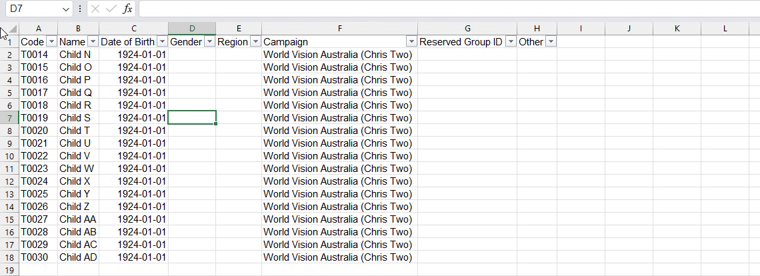
Open your import file in Excel, keeping the export file open as well. Your import file uses the same columns as the export, apart from Pledge.
-
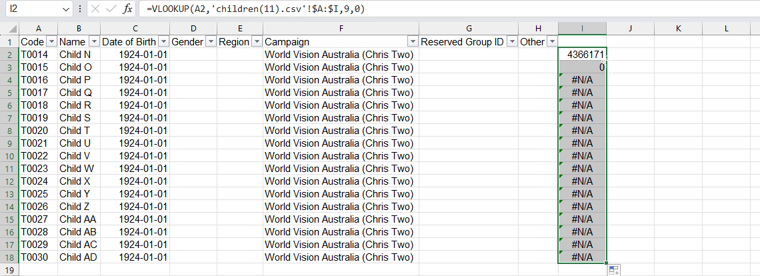
In the first empty column next to your data (column I in this example), click the cell in row 2 and type `=VLOOKUP(A2,`
-
Switch to the export file and select columns A to I, then type `,9,0)` and press Enter. The finished formula looks like this:
`=VLOOKUP(A2,'children.csv'!A:I,9,0)`
-
Copy the formula down to the last row of your data.
-
Review the results in the lookup column:
- A pledge number means the child already exists in Evergiving and is linked to a pledge.
0means the child already exists in Evergiving but isn't linked to a pledge.#N/Ameans the child code is new.
Tip
If your browser added a number to the export file name, such as `children(11).csv`, the formula needs to use that name. Selecting the columns with your mouse in step 3 fills in the correct file name for you.
Clean up and save
- Delete every row that returned a pledge number or `0`. These children are already in Evergiving.
- Delete the lookup column so the file only contains the import columns.
-
Save the file under a new name, for example `ExampleImport_Updated`, so you keep a copy of the original.
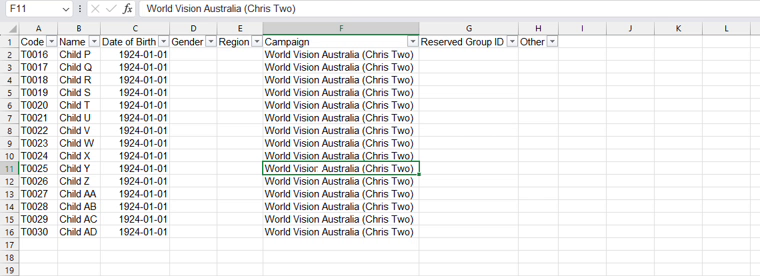
You've exported your existing child profiles, checked your import file against them and removed any children already in Evergiving. Your file now contains only new child profiles and is ready to import.