Remove duplicate child profiles in Excel before importing
Before importing child profiles, check your import file against the children already in Evergiving so you only upload new records. This guide covers exporting your existing child profiles, using Excel's duplicate highlighting to find children that already exist, and saving a clean file ready to import.
Export your existing child profiles
- Go to Children in the main menu to open the Children Management screen.
-
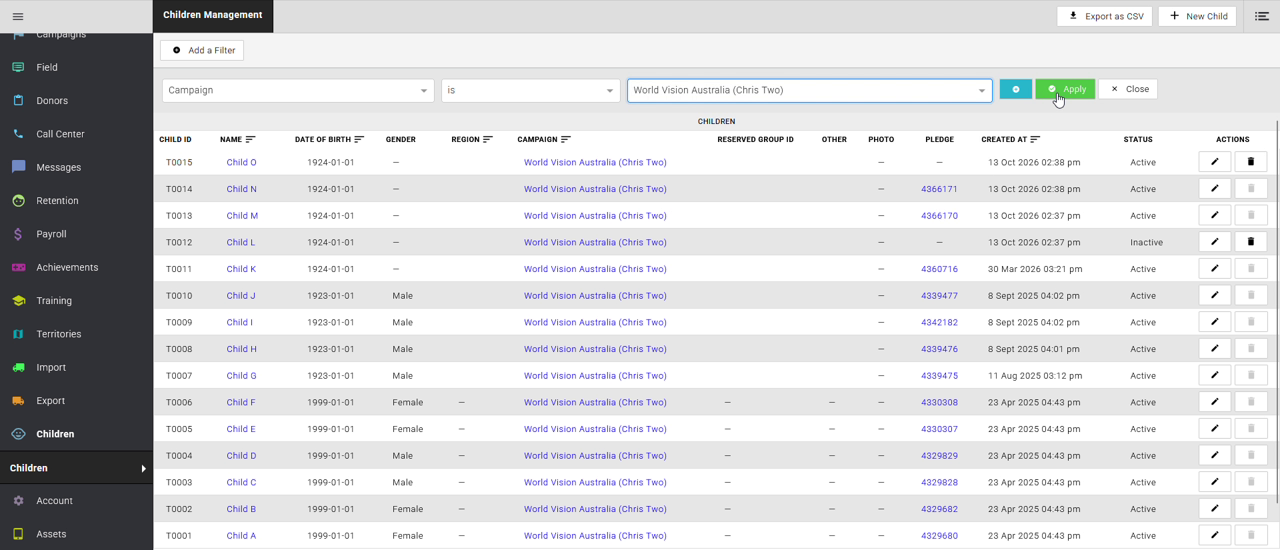
Click Add a Filter, set the filter to Campaign is, select the campaign you're importing children for, then click Apply.
-
Click Export as CSV in the top right. The file downloads to your computer as a CSV, for example
children.csv.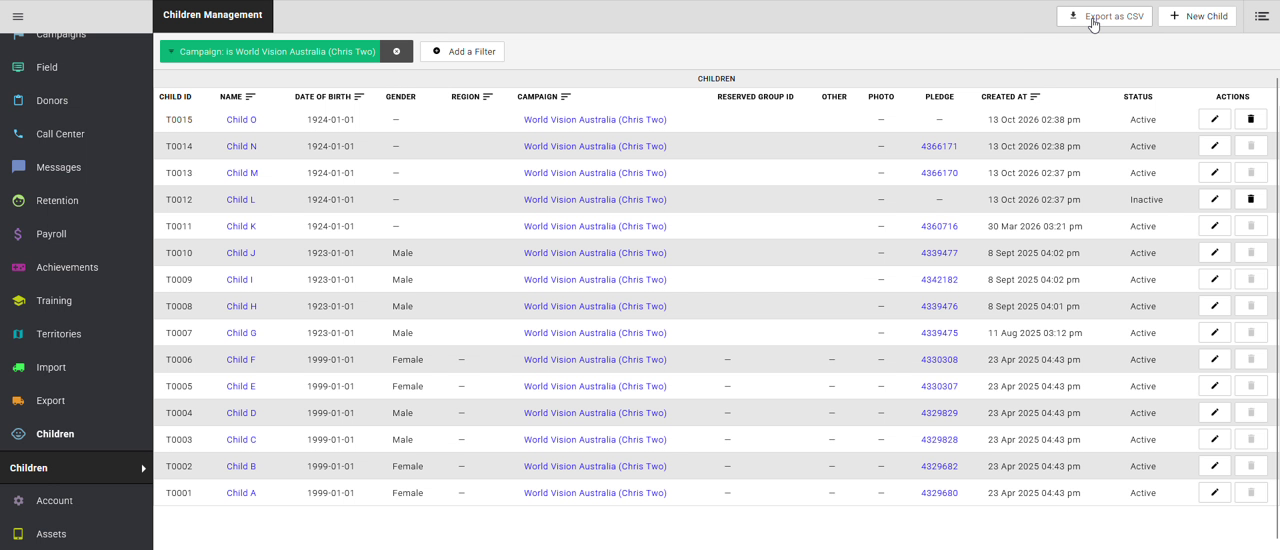
-
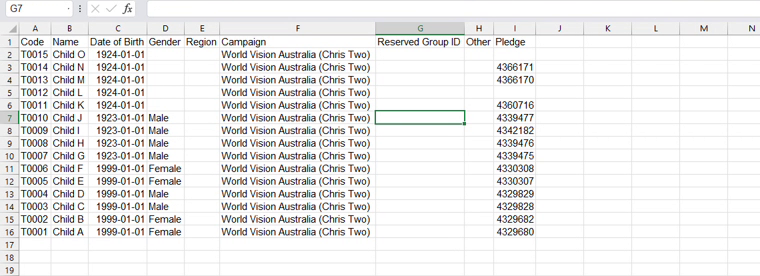
Open the downloaded file in Excel. It lists every child in the campaign, with their Code in column A.
Add the existing codes to your import file
-
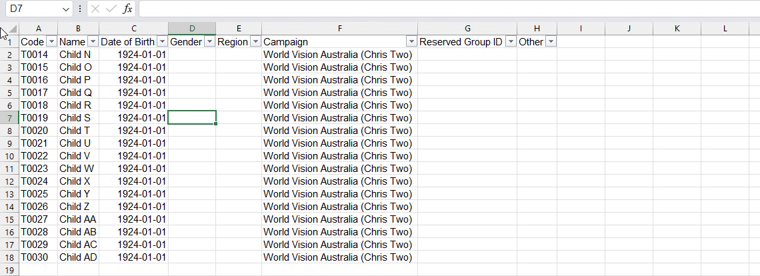
Open your import file in Excel, keeping the export file open as well.
-
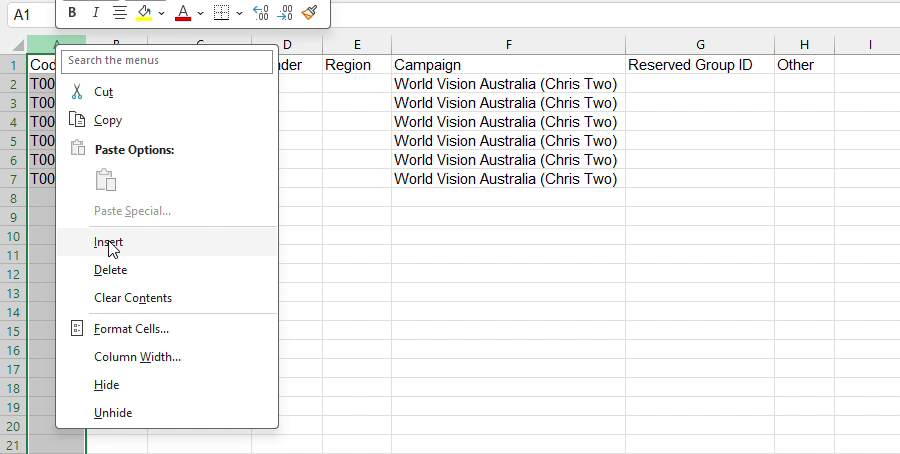
Right-click the column A heading and select Insert. A blank column appears at the start and your data moves one column to the right.
-
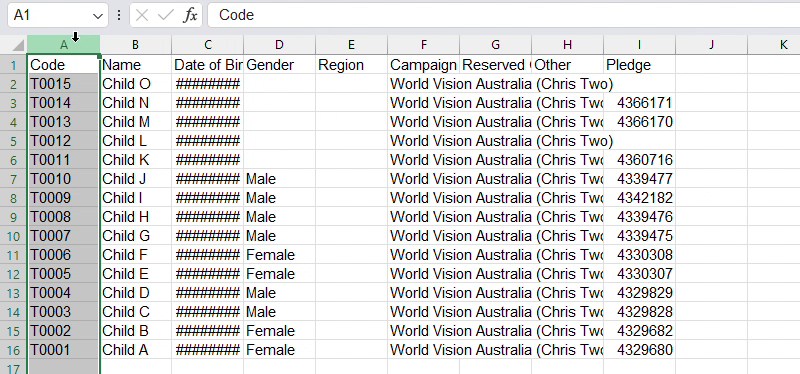
Switch to the export file. Click the column A heading to select the whole Code column, then press Ctrl + C (Cmd + C on a Mac) to copy it.
-
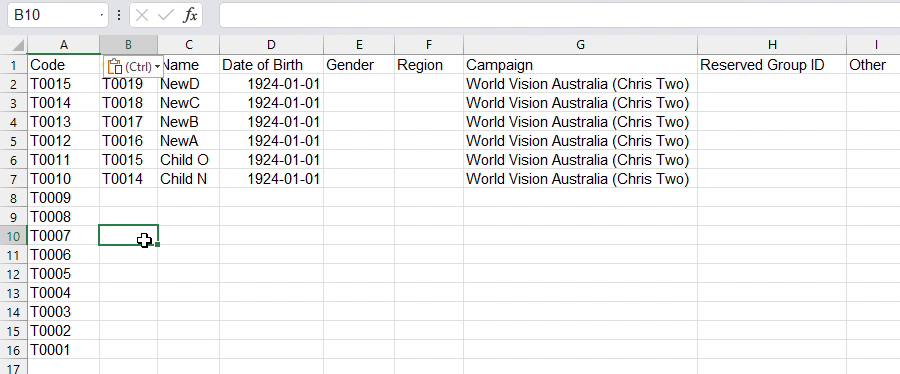
Switch back to your import file. Click the column A heading, then press Ctrl + V (Cmd + V on a Mac) to paste.
Column A now lists the codes already in Evergiving, and column B lists the codes in your import file.
Highlight the duplicates
-
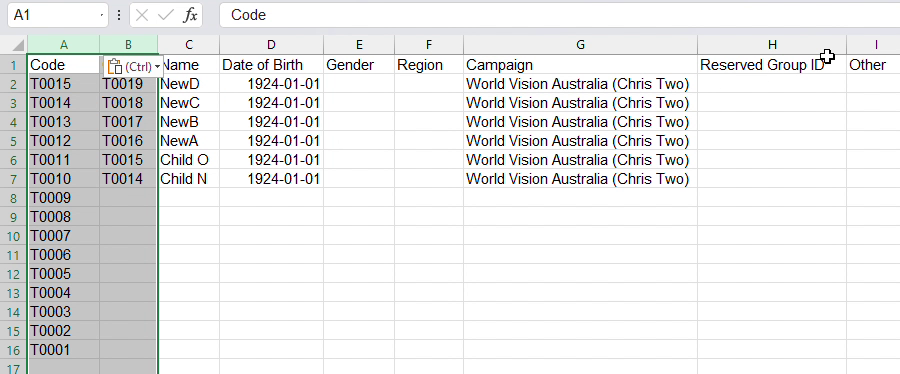
Click the column A heading, then hold Shift and click the column B heading to select both columns.
-
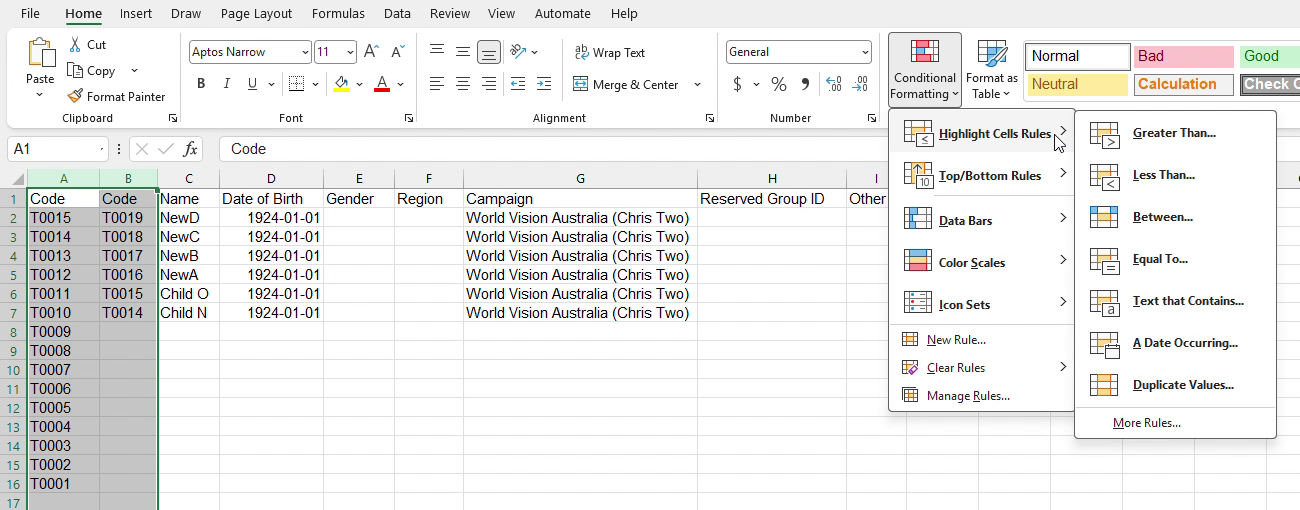
On the Home tab, click Conditional Formatting > Highlight Cells Rules > Duplicate Values.
-
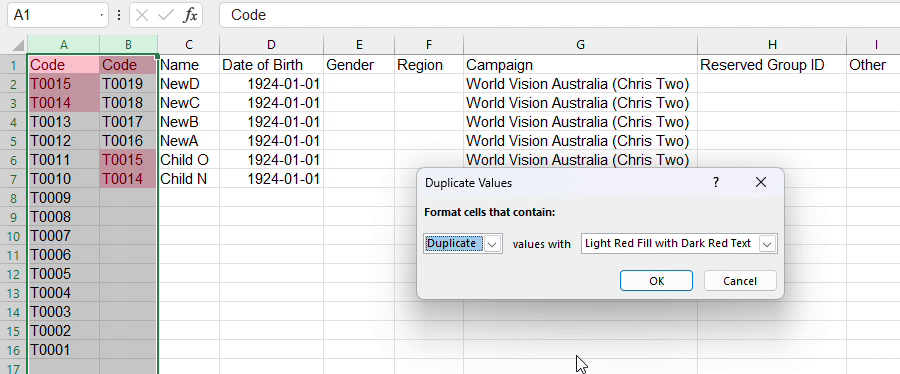
In the window that opens, leave the settings as Duplicate values with Light Red Fill with Dark Red Text, then click OK.
-
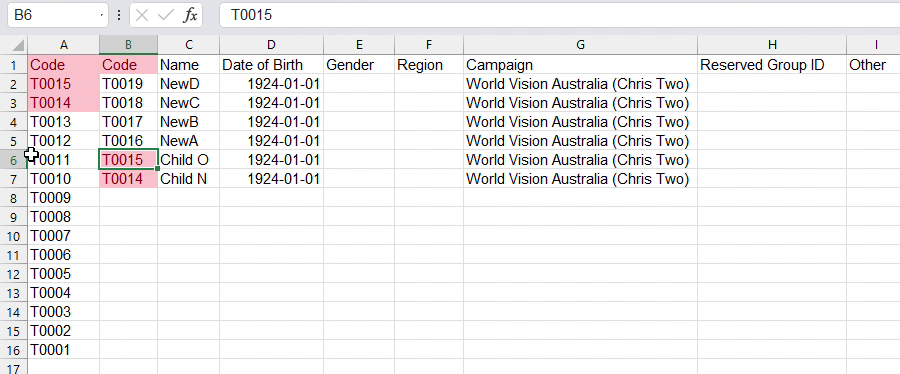
Look for red codes in column B. Each one is a child in your import file who already exists in Evergiving.
Warning
Only use the red codes in column B to decide which rows to remove. The codes in column A won't line up with your import rows. In the example, T0015 is red in row 2 of column A, but row 2 is a new child that needs to stay.
Tip
The Code heading in row 1 is also highlighted because both columns share the same heading. You can ignore it.
Remove the duplicates and save
-
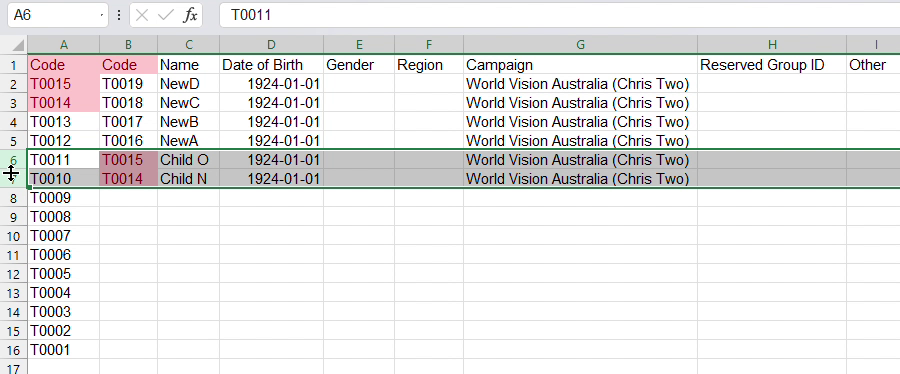
Click the row number of each row where the code in column B is red. To select more than one row, hold Ctrl (Cmd on a Mac) as you click.
-
Right-click one of the selected row numbers and select Delete.
-
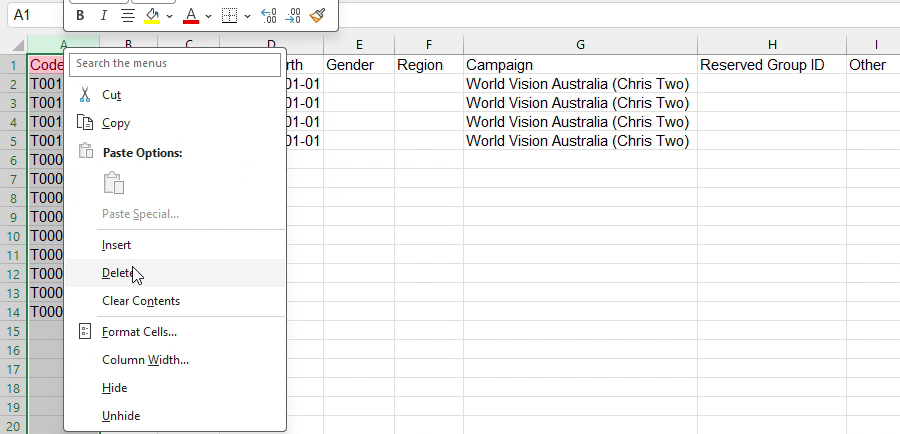
Right-click the column A heading and select Delete. This removes the codes you copied from the export and returns your import file to its original columns.
-
Go to File > Save As. Enter a new file name, then click Save.
Your import file now contains only new child profiles.
You've exported your existing child profiles, found the children already in Evergiving and removed them from your import file. Your file is ready to import.