Confirmation of Payee (Bank Account Name Verification)
Check that the name a donor gives matches the name on their bank account, while the fundraiser is still with them. Confirmation of Payee is a paid integration that you add to a campaign, switch on, and limit so it can't be misused.

Overview
- What is Confirmation of Payee?
- Tutorial: add Confirmation of Payee to a campaign
- United Kingdom
- How-to guides
- Good to know
What is Confirmation of Payee?
Confirmation of Payee is a name-checking service run by the banks. When a fundraiser enters a donor's account name and bank details on the donation form, Evergiving asks the donor's bank whether that name matches the name it holds for the account. The answer comes back in seconds and appears on the form.
This helps you:
- Catch mistakes at sign-up. A mistyped name or account number is fixed while the donor is still there, instead of surfacing later as a failed payment.
- Deter fake sign-ups. Bank details that belong to someone else, or to nobody, are flagged straight away.
- See quality by fundraiser. Every result is stored against the fundraiser who made the request, so you can report on it.
Each check is a paid request. A request is made when a fundraiser enters a name and bank details, and again each time they change any of those values. One pledge can therefore generate several requests, and every request is charged.
Limits protect you from misuse. Without limits, a fundraiser could enter name after name against an account to see which one matches. That costs you money and misuses a service meant for genuine sign-ups. You control this with a daily limit, and you choose which responses count towards it.
Countries. The service that loads depends on the country of the campaign you choose. The United Kingdom is available now. More countries will be added, each with its own section in this article.
Tutorial: add Confirmation of Payee to a campaign
You need access to Campaigns to follow these steps. Adding the integration does not switch it on, and nothing is charged until you make it active.
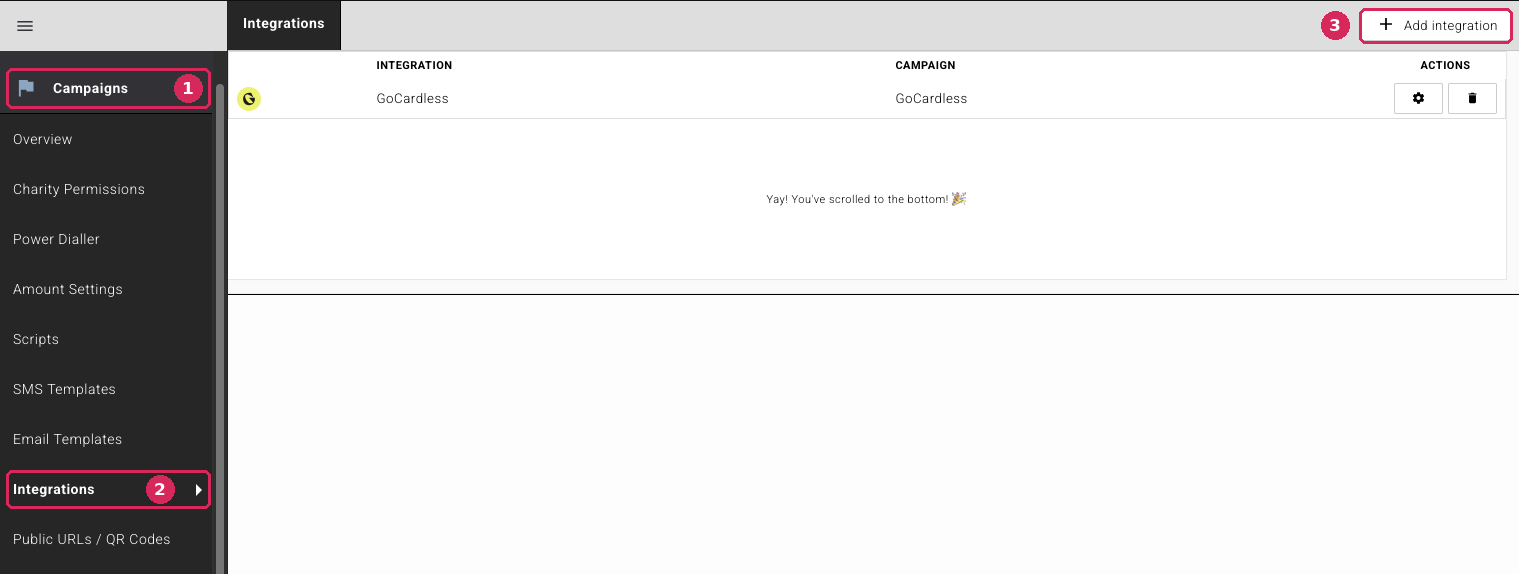
- Go to Campaigns (1), then Integrations (2).
-
Select Add integration (3), top right.
-
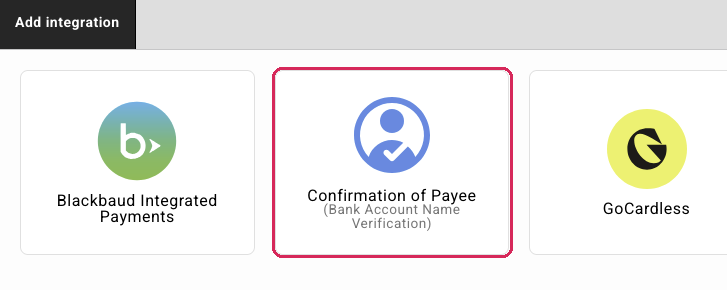
Select Confirmation of Payee (Bank Account Name Verification).
-
In Campaign (1), choose the campaign you want to check bank details on, then select Add (2).
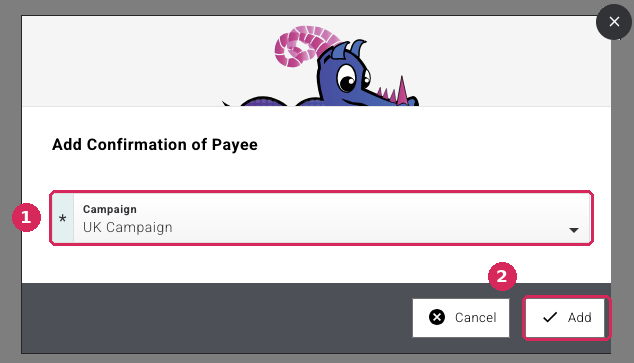
The Integration settings page opens for the service that matches the campaign's country. Continue in the section for that country.
United Kingdom
Choosing a UK campaign loads the UK Confirmation of Payee service. It checks the account holder's name against a UK sort code and account number.
Turn on the UK service
-
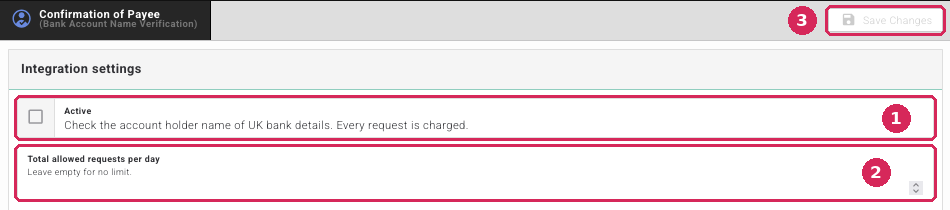
On the Integration settings page, tick Active (1).
-
Read the Enable Confirmation of Payee? message, then select Enable to accept it.
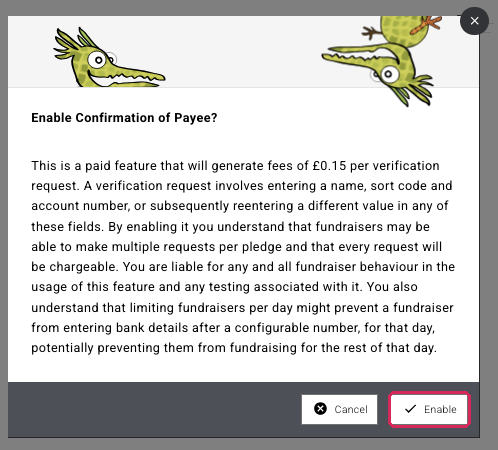
By selecting Enable you accept that:
- Each verification request costs £0.15.
- A request is made when a fundraiser enters a name, sort code and account number, and again whenever they re-enter a different value in any of those fields.
- Fundraisers may make several requests for one pledge, and every request is charged.
- You are liable for how your fundraisers use the feature, including any testing.
- A daily limit can stop a fundraiser entering bank details once they reach it, which may stop them fundraising for the rest of that day.
-
Set your limits, starting with Total allowed requests per day (2). See Set the recommended limits.
- Select Save Changes (3), top right.
Warning
Charges start as soon as the integration is active and saved. Set your limits before you save.
How the daily limits work
Three settings work together:
| Setting | What it does |
|---|---|
| Total allowed requests per day | The number of requests each fundraiser can make in a day. Leave it empty for no limit |
| Response code checkboxes | A ticked code counts towards the total. An unticked code doesn't |
| [Code] requests per day that don't count towards the total | Appears when you untick a code. Sets how many requests with that response each fundraiser can make per day without them counting. The field label shows the range you can enter |
Every code is ticked to begin with, so every response counts towards the total.
When a fundraiser reaches the total, they can't enter bank details for the rest of that day.
Set the recommended limits
We recommend that full and partial matches don't count towards the total, and that everything else does. An honest fundraiser signing up real donors then works without restriction, while a fundraiser entering guesses runs out of requests quickly.
- In Total allowed requests per day (1), enter the number of unwanted responses you will accept from one fundraiser in a day. Allow enough for genuine typing mistakes.
- Untick MATC – Full Match and MBAM – Partial Match (2).
- In the field that appears under each one (3), enter how many requests with that response don't count towards the total.
- Leave the other codes ticked.
- Select Save Changes.
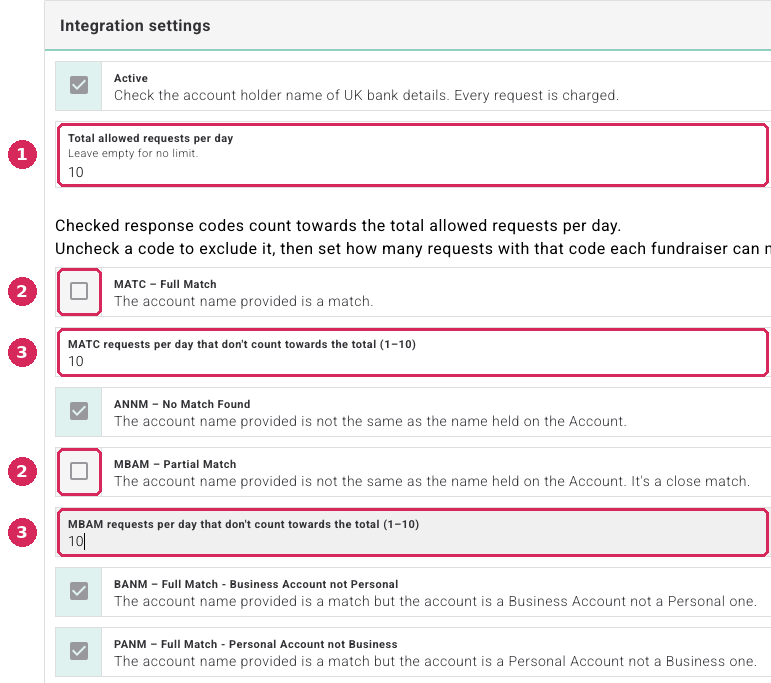
In this example, each fundraiser can receive up to 10 full matches and 10 partial matches a day without using any of the total. Every other response, such as No Match Found, uses one of the 10 in the total.
Tip
You can exclude any other code in the same way. For example, the technical error codes at the end of the list aren't caused by the fundraiser.
What fundraisers see
On the donation form, the fundraiser enters the Account name, Sort code and Account number as usual. The result of the check appears next to the bank details, for example Full match for payer name.
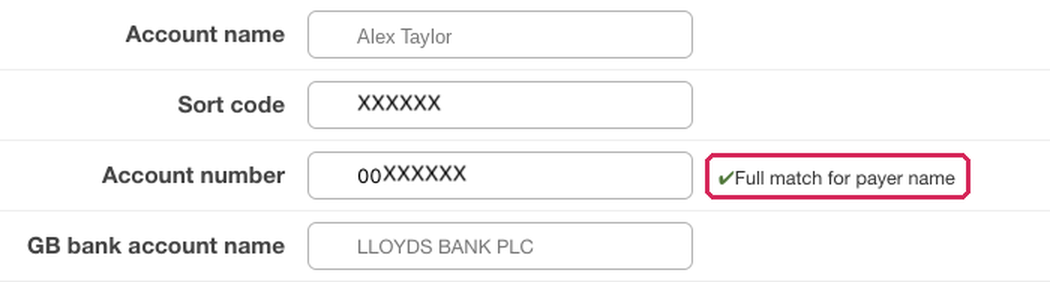
If the result isn't a match, the fundraiser can check the details with the donor and correct them. Each correction is a new request.
UK response codes
These are the responses the UK service can return. Each one has a checkbox on the Integration settings page.
| Code | Response | Meaning | Type |
|---|---|---|---|
MATC |
Full Match | The account name provided is a match | Match |
MBAM |
Partial Match | The account name provided is not the same as the name held on the account. It's a close match | Close match |
BANM |
Full Match – Business Account not Personal | The account name provided is a match but the account is a business account, not a personal one | Match, wrong account type |
PANM |
Full Match – Personal Account not Business | The account name provided is a match but the account is a personal account, not a business one | Match, wrong account type |
BAMM |
Partial Match – Business Account not Personal | This is a business account, not a personal one. The account name provided is not the same. It's a close match | Close match, wrong account type |
PAMM |
Partial Match – Personal Account not Business | This is a personal account, not a business one. The account name provided is not the same. It's a close match | Close match, wrong account type |
ANNM |
No Match Found | The account name provided is not the same as the name held on the account | No match |
AC01 |
Account Number Not Found | The account details supplied do not exist | No match |
IVCR |
Reference Not Found | The secondary reference details supplied were not found | Couldn't check |
SECMISS |
Secondary Reference Missing | The account needs a secondary reference before the name can be checked | Couldn't check |
ACNS |
Account Does Not Support CoP Check | The type of account is not supported for Confirmation of Payee checks | Couldn't check |
OPTO |
Match Unavailable – Customer Opted Out | The account holder has opted out of the Confirmation of Payee scheme | Couldn't check |
CASS |
Match Unavailable – Account Switched using CASS | The account has been switched to another bank. Ask the donor for their updated account details | Couldn't check |
SCNS |
Sort Code Not Found | The sort code could not be found, or the request reached a bank that does not own the sort code | Couldn't check |
NOROUTE |
Unable to find a Participant Bank | No participating bank could be found to handle the request | Couldn't check |
FOURHUN |
400 Error Occurred | Unable to check the name. Try again later | Technical error |
HTTPERR |
HTTP Error occurred | Unable to check the name. Try again later | Technical error |
TOOMANY |
Too Many Requests | Too many requests to partner banks. Try again later | Technical error |
UK charges
| Item | Detail |
|---|---|
| Fee | £0.15 per verification request |
| What counts as a request | Entering a name, sort code and account number, or re-entering a different value in any of those fields |
| Requests per pledge | No fixed number. Every request is charged |
How-to guides
Change the settings or turn the service off
- Go to Campaigns > Integrations.
-
On the Confirmation of Payee row, select the settings button (1).

-
Change the limits, or untick Active to stop checks and charges.
- Select Save Changes.
Remove the integration from a campaign
- Go to Campaigns > Integrations.
- On the Confirmation of Payee row, select the delete button (2).
To pause checks without losing your settings, untick Active instead.
Report on results
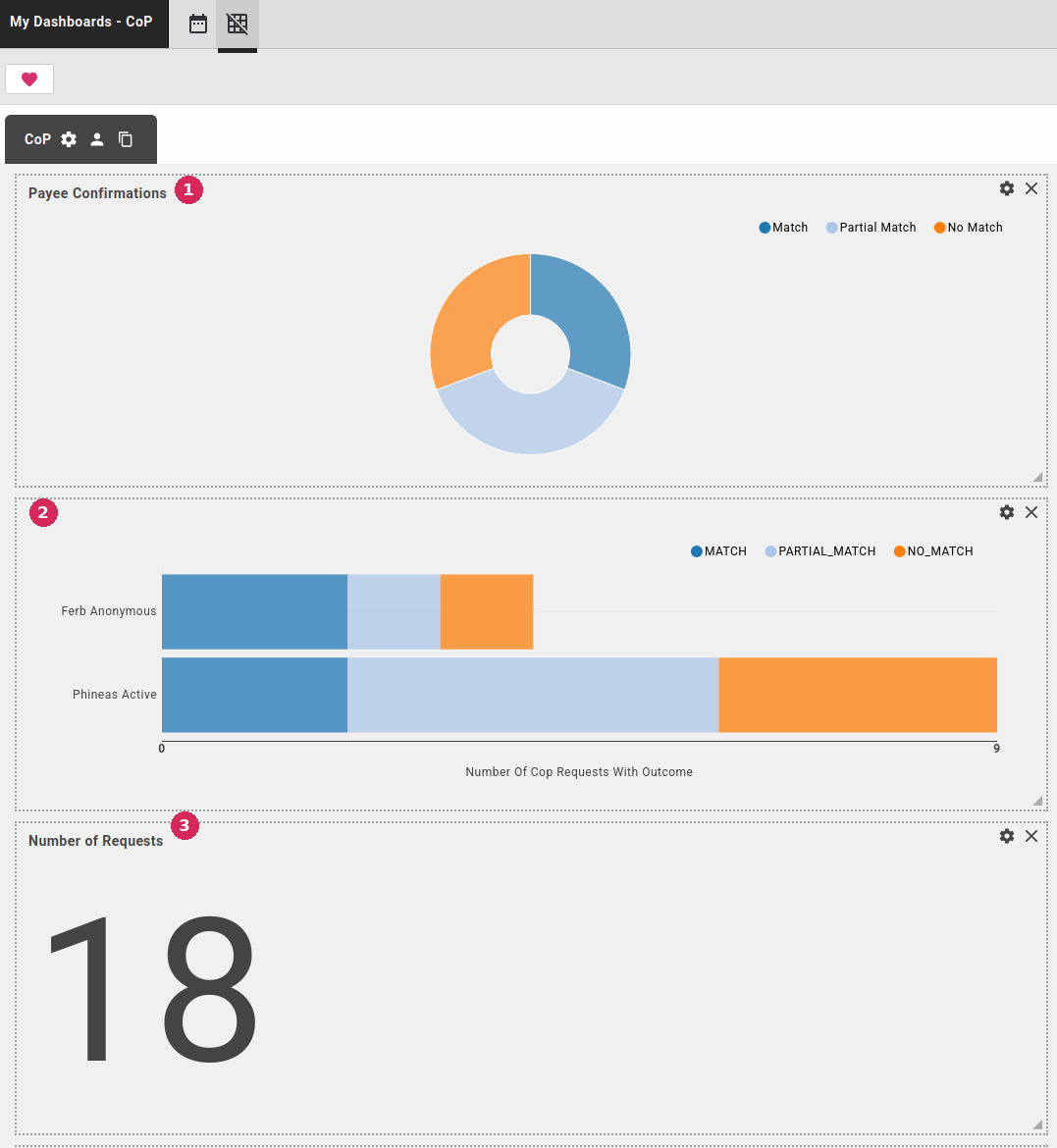
Each request is stored with its result and the fundraiser who made it, so you can chart it in Dashboards. Useful charts include:
- Results by outcome. The share of requests that were a match, a partial match or no match.
- Results by fundraiser. The number of requests each fundraiser made, split by outcome. A fundraiser with far more partial matches or no matches than their colleagues is worth a conversation.
- Number of requests. The total for the period. Multiply by the fee to estimate your charges.
Good to know
- Adding is not activating. The integration does nothing, and costs nothing, until Active is ticked and saved.
- Changes are charged too. Correcting a name, sort code or account number sends a new request. Encourage fundraisers to check details with the donor before typing.
- Testing is charged. Requests made while you test the feature are charged like any other.
- No limit means no ceiling on cost. If Total allowed requests per day is empty, there is no cap on the requests a fundraiser can make.
- A limit can stop a fundraiser working. Once a fundraiser reaches the total, they can't enter bank details for the rest of that day. Set the total high enough for genuine mistakes and low enough to stop guessing.
- Results are kept. Limits prevent misuse on the day. Reporting by fundraiser shows you patterns over time.
- A match confirms the name, not the donor. A full match tells you the name fits the account. It doesn't prove the person signing up is the account holder.
- One campaign at a time. The integration is added per campaign. Repeat the steps for each campaign you want to check bank details on.